Tutor LMS Review: What the Free Version Really Gets You (Hands-On Test)

Tested hands-on on our own WordPress install. We may earn a commission if you buy through links on this page. It never changes our verdict. How we test
We installed the free version of Tutor LMS on a clean WordPress site, built a paid course, bought it as a student, approved the payment and finished the course. This review is what we found: what the free plugin does well, what is locked behind Pro, and the small things that would trip you up on a real site.
The short verdict
- Who it suits: course creators who want a modern student area and a built-in checkout without installing WooCommerce.
- What’s free: a course builder, lessons with video, quizzes with four question types, a cart and checkout, PayPal, manual payments, orders and coupons.
- What isn’t: Stripe and other card gateways, certificates, assignments, content drip, free preview lessons, manual enrollment and automated emails all need Pro.
- Price of Pro: from $199 a year for one site, or $499 once for a lifetime license (checked October 4, 2026).
How we tested
- Versions: Tutor LMS 4.1.0, the free plugin from WordPress.org, on WordPress 7.1.2 and PHP 8.3, with the default Twenty Twenty-Five theme and no other plugins.
- Setup: a private test install on our own machine. We judged features and workflow, not speed: a local test site says nothing about how fast your hosting will be.
- What we did: built a $49 course with one topic, two lessons and a quiz; registered as a student; paid by bank transfer; marked the order as paid in the admin; then took the quiz and completed the course as the student.
- Follow-up check (October 17, 2026): on the same install, with Tutor’s Modern learning mode, we checked which pages load fonts from Google and tried two ways to stop it (see What students see).
- Independence: Themeum didn’t pay for this review or provide a license. We tested Tutor LMS before we joined its affiliate program on October 7, 2026: the link to Tutor’s pricing page is an affiliate link, and the verdict hasn’t changed.
Building a course
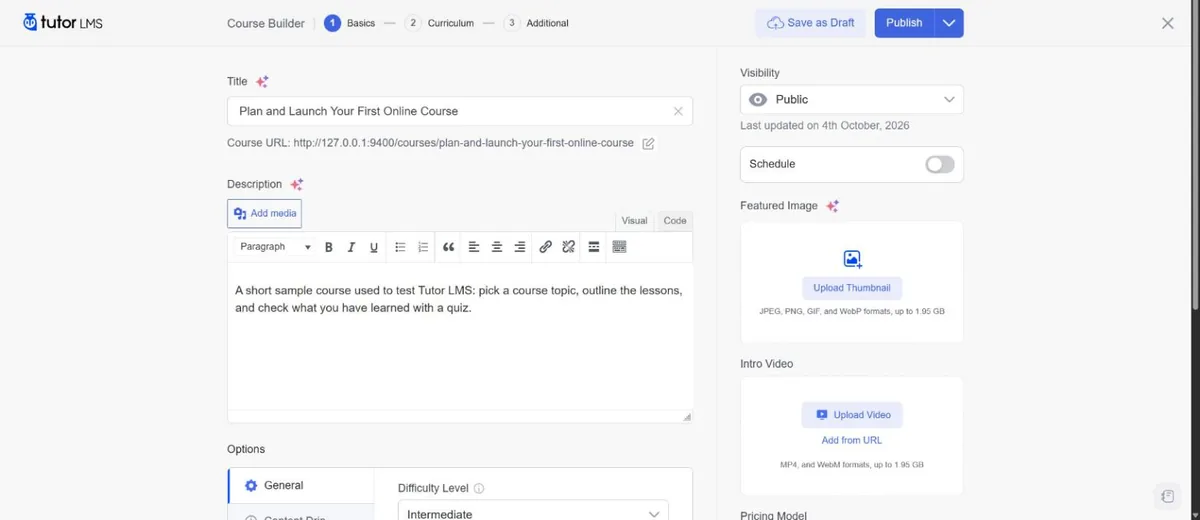
Tutor’s course builder is a full-screen editor with three steps: Basics, Curriculum and Additional. The Basics step puts everything a sales page needs on one screen: title, description, difficulty level, a featured image, an intro video (uploaded or from a URL), categories, tags and the price. Paid courses get a regular price and an optional sale price.
The Curriculum step is where Tutor shines. You add topics, then lessons and quizzes inside each topic, and drag them into order. Each topic, lesson and quiz is saved as soon as you finish it, with a confirmation message.
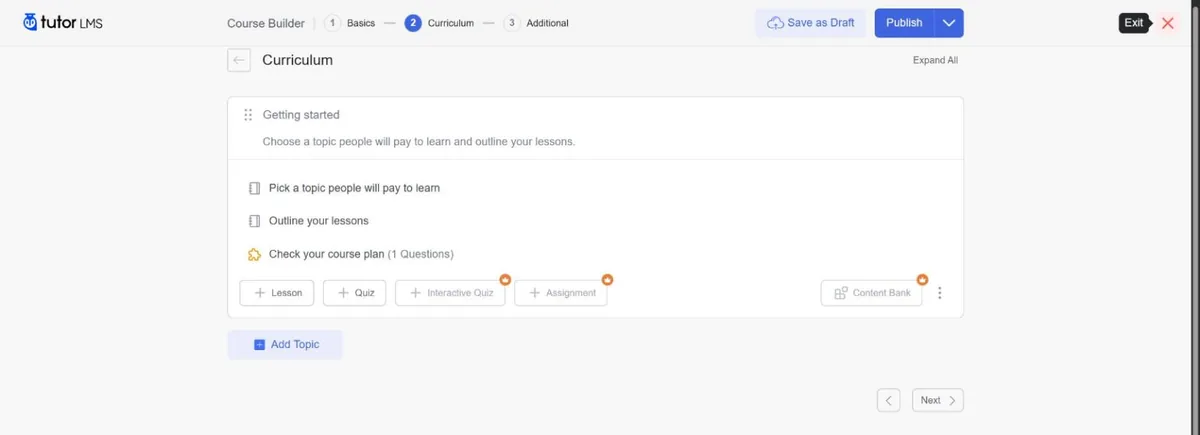
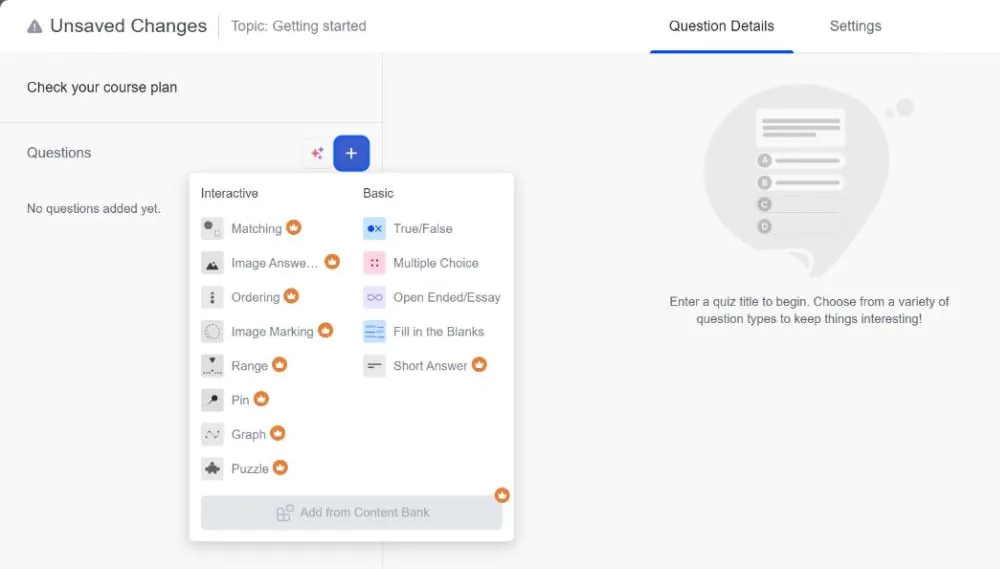
The crowns in that screenshot are a theme you’ll see throughout the free version. Interactive Quiz, Assignment and Content Bank are Pro features: they’re shown, but locked.
Lessons take written content, a video by upload or URL, a playback time and downloadable exercise files. Two options in the lesson editor are Pro-only: H5P content, and Lesson Preview, which lets visitors try a lesson before they buy. Free previews are one of the best ways to sell a course, so this is a notable gap.
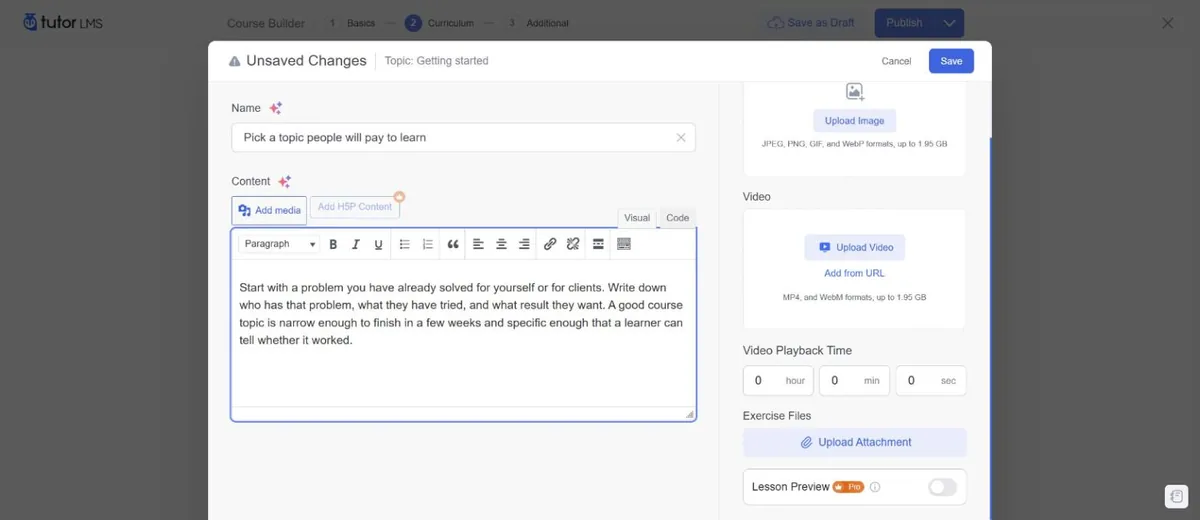
Watch out for: in our test, when we added a second lesson straight after the first, the form opened with the first lesson’s name and text still filled in. It may be a one-off, but check each field before you save.
The third step, Additional, holds the “What will I learn”, target audience, duration, materials and requirements fields that appear on the course page. Everything else on that screen (certificates, prerequisites, course attachments and live classes) is Pro. The small sparkle icons next to the title and description open an upgrade prompt for Tutor’s AI Studio, which is also Pro and, according to Tutor’s pricing page, needs your own OpenAI API key.
Quizzes
The free version includes four question types: True/False, Multiple Choice, Open Ended/Essay and Fill in the Blanks. Short Answer and all eight interactive types (Matching, Image Answering, Ordering, Image Marking, Range, Pin, Graph and Puzzle) are Pro, as is reusing questions from a content bank.
The quiz settings are generous for a free plugin. You can randomize the question order, allow multiple attempts, show a random set of questions from a larger pool, set a passing grade (80% by default), add a time limit, show one question per page or all at once, and reveal the answers after submission.
Two defaults are worth changing:
- Answer Required is off. Our first attempt was submitted with no answer selected, and Tutor accepted it as a failed attempt marked “No Questions Answered”. Switch Answer Required on for questions that matter.
- Multiple attempts are off. After that failed attempt there was no retake button. As the admin, we had to delete the attempt under Quiz Attempts before the student could try again.
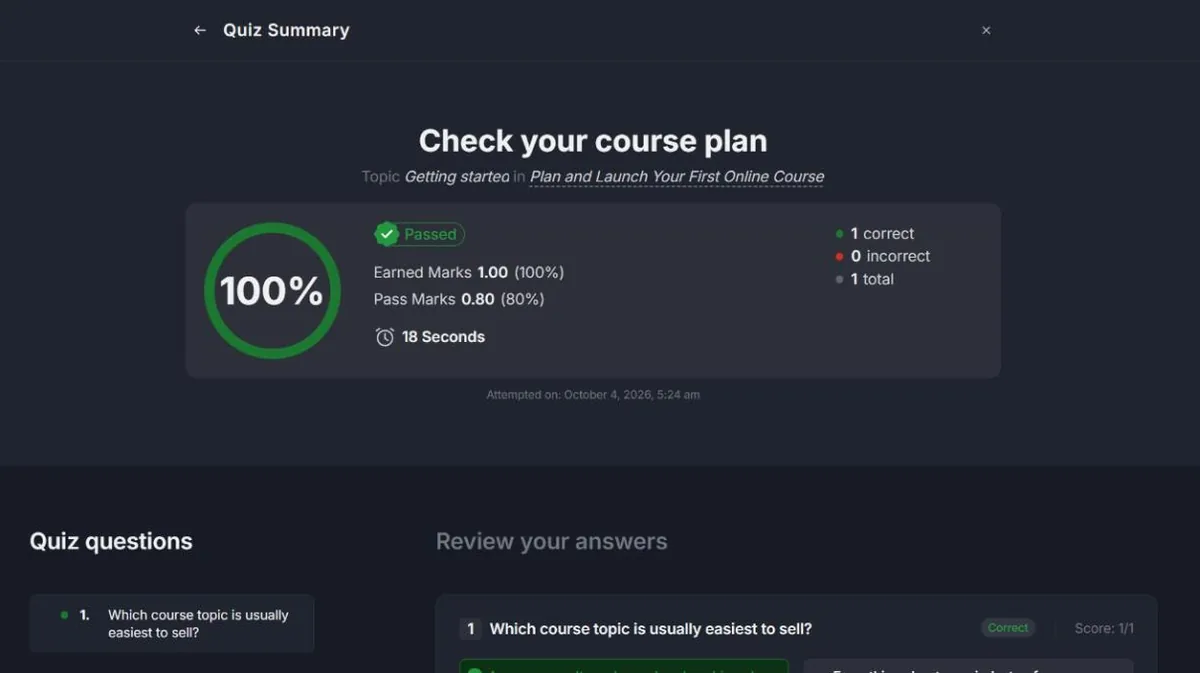
Students get a clear results page with their score, the pass mark, the time taken and a review of each answer.
Selling courses with the free version
Tutor has its own shop system, so you don’t need WooCommerce to sell courses. The free version creates cart and checkout pages and adds Orders and Coupons to the admin menu.
The limitation is payments. Out of the box, the free version offers PayPal and manual payments such as bank transfer. Tutor’s documentation lists many more gateways, including Stripe, Paddle, Mollie, Razorpay and Paystack, but in the free plugin the “Add New Gateway” button is locked to Pro. If you want Stripe in Tutor’s own checkout, budget for Pro. The free version can also sell through WooCommerce, whose official Stripe plugin is free; our payments guide walks through that setup.
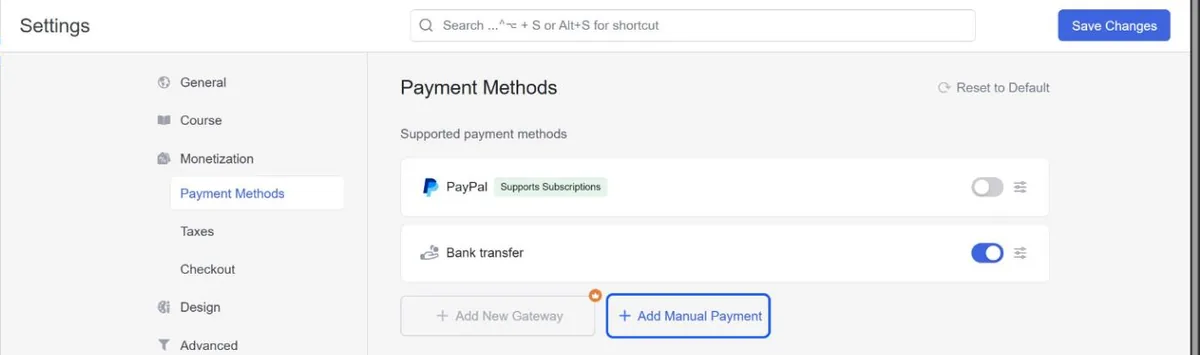
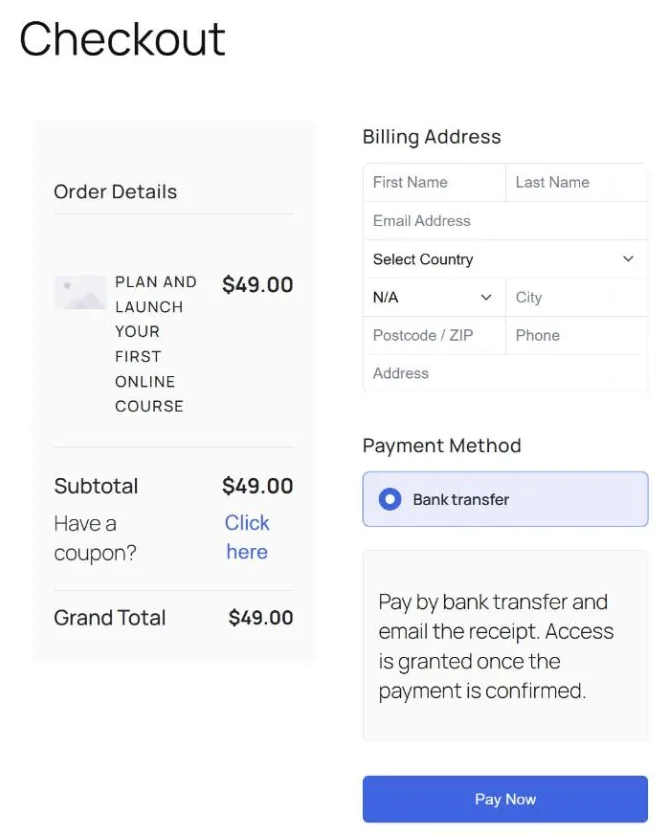
The checkout works, but it’s heavy for a digital product. Every billing field except state is required, including a phone number and a street address, and the free version has no setting to remove them. The only checkout options are a coupon field and a “Buy Now” button that skips the cart.
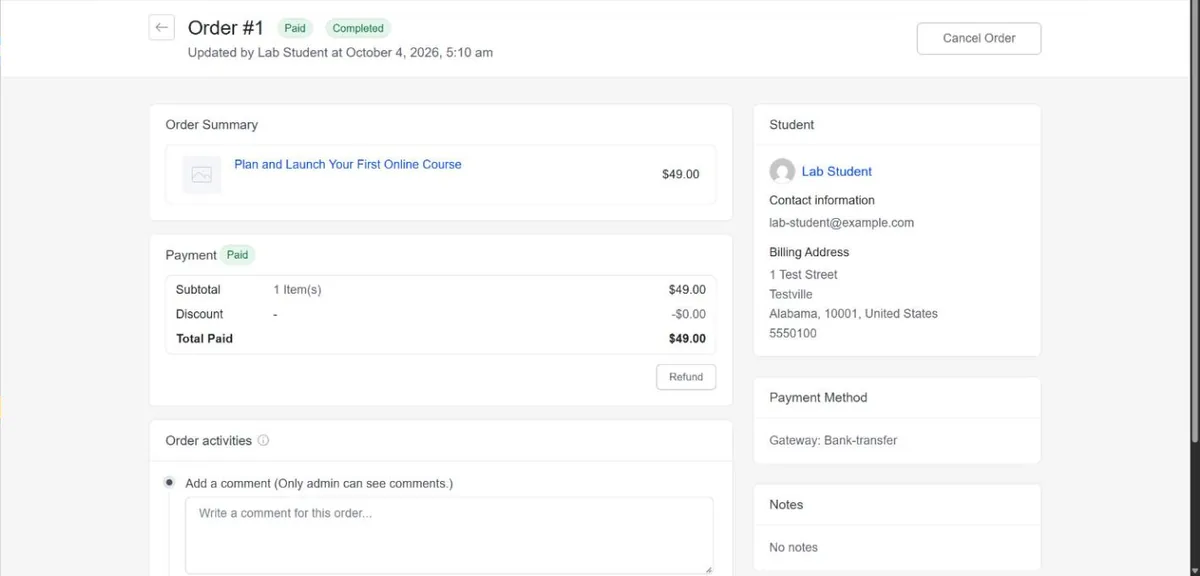
Manual payments are handled from the order screen. Our bank-transfer order arrived as Unpaid and Incomplete. Clicking Mark as paid enrolled the student straight away, and added a Refund button and an entry in the order’s activity log.
Watch out for: while the order was unpaid, the course page showed our student the Add to Cart button again, with nothing to say their payment was pending. If you accept bank transfers, say in the payment instructions how long approval takes.
What students see
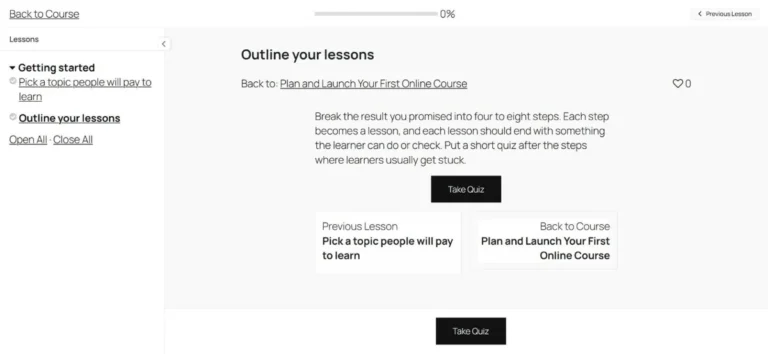
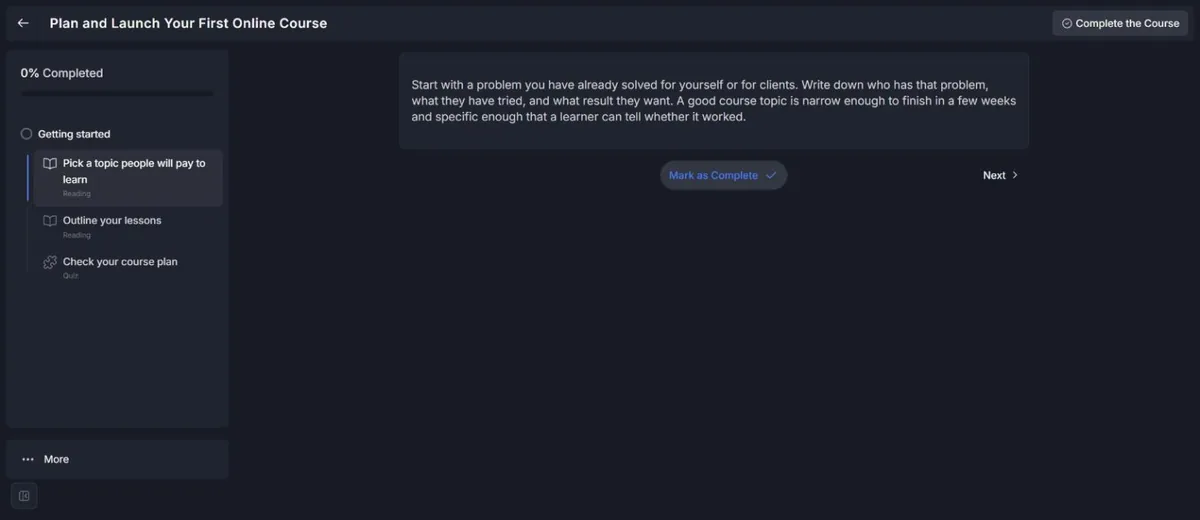
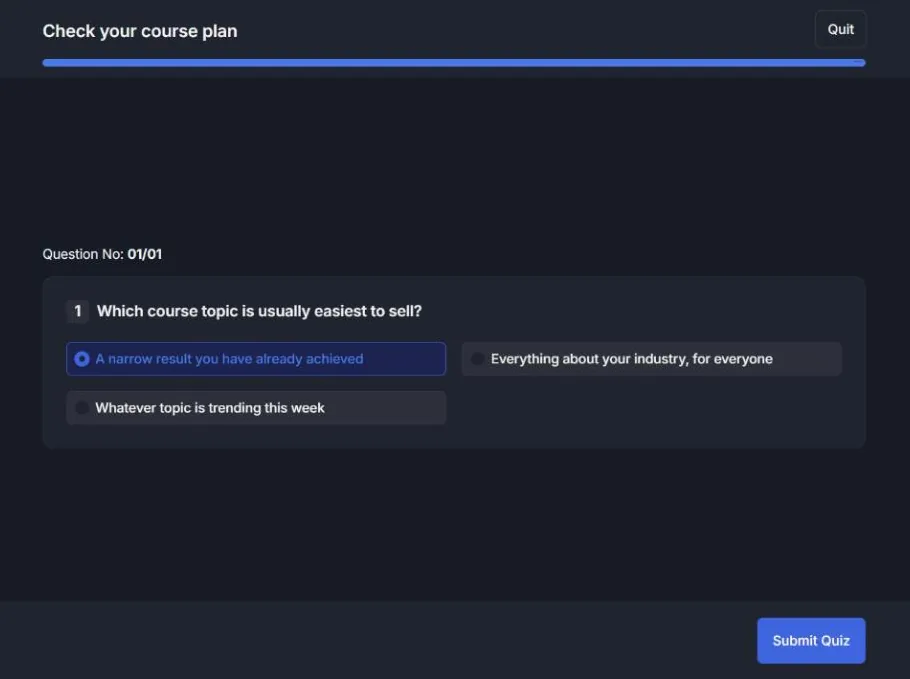
Tutor 4 has a redesigned learning area. Lessons sit in a sidebar with a progress bar and a label for each item (Reading or Quiz), and students move through the course with Mark as Complete and Next. Quizzes open in a focused screen without the sidebar. In our test, the student pages used a dark design.
When the student finishes the course, Tutor asks for a review. In our test the rating was preset to “Poor” (one star), and the review text was required. A student who clicks through quickly could leave a one-star review by accident, so keep an eye on your first ratings.

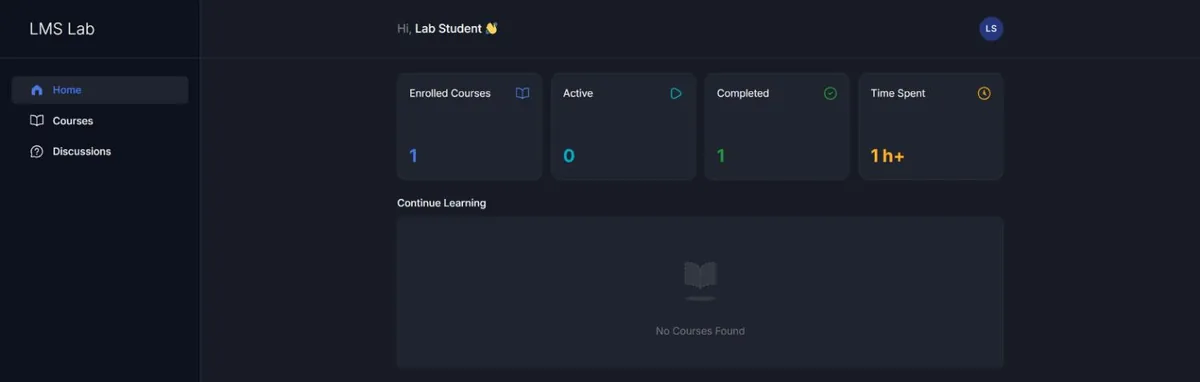
The student dashboard shows enrolled, active and completed courses and time spent. Our test student spent a few minutes in the course, but the dashboard showed “1 h+”, which matches the duration we set for the course rather than the time actually spent.
Watch out for: Tutor LMS loads the Inter font from Google’s servers (fonts.googleapis.com). In our October 17 check it did so on the lesson, quiz and student dashboard pages, for guests and logged-in students alike, but not on the course list or the course page. We found no setting to turn it off. That matters if your privacy policy promises no third-party requests, or if your students are somewhere loading Google Fonts needs their consent.
What worked in our test: in a small must-use plugin or your child theme’s functions.php, hook into wp_enqueue_scripts at priority 100, then run wp_deregister_style( 'tutor-google-fonts' ); followed by wp_register_style( 'tutor-google-fonts', false );. After that, none of the pages we checked loaded anything from Google, and Tutor’s own stylesheet still loaded. A plain wp_dequeue_style() didn’t work: Tutor’s main stylesheet depends on the font, so WordPress printed the Google link anyway. Without Inter, Tutor’s stylesheet falls back to the visitor’s system font (such as Segoe UI or Roboto). We didn’t check how the pages look with it, and a Tutor update could rename the handle, so check again after updating.
Free vs Pro at a glance
| Feature | Free | Pro |
|---|---|---|
| Course builder, lessons, video, exercise files | Yes | Yes |
| Question types | 4 basic types | All 13 types, plus a question bank |
| Quiz grading, attempts, time limits, question pools | Yes | Yes |
| Cart, checkout, orders, coupons | Yes | Yes |
| PayPal and manual payments | Yes | Yes |
| Stripe and other payment gateways | No | Yes |
| Free preview lessons | No | Yes |
| Content drip | No | Yes |
| Certificates | No | Yes |
| Assignments | No | Yes |
| Manual enrollment | No | Yes |
| Automated emails, notifications, reports, gradebook | No | Yes |
| Zoom, Google Meet and Google Classroom | No | Yes |
| Course bundles, subscriptions, prerequisites | No | Yes |
| AI Studio | No | Yes, with your own OpenAI API key |
Pricing
Tutor LMS Pro has three plans, each sold yearly or as a one-time lifetime license. These prices are from Tutor LMS’s pricing page on October 4, 2026 and exclude VAT.
| Plan | Sites | Yearly | Lifetime |
|---|---|---|---|
| Individual | 1 | $199 | $499 |
| Business | Up to 10 | $399 | $999 |
| Agency | Unlimited (yearly), up to 50 (lifetime) | $799 | $1,999 |
Every plan includes all the Pro add-ons and a 30-day money-back guarantee. If you expect to run your course site for more than two and a half years, the lifetime Individual license costs less than renewing the yearly one.
Who should use Tutor LMS?
Best for: course creators who want a modern-looking academy, are happy to take payments through PayPal (or to pay for Pro), and like building courses in a visual editor. With Pro, it’s a strong all-round choice for sites with several instructors.
Look elsewhere if you need certificates without paying: LifterLMS includes them in its free core. If you’d rather have one mature paid plugin, look at LearnDash: our LearnDash vs LifterLMS vs Tutor LMS comparison sets the three side by side. If your shop already runs on WooCommerce, Sensei LMS fits that setup. Our WordPress LMS plugins comparison covers all of them. For the whole build, from hosting to launch, see our step-by-step guide to selling courses on WordPress.
Verdict
The free version of Tutor LMS is enough to build and sell a simple course. The builder is quick, the quizzes are flexible, and you can take PayPal or manual payments without any other plugin. It isn’t a complete course business in a box, though: card payments through Stripe, certificates, drip schedules, free previews and automated emails are all Pro, so most serious sellers will end up paying. If that’s your plan, the free version is a good way to test the workflow before you buy.
FAQ
Is Tutor LMS free?
Yes. The core plugin is free on WordPress.org. Tutor LMS Pro, which unlocks the add-ons, starts at $199 a year.
Can the free version take payments with Stripe?
Not through Tutor’s own checkout: the free version offered PayPal and manual payments, and the button to add other gateways, including Stripe, was locked to Pro. It can sell through WooCommerce instead, and WooCommerce’s Stripe plugin is free; we tested that route in our payments guide.
Does the free version issue certificates?
No. Certificates are a Pro add-on.
Do I need WooCommerce to sell courses with Tutor LMS?
No. Tutor has its own cart, checkout and orders, which we used for this review.