How to Sell Online Courses with WordPress: The Complete Guide (2026)

We may earn a commission if you buy through links on this page. It never changes our verdict. How we test
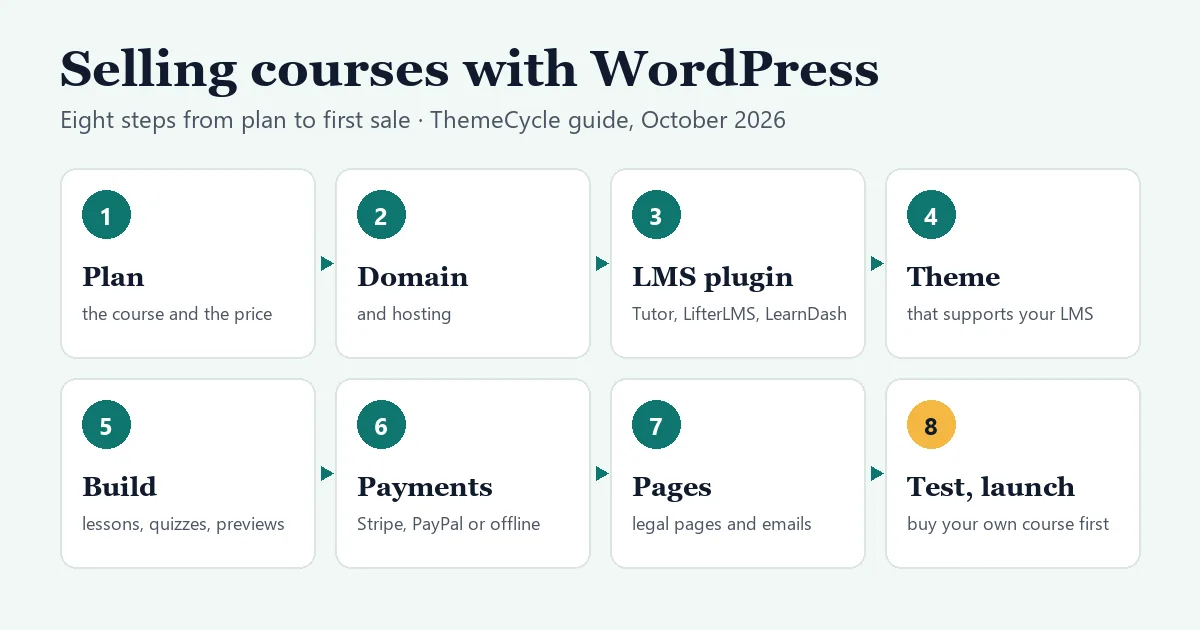
WordPress lets you sell courses from a site you own, without a monthly platform fee or a cut of every sale. The price is that you assemble and look after the pieces yourself: hosting, an LMS plugin, a theme and a payment method. This guide walks through the whole job in eight steps, using what we learned building, selling and finishing test courses with Tutor LMS and LifterLMS, and it shows what the first year really costs next to hosted platforms such as Teachable and Kajabi.
The short version
- You need: a domain, WordPress hosting, an LMS plugin, a theme and a way to take payments.
- The cheapest working setup: Tutor LMS’s free version, WooCommerce and WooCommerce’s free Stripe plugin. The software costs nothing, and you pay only Stripe’s fees plus your hosting.
- What it costs: selling a $49 course to 120 students in a year, the software and card fees came to about $207–$466 on WordPress in our example. The same sales cost $1,005 on Podia, $1,116 on Teachable and $2,355 on Kajabi (prices checked October 6, 2026).
- When not to use WordPress: if you don’t want to deal with updates, backups and plugin settings, or you need someone else to handle sales tax for you, a hosted platform or a merchant of record will save you time.
On this page
- How we put this guide together
- WordPress or a hosted course platform?
- What it really costs in year one
- Step 1: Plan the course and how you’ll charge
- Step 2: Get a domain and hosting
- Step 3: Choose an LMS plugin
- Step 4: Choose a theme that supports your LMS
- Step 5: Build your first course
- Step 6: Set up payments
- Step 7: Add the pages, emails and legal basics
- Step 8: Test the whole purchase, then launch
- Mistakes we made, so you don’t have to
- FAQ
How we put this guide together
- Our own tests: the steps and warnings come from building, selling and finishing a test course with Tutor LMS and with LifterLMS, and from selling a course through WooCommerce. All three were done on a private WordPress install in October 2026. The details are in our Tutor LMS review, LifterLMS review and payments guide.
- Prices: LMS and hosted-platform prices come from each vendor’s official pricing page, checked on October 6, 2026, in US dollars.
- LearnDash: we haven’t tested it hands-on. Its facts come from its official documentation and pricing page.
WordPress or a hosted course platform?
Hosted platforms such as Teachable, Thinkific, Kajabi and Podia run everything for you: hosting, checkout, video, updates and support. You pay a monthly fee, and on some plans a share of every sale.
| Platform | Cheapest paid plan | Extra fee on that plan | Free plan |
|---|---|---|---|
| Teachable | Starter: $39/month, or $29/month billed yearly | 7.5% per sale, plus card processing | No (7-day trial) |
| Thinkific | Basic: $54/month, or $40/month billed yearly | Card processing (2.9% with Thinkific Payments) | No (30-day trial) |
| Kajabi | Basic: $179/month, or $143/month billed yearly | Card processing (2.9% + 30¢ with Kajabi Payments) | No (free trial) |
| Podia | Mover: $42/month billed yearly | 5% per sale, plus card processing | No (14-day trial) |
Source: each platform’s pricing page, October 6, 2026. Plans and fees change, and some vary by country. For Teachable and Thinkific plan by plan, with fees per sale and two year-one examples, see our Teachable vs Thinkific vs WordPress comparison.
WordPress is the better fit if:
- you want to own the site and your student list;
- you’d rather not pay a share of every sale;
- you want to grow into memberships, a blog or a shop;
- you’re comfortable installing plugins.
A hosted platform is the better fit if:
- you’d rather pay to have the technical side handled for you;
- you sell to buyers in many countries and want the platform to deal with sales tax, as several hosted platforms advertise.
Watch out for: WordPress’s real costs are time and responsibility. You keep WordPress, the theme and plugins updated, take backups, and fix the occasional conflict between plugins. Student support for login and payment problems lands with you. None of this is hard, but budget an hour or two a month for it.
What it really costs in year one
Here’s one realistic example: a $49 course sold to 120 students in a year ($5,880), all paying by card in the US. It uses each vendor’s list price on October 6, 2026, monthly billing for the hosted platforms, and US card fees of 2.9% + 30¢ per sale.
| Setup | Software | Fee per sale | Card fees | Year one |
|---|---|---|---|---|
| WordPress + Tutor LMS free + WooCommerce + free Stripe plugin | $0 | $0 | $207 | $207 + hosting |
| WordPress + LifterLMS + Stripe add-on | $149 | $0 | $207 | $356 + hosting |
| WordPress + Tutor LMS Pro | $199 | $0 | $207 | $406 + hosting |
| WordPress + LearnDash Essentials | $259 | $0 | $207 | $466 + hosting |
| Podia Mover (billed yearly) | $504 | $294 | $207 | $1,005 |
| Teachable Starter | $468 | $441 | $207 | $1,116 |
| Kajabi Basic | $2,148 | $0 | $207 | $2,355 |
On WordPress, add hosting and a domain. A .com domain is usually $10–20 a year, and hosting varies widely with how many students are online at once; see step 2.
The gap grows with sales, because on Teachable and Podia the fee per sale scales with revenue and WordPress has no equivalent. It shrinks if you need several paid add-ons: LifterLMS’s Stripe, Assignments and Advanced Quizzes add-ons together cost $747 a year. Our LearnDash vs LifterLMS vs Tutor LMS comparison works out three-year costs for the three plugins.
Step 1: Plan the course and how you’ll charge
Before you install anything, decide two things, because they decide which plugin fits.
What you’re selling:
- a single course;
- a bundle of courses;
- a membership that unlocks everything for as long as someone pays;
- a cohort that starts on a date.
How students pay:
- One-time payments are the simplest and work everywhere.
- Subscriptions and memberships need a plugin and a payment gateway that handle recurring payments. In the free versions we tested, that rules out most options: Tutor LMS’s subscriptions are a Pro feature, and LifterLMS needs a paid payment add-on to charge cards.
Plan at least one free preview lesson. It’s the easiest way to show buyers what they’ll get. LifterLMS includes free previews in its free version; Tutor LMS keeps them for Pro.
Step 2: Get a domain and hosting
Any host that meets WordPress’s own requirements will run a course site: PHP 8.3 or newer, MySQL 8.0 or newer (or MariaDB 10.11 or newer), and HTTPS, according to wordpress.org’s requirements page (updated May 2026).
What matters more for courses is that most of your visitors are logged in. Page caching, which makes ordinary WordPress sites fast, does far less for logged-in students. So:
- choose hosting with enough PHP workers and object caching for the number of students you expect online at the same time;
- test lesson pages while logged in, not just your home page;
- take automatic daily backups, and use a staging site to try plugin updates before they reach paying students.
Video: host lesson videos on a video service and embed them, rather than uploading large files to your WordPress host. All three LMS plugins we looked at let you paste a video URL into a lesson.
Step 3: Choose an LMS plugin
The LMS plugin holds your courses, lessons, quizzes and student progress. The three most people choose between:
- Tutor LMS: the most polished student area out of the box. Its free version takes PayPal and can sell through WooCommerce. Pro, from $199 a year, adds certificates, drip, assignments and Stripe.
- LifterLMS: the most generous free version. Certificates, drip schedules, free previews, memberships and reports are all free. Online payments are paid add-ons from $149 a year.
- LearnDash: no free version. Its plans start at $259 a year and include assignments, eight quiz question types, certificates, and Stripe and PayPal.
Our hands-on comparison goes through them feature by feature. For a wider list, including Sensei LMS, LearnPress and MasterStudy, see WordPress LMS plugins compared. Running a school rather than selling courses? See the best LMS for small schools. Coaching clients 1:1 or in groups? See the best LMS for a coaching business.
Step 4: Choose a theme that supports your LMS
The LMS draws the course pages, but your theme decides how they look. Two things showed up in our tests:
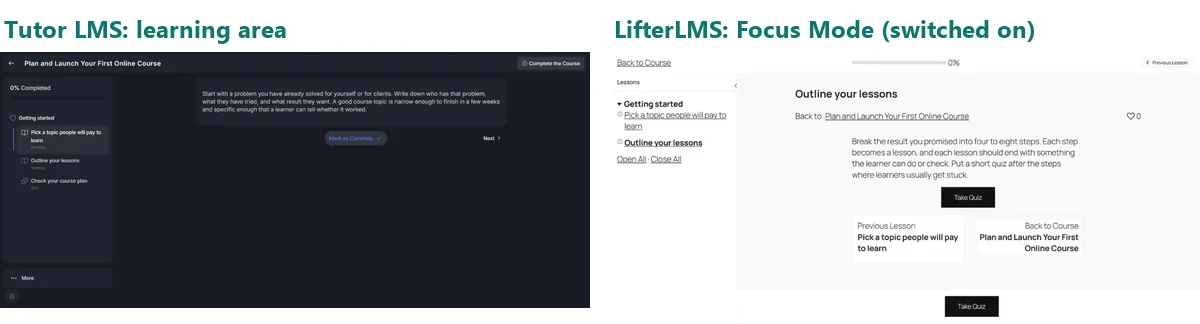
- Some layouts suffer in a default theme. In a default block theme, LifterLMS’s checkout and student dashboard were squeezed into a narrow text column. Lessons looked like blog posts until we turned on its free Focus Mode.
- Some plugins bring their own layout. Tutor LMS uses its own learning area, so it looks the same whatever the theme.
A fast general-purpose theme is the safe choice: Kadence, Astra, GeneratePress or Blocksy. Kadence and Astra add styling options for the major LMS plugins, and this site runs on Kadence’s free version. Our education themes guide covers these and the all-in-one education themes.
Step 5: Build your first course
Keep the structure simple. Short sections, each with a few lessons, and a quiz where learners usually get stuck. Then:
- Free preview: mark at least one lesson as a free preview.
- Drip: decide whether lessons open all at once or on a schedule, after enrollment or on a date.
- Quizzes: check which question types you get. Tutor LMS’s free version includes essay and fill-in-the-blank questions. LifterLMS’s free version has only multiple choice, picture choice and true/false.
- Certificates: set them up before your first student finishes. In our LifterLMS test, the default certificate printed the student’s username, not their name, until we changed it.
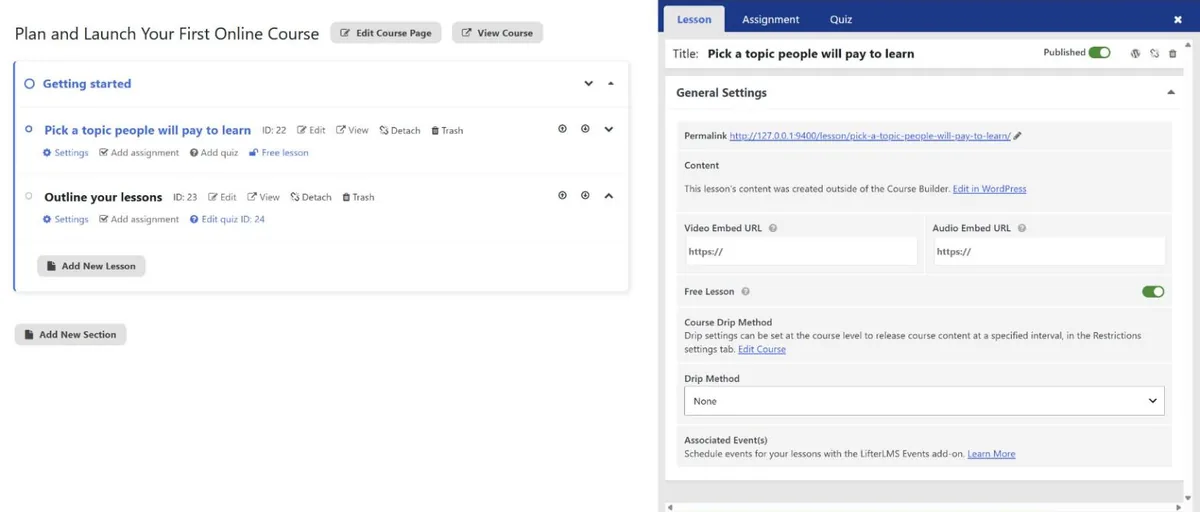
Watch out for: test the first course end to end before you build the rest. Both builders we tested had small quirks:
- In Tutor LMS, a second lesson opened pre-filled with the first one’s text.
- In LifterLMS, the builder created three empty lessons we hadn’t asked for.
Step 6: Set up payments
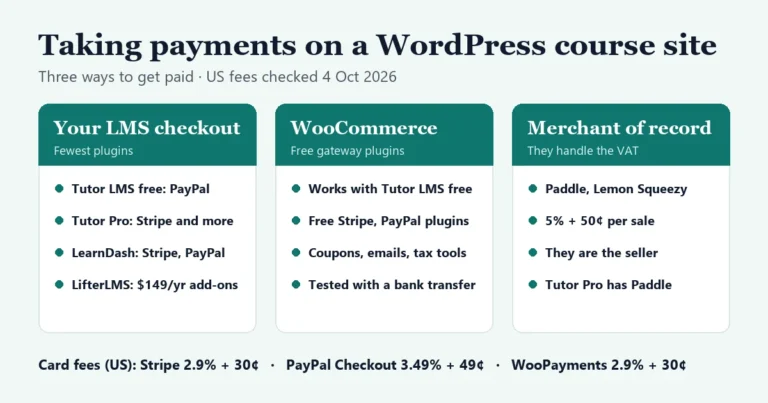
There are three ways to get paid. Our payments guide covers each one step by step.
- Your LMS’s own checkout with Stripe or PayPal. LearnDash includes both. Tutor LMS’s free version includes PayPal. LifterLMS sells each gateway as an add-on.
- WooCommerce, with its free Stripe or PayPal plugins. We tested this with Tutor LMS’s free version: a completed WooCommerce order enrolled the student in the course.
- A merchant of record such as Paddle or Lemon Squeezy (5% + 50¢ per sale). They sell on your behalf and handle sales tax.
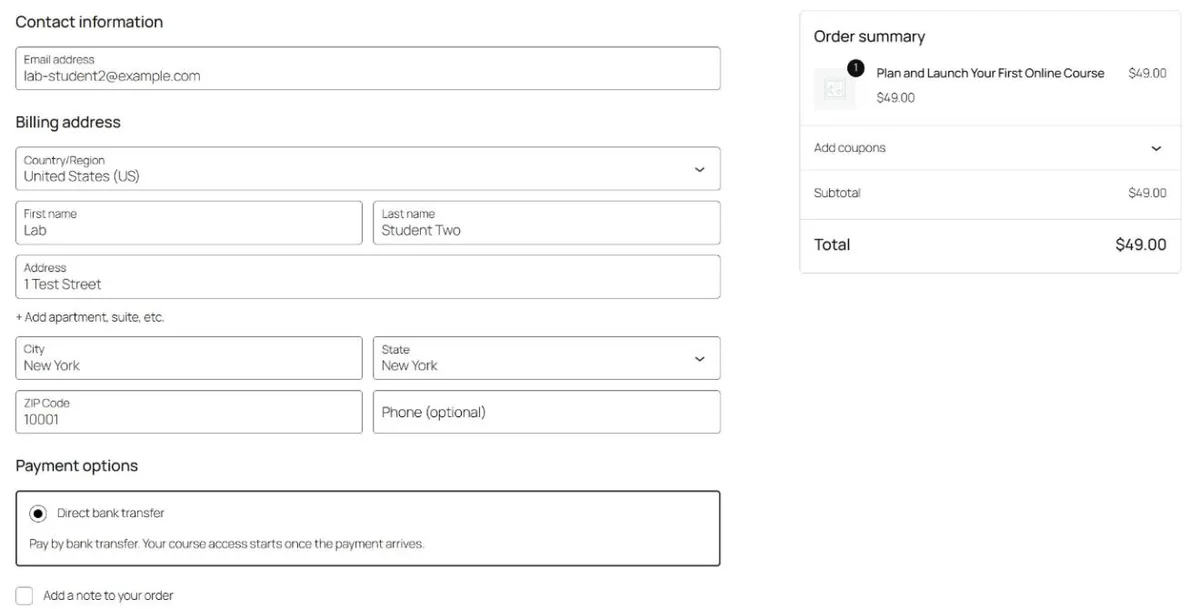
In the US, Stripe charges 2.9% + 30¢ per card payment and PayPal Checkout 3.49% + 49¢. Check that your gateway works in your country before you build around it. Stripe isn’t available in Bangladesh or Pakistan, for example, and India is in preview. Bank transfers that you approve by hand work everywhere and are fine for a first launch.
Step 7: Add the pages, emails and legal basics
Pages: your LMS creates the checkout and student dashboard pages. Check they look right on a phone. If you switch checkout systems, delete the ones you no longer use: after switching Tutor LMS to WooCommerce, our test site had two Cart and two Checkout pages.
Emails: at minimum, send a purchase receipt, a welcome email with the login link, and a payment-pending notice for offline payments. WooCommerce sends its own order emails, and LifterLMS has more than a dozen notifications built in.
Legal pages: publish a privacy policy, terms of sale and a refund policy, and link them from the checkout. Tutor LMS has a Legal Consents section in its settings for this. Make sure the privacy policy matches what your pages actually load: in our October 17 check, Tutor LMS’s lesson, quiz and student dashboard pages loaded the Inter font from Google’s servers, and we found no setting to turn it off. Our Tutor LMS review shows the code that removed it in our test.
Tax: digital courses can be taxed where the buyer lives. EU rules, for example, tax electronic services in the customer’s country, and the EU’s One-Stop Shop lets you register once to report that VAT. If that’s more than you want to handle, a merchant of record does it for you. This isn’t tax advice: ask an accountant about your situation.
Step 8: Test the whole purchase, then launch
Before you announce anything, go through the whole purchase yourself, the way we do for our reviews:
- Switch your payment gateway to test or sandbox mode.
- In a private browser window, register as a new student and buy the course.
- Check that you were enrolled and can open the first lesson, and that the receipt email arrived.
- As the admin, find the order and check it shows the right amount. In our LifterLMS test, marking a bank-transfer order Completed enrolled the student but recorded $0 revenue until we used Record a Manual Payment.
- Refund the test order and check what happens to the student’s access.
- Take the quiz, finish the course and check the certificate.
- Switch the gateway to live, buy the course once with a real card, then refund it.
- Repeat the purchase on a phone.
To get your first students:
- Start where your audience already is. Your email list, social accounts and any community you’re part of will bring your first buyers. Search traffic takes months to build.
- Make the free preview lesson your best one, and link to it everywhere.
- Write a few articles that answer the questions your course solves. Link each one to the course’s sales page.
- Ask your first students for feedback before you ask for reviews. In our Tutor LMS test, the end-of-course review prompt was preset to the lowest rating, so check yours.
Mistakes we made, so you don’t have to
- Leaving offline payment instructions empty. Our WooCommerce buyer’s confirmation page didn’t say where to send the money.
- Keeping default wording that doesn’t fit a course. WooCommerce’s bank-transfer text said an order “will not be shipped”.
- Not telling buyers their payment is pending. While a bank transfer was on hold, both Tutor LMS checkouts showed the student “Add to cart” again.
- Assuming an order’s status means money was recorded. See step 8.
- Forgetting “coming soon” mode. WooCommerce started our test store in it.
FAQ
Can I sell courses on WordPress for free?
The software can be free: WordPress, Tutor LMS’s free version, WooCommerce and WooCommerce’s Stripe plugin cost nothing. You still pay for hosting and a domain, plus card fees on each sale.
How much does it cost to sell courses on WordPress?
In our example of 120 sales of a $49 course, software and card fees came to $207–$466 for the year depending on the plugin, plus hosting. A hosted platform cost $1,005–$2,355 for the same sales.
Is WordPress better than Teachable or Kajabi?
It’s cheaper and you own everything, but you look after the site yourself. Hosted platforms cost more and take less work. If you sell worldwide and don’t want to handle sales tax, a hosted platform or a merchant of record can be worth the extra cost.
Do I need WooCommerce to sell courses?
No. Tutor LMS, LifterLMS and LearnDash all have their own checkout. WooCommerce is useful when you want its free payment plugins, or you already sell other products with it.
How long does it take to set up?
Setting up the software took us an afternoon on each test site. Writing and recording the course itself takes far longer, so plan your time around that.