WordPress Plugins for a School Website: What We Tested

No affiliate links on this page. How we test
Most lists of “WordPress plugins for schools” are long feature rundowns, often from a company with a plugin of its own on the list. This guide is shorter and works the other way round. We took the two jobs that are particular to a school site, keeping pupil records and publishing the term calendar, installed a free plugin for each on a private test site, and looked at the thing a school has to get right: who can see what.
The short answer
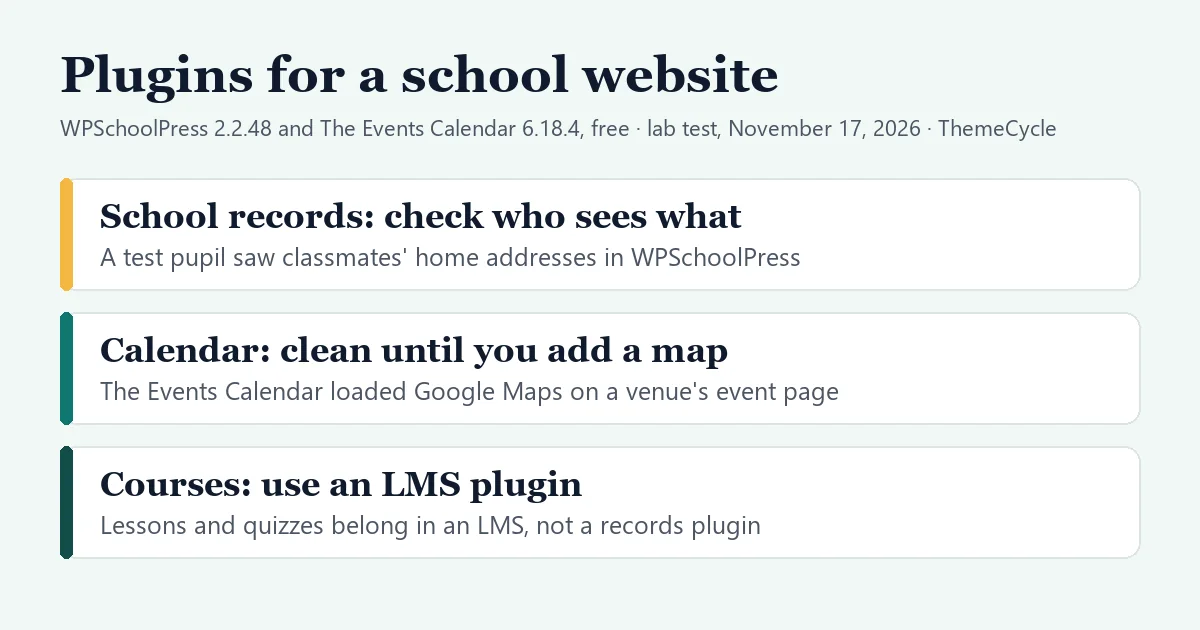
- A calendar plugin is the safe first step. The free version of The Events Calendar showed our test events to logged-out visitors with no outside requests and no cookies, until an event had a venue address. Then the page loaded an embedded Google map. One setting turns that off.
- A school records plugin puts pupils’ data inside your website, so test it before real names go in. With the free WPSchoolPress plugin, classes, attendance and marks worked. But a test pupil could see classmates’ home addresses and parents’ names, a test parent could open another pupil’s attendance summary, and every new account’s password went out by email in plain text.
- Lessons and quizzes are a third job. That’s what an LMS plugin is for, and we’ve tested seven of them separately.
- Forms for admissions and contact are the fourth job. We didn’t test a form plugin for this guide.
On this page
- How we put this guide together
- What a school website needs
- The Events Calendar: term dates without tracking, with one setting to change
- WPSchoolPress: free school records, and what each account could see
- Lessons and quizzes: use an LMS plugin
- Forms: not tested here
- Before real pupil data goes in: a checklist
- What we didn’t test
- FAQ
How we put this guide together
- Tested in our lab on November 17, 2026: a fresh, private WordPress 7.1.4 install with the default Twenty Twenty-Five theme and two free plugins from wordpress.org, WPSchoolPress 2.2.48 and The Events Calendar 6.18.4. No paid add-ons.
- Invented people only. We created one teacher, one class, two pupils and a parent for each pupil, recorded an absence and a test mark, and published two events. Then we signed in as each kind of account, and opened the same pages logged out.
- We watched what each page loads. For every page we recorded requests to other sites and cookies, and we caught the emails the site tried to send.
- Vendor facts, not tested: prices and the features of paid versions come from the vendors’ own pages, checked on November 17, 2026. We say “says” where a fact comes from a vendor.
- What already ranks: we read five well-ranked roundups on this topic the same day. They list features and prices. None of the five shows what a pupil, a parent or a logged-out visitor can see, or which outside requests a plugin makes.
- No vendor paid for or reviewed this guide, and there are no affiliate links on this page.
What a school website needs
| Job | Plugin type | In this guide |
|---|---|---|
| Term dates and events | Events calendar | Tested: The Events Calendar |
| Records, attendance, marks | School management | Tested: WPSchoolPress |
| Online lessons and quizzes | LMS | Our earlier LMS tests |
| Admissions and contact | Forms | Not tested |
Many school sites need only the first row and the last. Records and marks are different: once they’re in WordPress, your website holds personal data about children, and every plugin, password and backup on that site matters more.
The Events Calendar: term dates without tracking, with one setting to change
The Events Calendar is a widely used calendar plugin, with 600,000+ active installs and an update on November 12, 2026 (wordpress.org listing, checked November 17, 2026).
What worked in the free version. We published a parent-teacher evening with a venue and an all-day “Last day of term”. Logged-out visitors got a list view, a month view and a day view, a search box, and a “Subscribe to calendar” menu with Google Calendar, iCalendar and Outlook links plus an .ics export. Those are plain links: nothing loaded from Google or Microsoft until we clicked one.
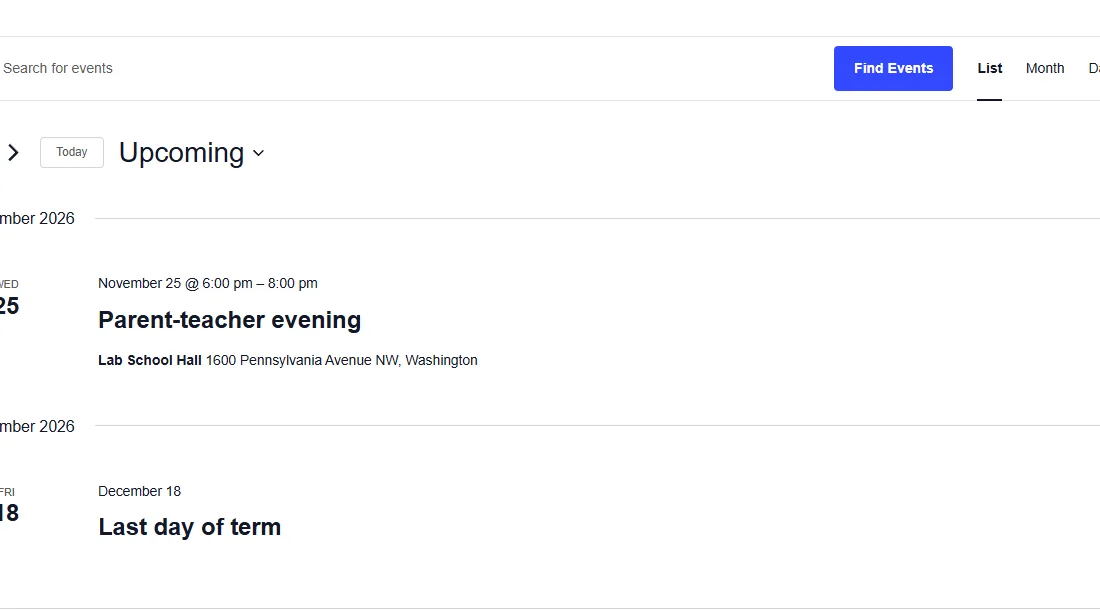
What each page loaded for a logged-out visitor:
| Page | Outside requests | Cookies |
|---|---|---|
| Calendar, list and month | None | None |
| Event without a venue | None | None |
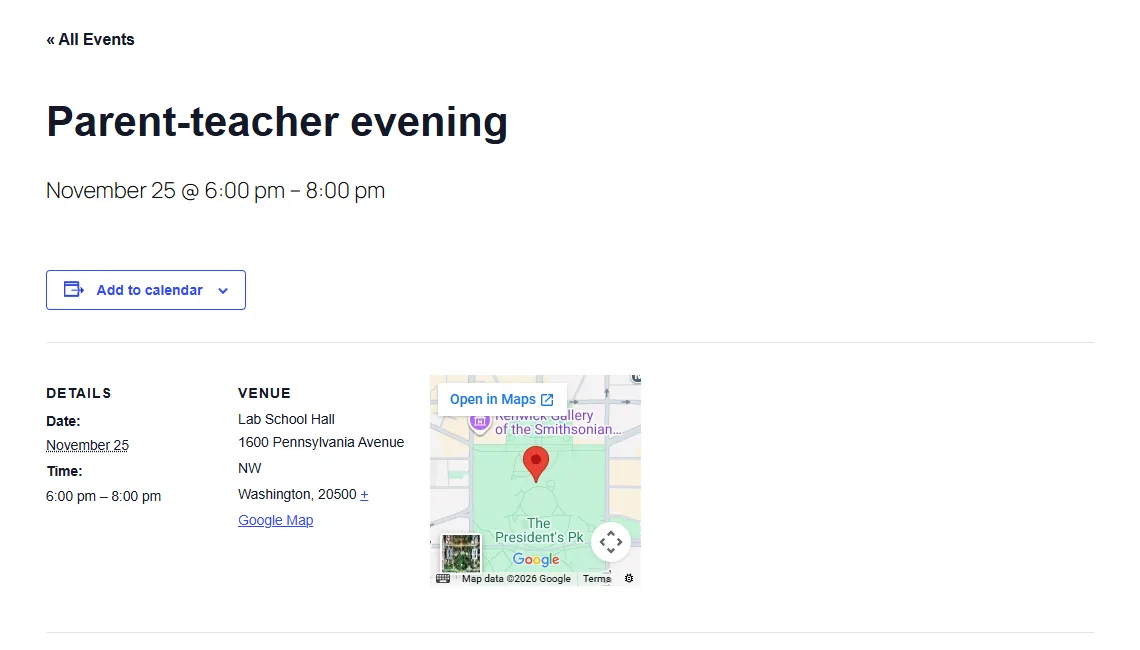
| Event with a venue address | Google Maps, Google Fonts | None from our site |
| Same event, maps off | None | None |
Watch out for: a new event has “Show map” ticked, and the plugin comes with its own Google Maps key, so an event with a venue address showed an embedded Google map without any setup. On our test page that meant requests to www.google.com, maps.googleapis.com, maps.gstatic.com and Google Fonts for every visitor who opened the event. If your privacy notice says the site makes no outside requests, that page breaks it.
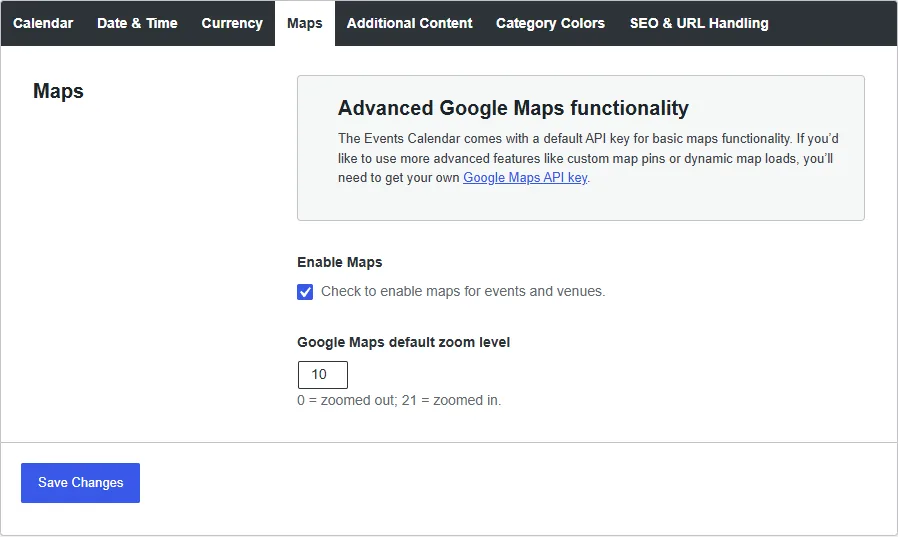
The fix was one setting: Events > Settings > Display > Maps, untick Enable Maps, save. The same event page then made no outside requests. The “+ Google Map” text link stayed, which is fine: it’s an ordinary link that a visitor chooses to follow.
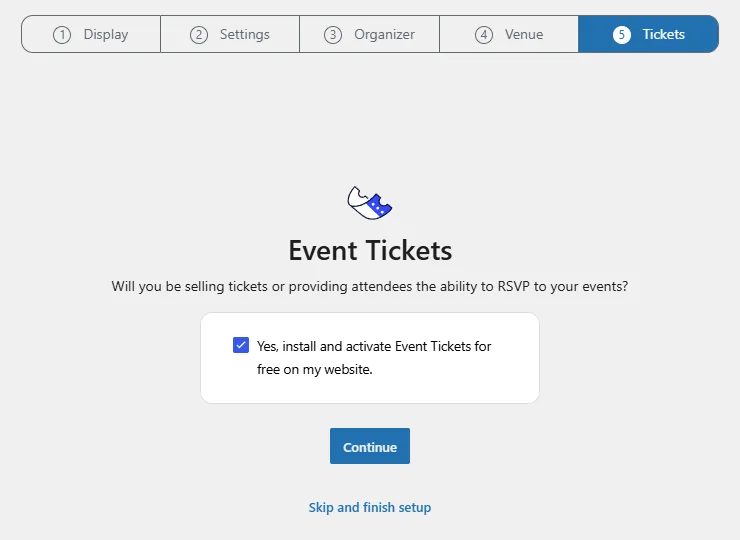
Two defaults in the setup guide. The box that offers to “share basic information” with the vendor was unticked, which is the right way round. On the last step, “Yes, install and activate Event Tickets for free on my website” was already ticked. We unticked it before continuing, and no extra plugin was installed. If you don’t sell tickets or take RSVPs, do the same.
The trade-off: the free version has no repeating events. Where the repeat options would be, the editor says recurring events need Events Calendar Pro, so a weekly assembly or club has to be entered date by date. Week, Photo, Map and Summary views are marked as Pro too. The vendor’s product page lists Pro at $399 a year and Elite at $599 a year, renewing annually (checked November 17, 2026). For a term calendar of single dates, the free version did the job in our test.
Best for: any school site that wants a public calendar parents can subscribe to. Turn maps off, or accept the Google requests and say so in your privacy notice.
WPSchoolPress: free school records, and what each account could see
WPSchoolPress is a school management plugin: classes, teachers, pupils, parents, attendance, exams and marks. Its wordpress.org listing shows 1,000+ active installs, a last update on August 7, 2026, and “tested up to” WordPress 7.0.8, a little behind the 7.1.4 we ran it on (checked November 17, 2026). The plugin’s readme says it doesn’t work with WordPress Multisite.
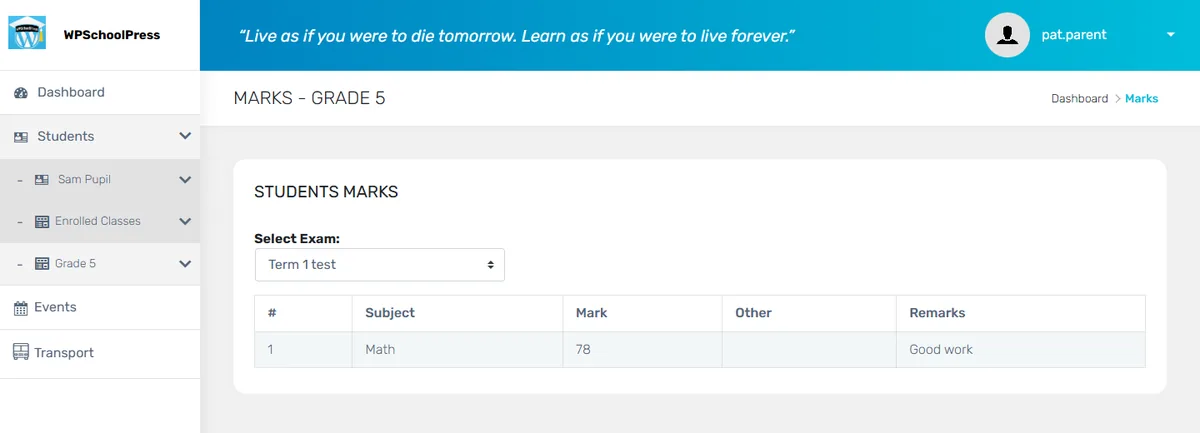
What worked in the free version. As the site admin we added a teacher, a class with that teacher in charge, and two pupils. The pupil form also creates the parent’s account. We marked one pupil absent, added a subject and an exam, and saved a mark and a remark for each pupil. A parent who signed in saw only their own child in the menu, and after choosing the exam, the mark and the teacher’s remark.
It isn’t an LMS. The free plugin’s menus cover people, classes, subjects, exams, marks, timetable, attendance, events, notices and transport. There are no lessons or quizzes; the vendor sells those as a separate add-on.
What each kind of account saw
| Account | Could see | Was blocked from |
|---|---|---|
| Teacher | Every pupil’s parent and address, parents’ emails | Settings (the screen opened empty) |
| Pupil | Own attendance, the class list with addresses | Settings, the WordPress user list |
| Parent | Own child’s marks and attendance | Another pupil’s marks |
| Logged out | The plugin’s login form | Every records screen |
We had one class and one teacher, so we can’t say whether a teacher sees only their own classes.
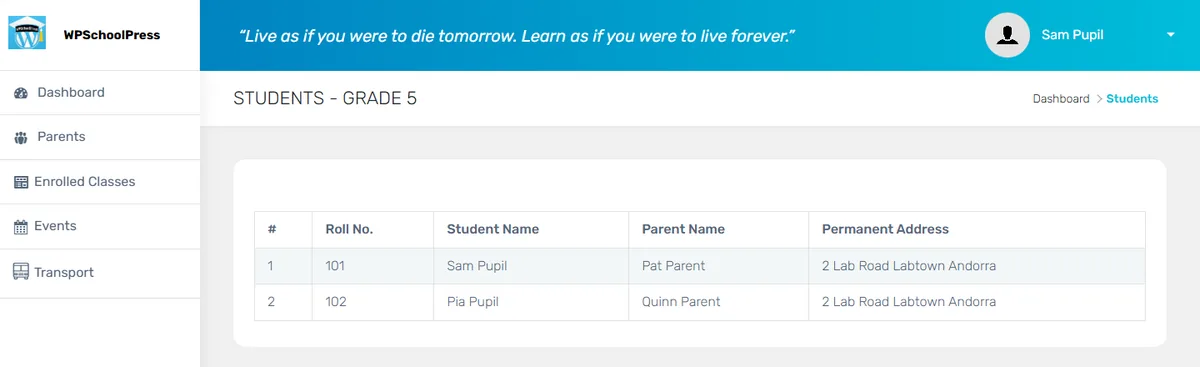
Watch out for: a pupil could see classmates’ home addresses. Signed in as one test pupil, the Students screen listed the whole class with roll number, name, parent’s name and “Permanent Address” for each classmate. For a primary school that’s information most parents wouldn’t expect other children to have. We found no setting for it in the free version.
Watch out for: a parent could open another pupil’s attendance summary. Signed in as one test parent, we were able to bring up the other pupil’s name, class, roll number and number of absent days on the attendance screen. The marks screen refused the same attempt with “Access denied.” We’re leaving out how it’s done, and when we published this we had not reported it to the developer. If you run the plugin, ask the developer whether your version checks this.
Watch out for: passwords go out by email in plain text. The admin types a password for each new teacher, pupil and parent, and the plugin’s welcome email to that person contained the username and that password, readable. We caught five such emails, one per account. Email isn’t a safe place for a password, and a child’s school login is no exception. If you use the plugin, give people a throwaway password and have them change it at first sign-in, or send them WordPress’s own password-reset link instead.
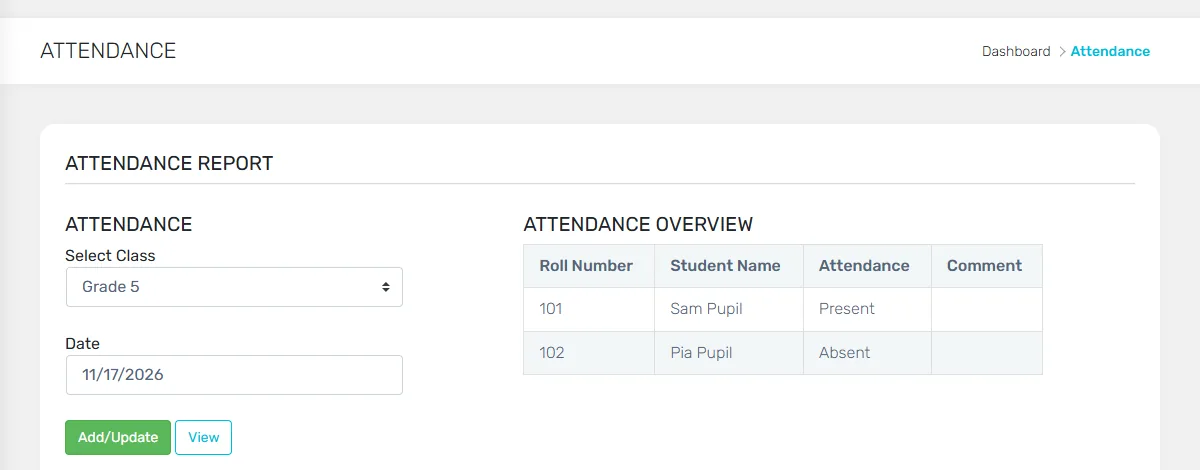
Watch out for: the reason for an absence wasn’t saved. The attendance form has a “Reason” field next to each absent pupil. We typed a reason twice, and both times the report showed “Absent” with an empty comment. The plugin’s code stores an empty reason in this version; the typed text is only used for the text-message alert, which needs a paid add-on. No email went to the parent about the absence either.
Smaller things we saw:
- The pupil’s own Marks page stayed blank. The parent could see the mark, but the pupil’s “Your Marks” card was empty on our test site. The mark was in the page’s code, just hidden.
- The link in the welcome email opened an unstyled page. It points to
/sch-dashboard/, which for signed-in users showed a bare list of links on our install. The links led to the plugin’s normal screens inside/wp-admin/. - Outside requests. The plugin’s login form loaded Google Fonts, and so did the dashboards of every account type, along with Gravatar for the profile picture. On the teacher’s screens we also saw one request to betatesting87.com, from an image address written into the plugin’s stylesheet. The public pages of the site, home and an ordinary page, made no outside requests and set no cookies.
- Every pupil becomes a WordPress user. WordPress’s own author address (
/?author=and a number) answered for a pupil’s account and showed the pupil’s first name in the page title to a logged-out visitor. If you keep pupils as users, block author archives. - A usage-data request on every admin screen. A notice asks you to allow the plugin to collect “diagnostic data and usage information”, with Allow and No thanks buttons. We didn’t click either. The plugin’s own list of what it collects includes the site name and URL and the admin’s name and email.
What the paid add-ons cost
The vendor says the plugin itself stays free, and sells add-ons. Prices from the vendor’s add-ons page, checked November 17, 2026:
| Add-on | Price | Vendor says |
|---|---|---|
| SMS notifications | $30 | Text messages, absence alerts |
| Import/Export | $30 | Bulk upload of users |
| Front-end registration | $30 | Sign-up by new students |
| Multi-class | $30 | One pupil in several classes |
| Payment | $55 | Online fee collection |
| Bundle | $135 or $175 | Several add-ons and a year of support; $175 adds fee payment |
The vendor’s FAQ says a payment covers one year of updates, and that an add-on keeps working after that without updates unless you renew. We tested none of the add-ons. Note that the automatic “your child is absent” message is part of the SMS add-on, not the free plugin.
Best for: a small school or tutoring center that wants class lists, attendance and marks in one place, has someone technical to check the points above, and is comfortable keeping pupil records on its own website. Look elsewhere if pupils will sign in themselves and class lists with home addresses must stay private, or if you need courses and quizzes rather than records.
Lessons and quizzes: use an LMS plugin
Online lessons, quizzes and certificates are what an LMS plugin does, and it’s a separate choice from school records. We’ve tested the free versions of seven LMS plugins hands-on. Start with these:
- LMS pricing for small schools compares what a year costs for a school with 100 pupils, free options included.
- WordPress LMS plugins compared puts our lab results side by side: certificates, payments, defaults and outside requests.
- Our Tutor LMS review covers one free option in depth, including the Google Fonts request it makes on lesson pages and how to remove it.
- If you’ll also sell courses to the public, our guide to selling courses on WordPress covers the whole build.
The same rule applies there: open a lesson and the student list logged out, and as a second student, before real pupils use it.
Forms: not tested here
Admissions, contact and permission forms are the other thing nearly every school site needs. We didn’t install or test a form plugin for this guide, so we’re not recommending one. Whichever you pick, check two things yourself: where submissions are stored (your database, or the vendor’s servers), and whether the form loads a CAPTCHA or fonts from another company.
Before real pupil data goes in: a checklist
- Build the site on a private copy first, with invented pupils and parents.
- Sign in as a pupil and as a parent, and click every menu. Write down everything they can see about other people.
- Open the same pages logged out, in a private browser window.
- Read a welcome email. If it contains a password, change how you hand out logins.
- In your browser’s developer tools, look at the Network tab on each public page for requests to other companies, and turn off what you don’t need (the map embed, for example).
- Decide what happens to the data when a pupil leaves, and check the plugin’s delete options. WPSchoolPress has a “Delete Data” box that is unticked by default; its text says tables are removed only if it’s ticked. We didn’t test uninstalling.
- Keep WordPress, the theme and every plugin updated, and keep the number of plugins that touch pupil records as small as you can.
What we didn’t test
- Any paid add-on or paid version: WPSchoolPress’s SMS, import, payment and registration add-ons, Events Calendar Pro and Event Tickets.
- WPSchoolPress with more than one class or teacher, its timetable, transport and notices, and what’s left behind after uninstalling.
- Real email delivery. Our test site catches emails instead of sending them.
- Any form, SEO, backup or security plugin.
- Speed. Our test site runs on a desktop PC, so its timings say nothing about a real host.
FAQ
Is there a free school management plugin for WordPress?
Yes. WPSchoolPress is free on wordpress.org, and in our test its classes, attendance and marks worked without paying. Read the “Watch out for” points above before you put real pupils in it.
Do I need a school management plugin at all?
Not for a website that only informs parents. Pages, a calendar and a form cover most school sites. A records plugin makes sense only if you want attendance and marks online, and you’re ready to look after that data.
Can The Events Calendar show a term calendar for free?
Yes. In our test the free version showed list, month and day views to visitors and offered calendar subscription links. Repeating events need the paid Pro version, the vendor says.
Is it safe to keep pupil data in WordPress?
It can be, but it depends on the plugin and on how the site is run. In our test, the plugin’s defaults let a pupil see classmates’ addresses, so test with invented data first, as in the checklist above.
Which theme should a school site use?
A fast general-purpose theme is enough. See our guide to education themes for what to check.