Masteriyo LMS Review: The Free Version, Tested Hands-On

Tested hands-on on our own WordPress install. We may earn a commission if you buy through links on this page. It never changes our verdict. How we test
We installed the free Masteriyo LMS plugin on a clean WordPress site, ran its setup wizard, built a three-lesson course with a quiz, took it as a guest and as four students, then put a price on it and bought it as a fifth. This review covers what the free version does well, where our test got stuck, three defaults to check before you launch, and what the plugin loads and sets that your privacy policy should know about.
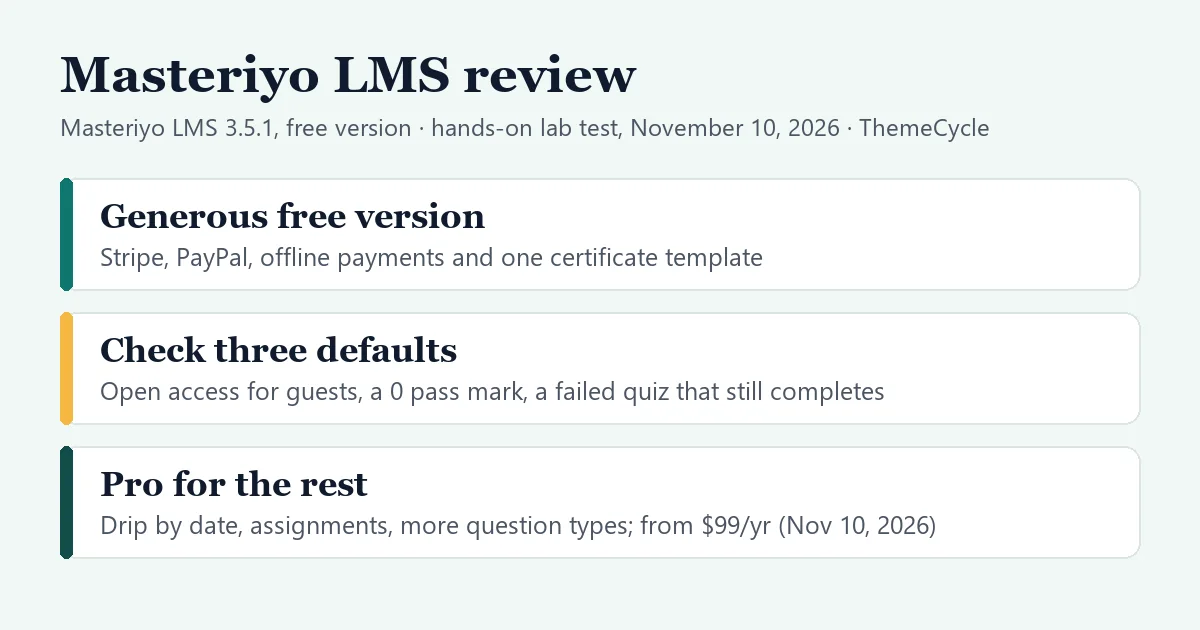
The short verdict
- Who it suits: solo teachers and small academies who want a clean course builder and a lot for free, and who are willing to check the settings carefully.
- What’s free: the course builder, text and video lessons, three quiz question types, a full-screen learning page, a checkout with offline payment, PayPal and Stripe, and a certificate add-on with one template.
- What isn’t: PDF and audio lessons, Zoom, assignments, eight more question types, drip by date, prerequisites, subscriptions and coupons all showed as locked or as paid add-ons. Paid plans start at $99 for the first year (checked November 10, 2026).
- Check before launch: a new free course is open to visitors without an account; a quiz added with the builder’s Quiz button had no pass mark until we saved its settings; and a student who failed the quiz still finished the course and was offered the certificate.
On this page
- How we tested
- Setting up
- Building a course
- Default 1: free courses are open to guests
- Default 2: the quiz with no pass mark
- Default 3: a failed quiz doesn’t stop the course
- What students see
- Selling with the free version
- Privacy: what loads and what’s set
- Free vs paid at a glance
- Pricing
- Who should use Masteriyo LMS?
- Verdict
- FAQ
How we tested
- Versions: Masteriyo LMS 3.5.1, the free plugin from WordPress.org, on WordPress 7.1.4 and PHP 8.3, with the default Twenty Twenty-Five theme and no other plugins.
- Setup: a private test install on our own machine. We judged features and workflow, not speed: a local test site says nothing about how fast your hosting will be.
- What we did: ran the setup wizard; created a course with three text lessons and a single-choice quiz; opened it as a logged-out visitor; took it as four students, with right and wrong quiz answers, before and after saving the quiz settings; switched on the free certificate add-on; then set a $29 price, bought the course as a fifth student with offline payment and completed the order as the admin. We also logged which pages load files from other websites and which cookies the plugin sets, and read the plugin’s code where the screens didn’t explain something.
- How we entered the content: we used the builder’s screens for the outline, the first lesson, the quiz and its settings, pricing and publishing. To save time we filled in the other two lessons and the question’s wording through the plugin’s own programming interface, the one the builder uses, so we don’t describe those two forms.
- What we didn’t test: Stripe, PayPal, Mollie, Lemon Squeezy, wire transfer or WooCommerce checkout, any paid plan or add-on, emails (our test site sends no mail), student sign-up, instructor accounts, video and live lessons, the certificate editor and the certificate file itself, starter templates, mobile layouts and speed.
- Independence: Masteriyo didn’t pay for this review or provide a paid plan. There are no Masteriyo affiliate links on this page. We earn a commission if you buy Tutor LMS through our link below; it doesn’t change what we say about either plugin.
Setting up
Masteriyo adds one menu to the WordPress admin: Dashboard, Courses, Enrollments, Users, Settings and Addons. The screens work as a single app, with a green “Upgrade to Pro” button in the corner.
The setup wizard has up to four short steps: how learners will get access (buy online, enrolled by you, both, or just exploring), payments, starter templates and a summary. The payments step picks a currency and offers Offline Payment, PayPal and Stripe, all off.
Watch out for: the first wizard screen has a checkbox, “Help us improve Masteriyo by sharing non-sensitive diagnostic and usage data”, and it was already ticked when the page loaded. We unticked it, and the setting stayed off afterward. Untick it too unless you want to share that data; we didn’t test what it sends.
After the wizard the site had three Masteriyo pages (Account, Learn and Checkout) and three draft example courses. There was no separate Courses page; the course list worked at /courses/. With Twenty Twenty-Five’s default menu, Account, Checkout and Learn all showed in the site header for visitors, and Learn on its own just sends people to the account page. Tidy your menu before launch.
The Addons screen lists 51 add-ons: 28 marked Free, 4 Basic, 18 Pro and 1 Elite. None was active at first. The free ones include the Certificate Builder, Stripe, Mollie, WooCommerce integration, Google Meet, SCORM and page-builder integrations. We switched on only the Certificate Builder.
Building a course
Add New Course opens a three-tab screen inside the WordPress admin: Course, Builder and Settings. You type a name and description and click Next.
Watch out for: in our test, Next did nothing. The screen showed no message, but behind it the form was complaining: “Please enter the number of students.” On a new course, the Maximum Students setting was set to “Limit” with an empty number, and the Settings sub-tab that holds it wouldn’t open on this screen. We saw the same thing in two different Chrome browsers. We got past it only with a script that chose “No limit” for us, which isn’t something you can do by hand. On courses that already existed, the same tabs opened normally. We can’t tell whether this is a bug in version 3.5.1 or a clash with our local test environment, so try creating a course on your own site before you plan around Masteriyo. The edit screen of the example courses the wizard adds worked normally for us, so reworking one of those is a way in if you hit the same wall.
Once the course existed, the builder was the most pleasant part of the test. It opens with a starter outline already in place: two sections and three draft lessons to rename. Under each section are buttons for Video lesson, Text lesson, Quiz and Upload. One click adds a row with its name ready to type, and each row has its own Draft or Published switch, plus edit, preview, duplicate and delete.
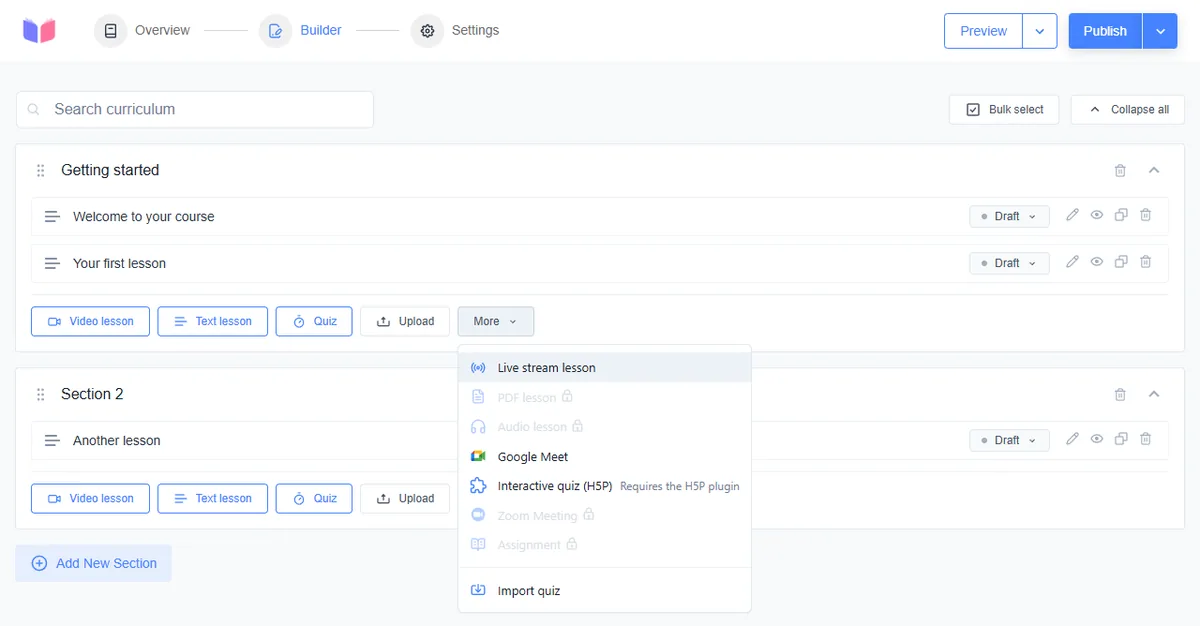
The More menu shows what else exists. Live stream lesson, Google Meet, an H5P interactive quiz (it needs the H5P plugin) and Import quiz were open. PDF lesson, Audio lesson, Zoom Meeting and Assignment had a lock.
The lesson editor is the classic WordPress editor with a name, the lesson text and a featured image. Lessons can be published while the course is still a draft. A course’s settings are spread over six tabs. A few things we noticed:
- Pricing: a new course is Free with “Open Access (No Registration Required)” selected. More on that below.
- General: a “Static Enrolled Count” number field sits next to Maximum Students. We left it at 0. The course page showed the real count of our test students.
- Content Drip: the lesson order can be Free (the default) or Sequential. Unlocking by date or by days since enrollment was disabled; Content Drip is a Pro add-on. We didn’t test Sequential.
- Schedule & Access: an end date and an enrollment expiry are available and off, so access doesn’t expire unless you set it.
Default 1: free courses are open to guests
Watch out for: the default for a free course. With “Open Access (No Registration Required)” selected, a logged-out visitor clicked Start Course and landed in the first lesson with no account. A box said, “You are taking this course as a guest”, with progress saved only in that browser.
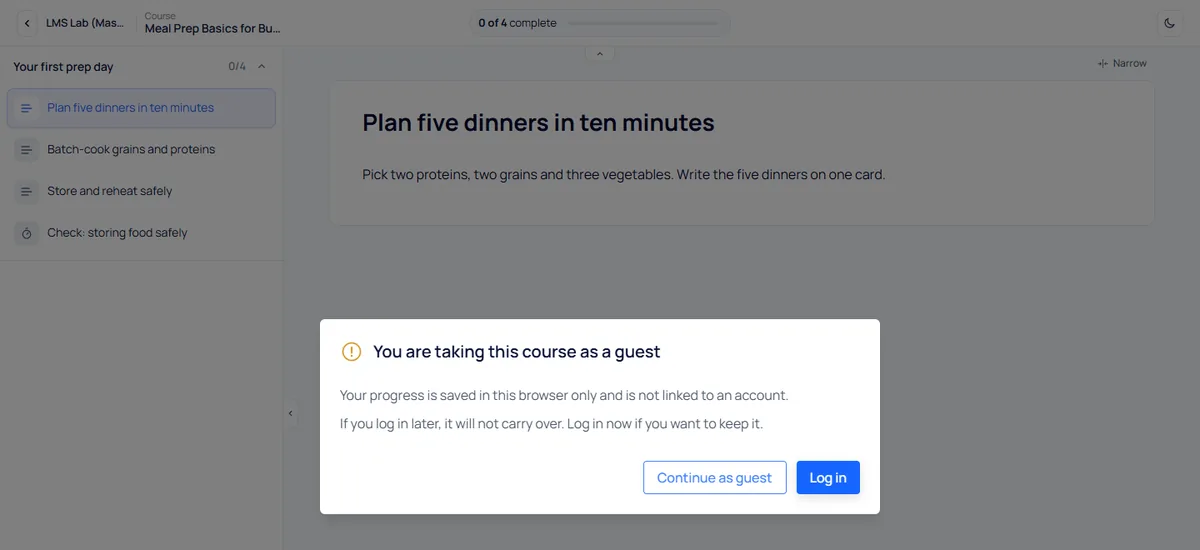
That’s a fine choice for a free taster. It’s the wrong one if you offer a free course to collect sign-ups, or need to know who took it. Choose Requires Registration to Access on the course’s Pricing tab in that case. Once we made the course paid, the same lesson address sent a visitor back to the course page.
Default 2: the quiz with no pass mark
The free quiz builder has three question types: True/False, Single Choice and Multiple Choice. Eight more (text answer, fill in the blanks, audio, video, sortable and three matching types) were grayed out; they belong to the Advanced Quiz add-on, which is Pro.
The quiz’s Settings tab showed sensible numbers: Full Points 100, Pass Points 40, no time limit and unlimited attempts.
Watch out for: those numbers weren’t in force. We added the quiz with the builder’s Quiz button and published it from the outline, the quickest route. The quiz’s first screen showed students a pass mark of “0 pts”, and our second student, who chose the wrong answer, got “Result: Pass 0%”.
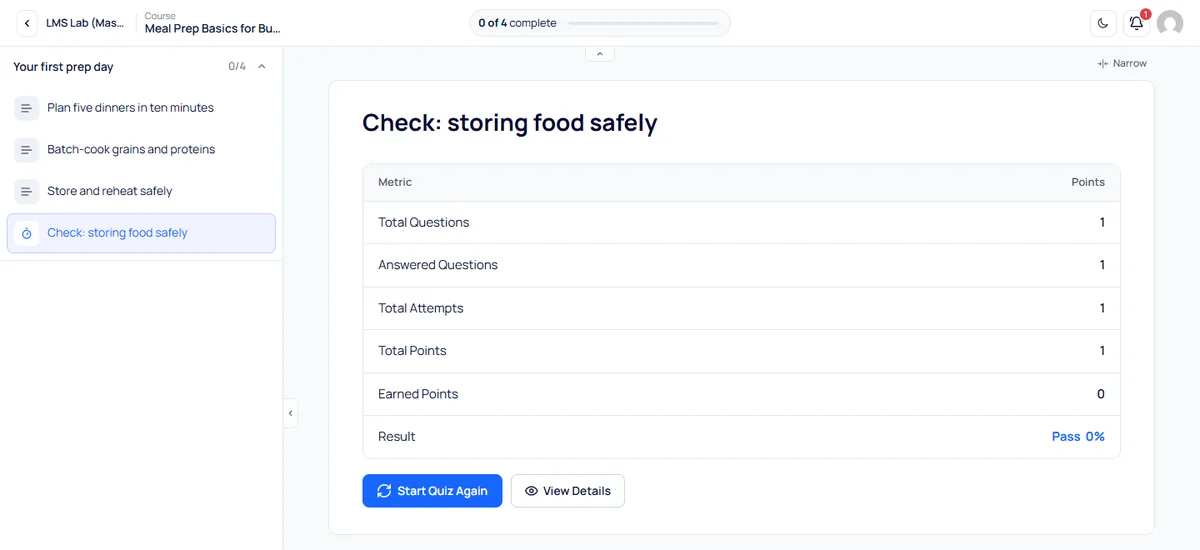
The fix took one click. We opened the quiz’s Settings tab and clicked Update Quiz without changing anything. The stored pass mark became 40 of 100, the quiz’s first screen showed it, and the next wrong answer was marked “Fail 0%”. A right answer still passed with 100%, so the mark works as a share of the total. Open and save the settings of every quiz you add this way, and look at the pass mark on the quiz’s first screen as a student.
Two more things to know. The quiz wasn’t locked behind the lessons: a student opened it first. And grading was instant, with a result table and a “View Details” breakdown.
Default 3: a failed quiz doesn’t stop the course
Watch out for: what happens after a fail. Our fourth student’s result said “Fail 0%”, but the Complete Quiz button was still there. They clicked it, marked the three lessons complete, and the course page announced “Course complete · 4 of 4” with the quiz listed as “0/1 Not passed”. On the settings screens we opened, we found no switch that makes passing a quiz a condition for finishing; we didn’t search every screen.
It matters most with certificates. The Certificate Builder add-on is free, which only LifterLMS and Sensei LMS matched among the free versions we’ve tested. It offered a blank design and one ready-made template. We attached the template to the course, and both the student who passed and the student who failed saw “Your certificate is ready” with a Download button.
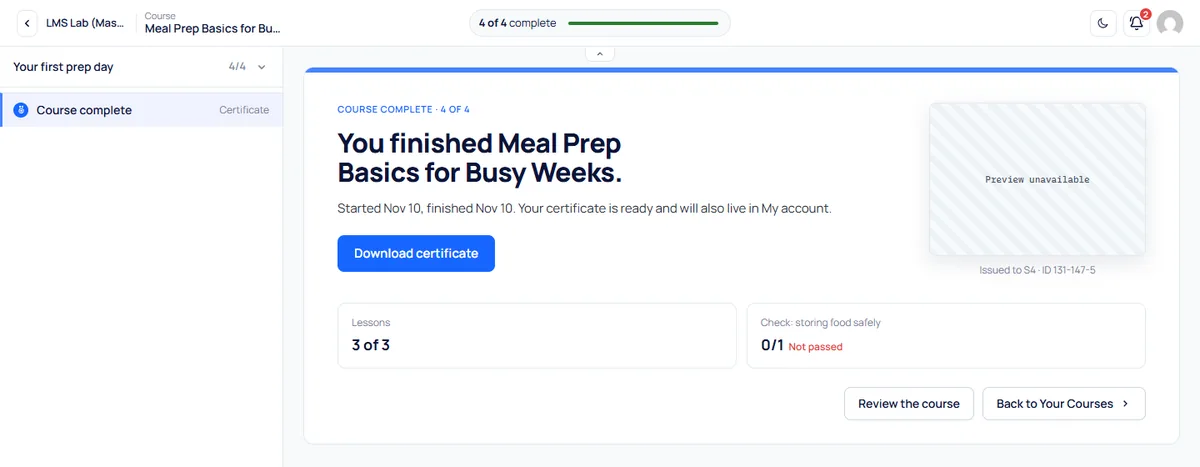
One limit of our test: the certificate file itself wouldn’t generate on our local test site, for either student, because of an error in the test environment. So we can say the certificate was offered to both, not what the file looks like. If your certificate is meant to prove a pass, test this with a wrong answer on your own site before you rely on it.
What students see
The course page is clean: title, instructor, price or “Free”, a Start Course or Buy Now button, the outline and the instructor box. It shows the number of enrolled students.
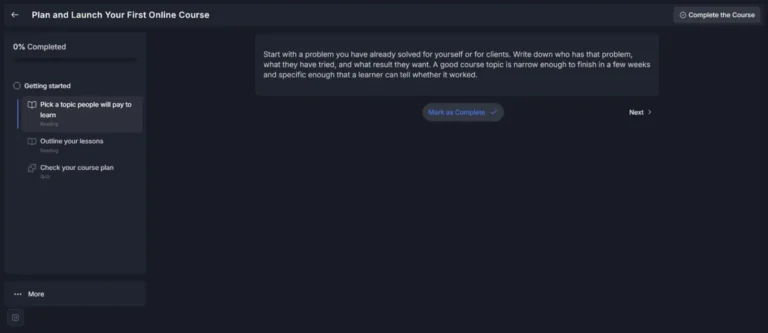
Lessons open on a full-screen learning page with the outline in a side panel, a progress count (“2 of 4 complete”), a light and dark switch, a Q&A panel and Mark as complete and Next buttons. When our first student finished, the page showed a summary with the lesson and quiz results and a “Review the course” button.
The account page lists courses, quiz attempts, order history, certificates and profile settings. Logged-out visitors see a sign-in form with a “Register as Student” link; we didn’t test the sign-up.
Selling with the free version
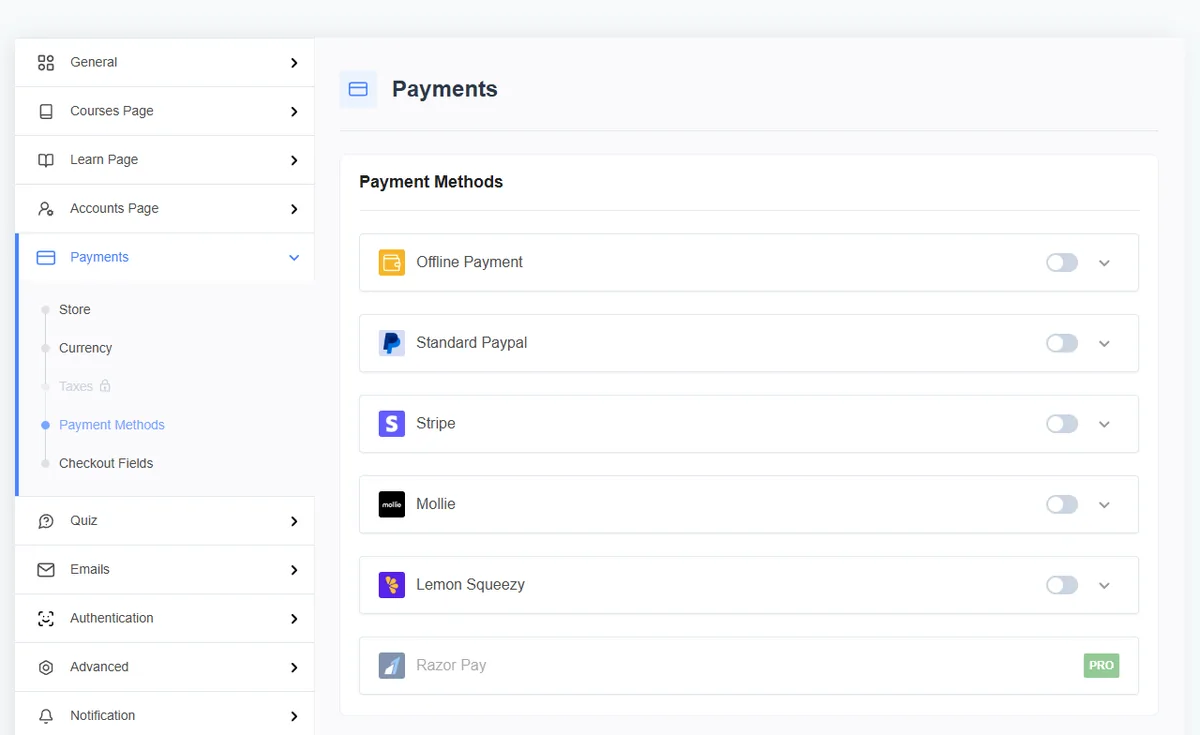
Masteriyo’s own checkout is in the free plugin. Settings › Payments › Payment Methods lists Offline Payment, Standard PayPal, Stripe, Mollie and Lemon Squeezy, all switched off at first, and Razorpay marked Pro. Taxes had a lock. On a course, Paid offers a one-time price with an optional sale price; the Recurring option was disabled, since subscriptions are a Pro add-on.
We switched on Offline Payment and set the course to $29. Our fifth student clicked Buy Now, filled in the checkout (name, email, country, address and postcode) and clicked Confirm Payment. The thank-you page showed the order, and the course page changed to “Payment pending… It will be available once the payment is confirmed.” The lessons refused to open.
An Orders screen appeared in the admin menu with the order On Hold. When we set it to Completed, as you would once the money arrives, the student’s button changed to Start Course. So offline payment works in the free version, but you complete each order by hand. Stripe and PayPal are there to take payments online instead, but we didn’t test them. Our payments guide explains the options. A student who had joined while the course was free kept their access after we added the price.
Privacy: what loads and what’s set
Of the LMS plugins whose requests and cookies we’ve logged, Masteriyo was the quietest for logged-out visitors. On the home page, course list, course page, an ordinary page and the account page it set no cookies, and the only outside server was Gravatar, for the instructor’s picture on the course list and course page. We found no Google Fonts on any page we logged.
Three things to know:
- A session cookie on the learning page. Opening a lesson set a cookie named
wp_masteriyo_session_…that lasts two days, for guests in an open-access course as well as students. Putting a course in the cart sets two more that end with the browser session. - A math library from a public CDN. For a signed-in student, the learning page and the account page loaded the MathJax script from cdnjs.cloudflare.com. Masteriyo’s editor has a Math button, so this is presumably what displays formulas. We didn’t check this for a guest on the learning page, and we didn’t look for a way to switch it off.
- A survey service in the admin. Masteriyo’s own admin screens contacted app.formbricks.com, a survey tool, even with usage sharing off. Reading the code, it sends an ID made from a hash of your site address, the plugin version, roughly how long ago it was installed, whether a paid license is in use and the admin’s language. In our logs it ran only in the admin, not on any page a visitor sees.
Free vs paid at a glance
We tested the free column. The paid column is what the free plugin’s own screens marked as locked or assigned to a paid plan in our test.
| Feature | Free plugin | Paid plans |
|---|---|---|
| Course builder | Yes | Yes |
| Text and video lessons | Yes | Yes |
| PDF and audio lessons | No | Yes |
| Quiz question types | 3 | 8 more |
| Offline, PayPal, Stripe | Yes (offline tested) | Yes |
| Certificates | Yes, one template | Yes |
| Sequential lessons | Yes (not tested) | Yes |
| Drip by date | No | Yes |
| Prerequisites | No | Yes |
| Assignments | No | Yes |
| Subscriptions | No | Yes |
| Coupons | No | Yes |
Pricing
Masteriyo’s paid plans are yearly licenses. These prices are from Masteriyo’s pricing page, checked November 10, 2026. The page shows an introductory price for the first year next to a “normally” price, and says renewals are at full price. It offers a 14-day money-back guarantee.
| Plan | Sites | First year | Normally |
|---|---|---|---|
| Free | Any | $0 | $0 |
| Basic | 1 | $99 | $199 |
| Pro | 1 | $149 | $299 |
| Elite | 10 | $399 | $799 |
The Pro plan is the one that adds the advanced quiz types, assignments, prerequisites, drip by date and coupons, according to the pricing page. There’s also a one-time Elite license: $499 for one site or $1,299 for 10.
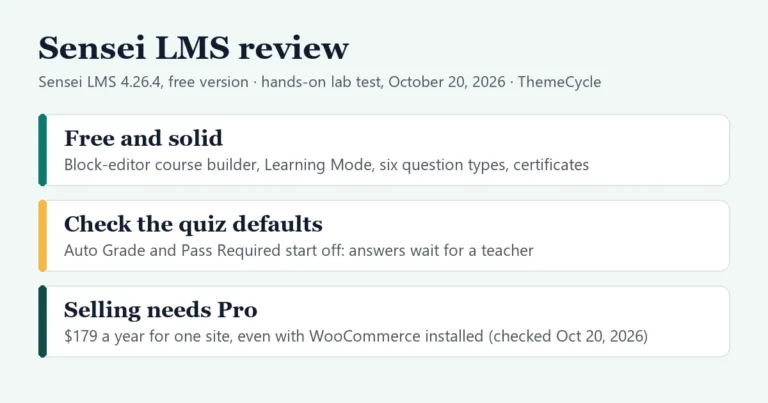
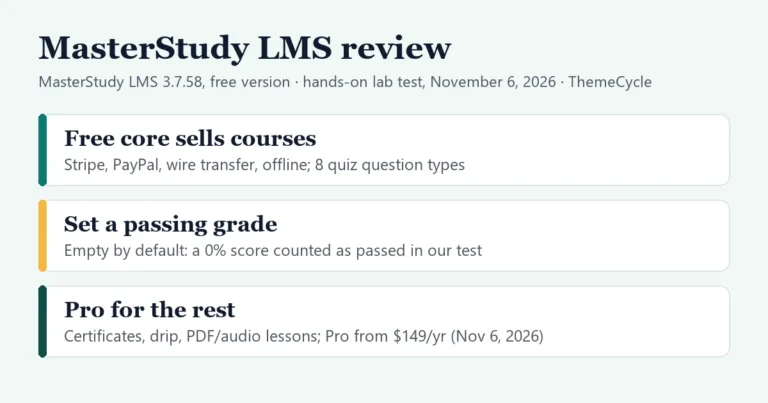
For one site, Pro’s first year costs the same as MasterStudy Pro ($149 a year on November 6, 2026) and less than Tutor LMS Pro ($199 a year on October 4, 2026) or Sensei Pro ($179 a year on October 20, 2026). From year two, at $299, it costs more than any of those three prices. Compare on the renewal price, not the first invoice.
Who should use Masteriyo LMS?
Best for: a solo teacher or small academy that wants a lot without paying: a tidy builder, a clean learning page, card payment options and a certificate. It’s the only free version we’ve tested that lists card gateways and includes certificates. It suits free and low-cost courses where a quiz is a self-check, not an exam.
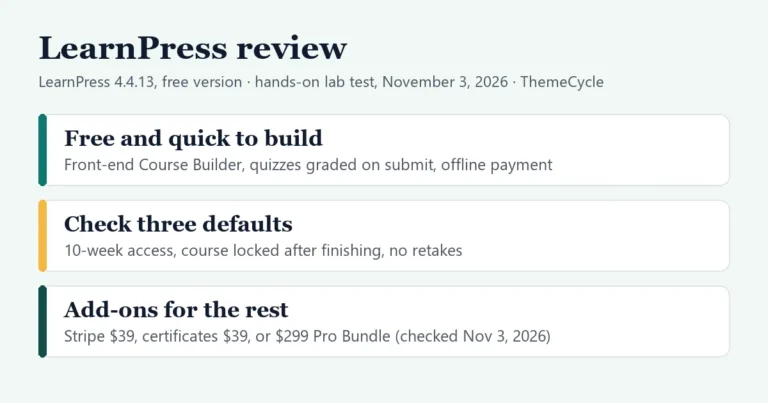
Look elsewhere if your certificate has to prove that a student passed: in our test a failed student was offered it too. LifterLMS and Sensei LMS also include certificates for free, and each has its own defaults to check. If you want a front-end builder for several instructors, see Tutor LMS. If you’d rather pay once than every year, LearnPress sells add-ons one by one, and MasterStudy LMS is the closest match in style. Our WordPress LMS plugins comparison sets them side by side, and our step-by-step guide to selling courses on WordPress covers the whole build.
Verdict
Free Masteriyo LMS is the only free version we’ve tested that includes both certificates and a checkout with card gateways to switch on, along with a tidy builder and a polished learning page. The catches are in the defaults. A new free course lets guests in without an account, a quickly added quiz passed a 0% answer until we saved its settings, and a failed quiz didn’t stop a student from finishing the course and being offered the certificate. Add the ticked usage-data box in the wizard and a course-creation screen that got stuck on our test site. None of that costs money to fix, but all of it needs checking: take your own course as a guest and as a student who gets the quiz wrong before you open the doors.
FAQ
Is Masteriyo LMS free?
Yes. The core plugin is free on WordPress.org. Paid plans cost $99 (Basic), $149 (Pro) and $399 (Elite, 10 sites) for the first year, and the pricing page lists $199, $299 and $799 as the normal yearly prices (checked November 10, 2026).
Can I sell courses with the free version of Masteriyo?
Yes. The free plugin has its own checkout with offline payment, PayPal, Stripe, Mollie and Lemon Squeezy, all off until you switch them on. We sold a $29 course with offline payment and completed the order by hand; we didn’t test the online gateways.
Does Masteriyo LMS include certificates for free?
Yes. The Certificate Builder add-on is marked Free, and it offered a blank design and one template in our test. A student who failed the quiz was offered the certificate too, so test that on your own site.
Why did a student pass a Masteriyo quiz with 0%?
In our test, a quiz added with the builder’s Quiz button had a stored pass mark of 0, although its Settings tab showed 40. After we opened the settings and clicked Update Quiz, a wrong answer was marked as failed.
Can visitors take a Masteriyo course without an account?
Yes, by default for free courses. A new free course has “Open Access (No Registration Required)” selected. Choose “Requires Registration to Access” on the course’s Pricing tab to change it.
Does Masteriyo set cookies for visitors?
Not on ordinary pages in our test. The learning page set a two-day session cookie, for guests in an open-access course as well as students, and the cart sets two session cookies.