LearnPress Review: What the Free Version Gets You, Tested Hands-On

Tested hands-on on our own WordPress install. We may earn a commission if you buy through links on this page. It never changes our verdict. How we test
We installed the free LearnPress plugin on a clean WordPress site, ran its setup wizard, built a three-lesson course with a quiz, took it as two students, then put a price on it and bought it as a third. This review covers what the free plugin does well, what costs extra, and three course defaults we’d change before a real launch.
The short verdict
- Who it suits: people who want to build and sell simple courses on their own site for free, and are happy to pay once for the few add-ons they need.
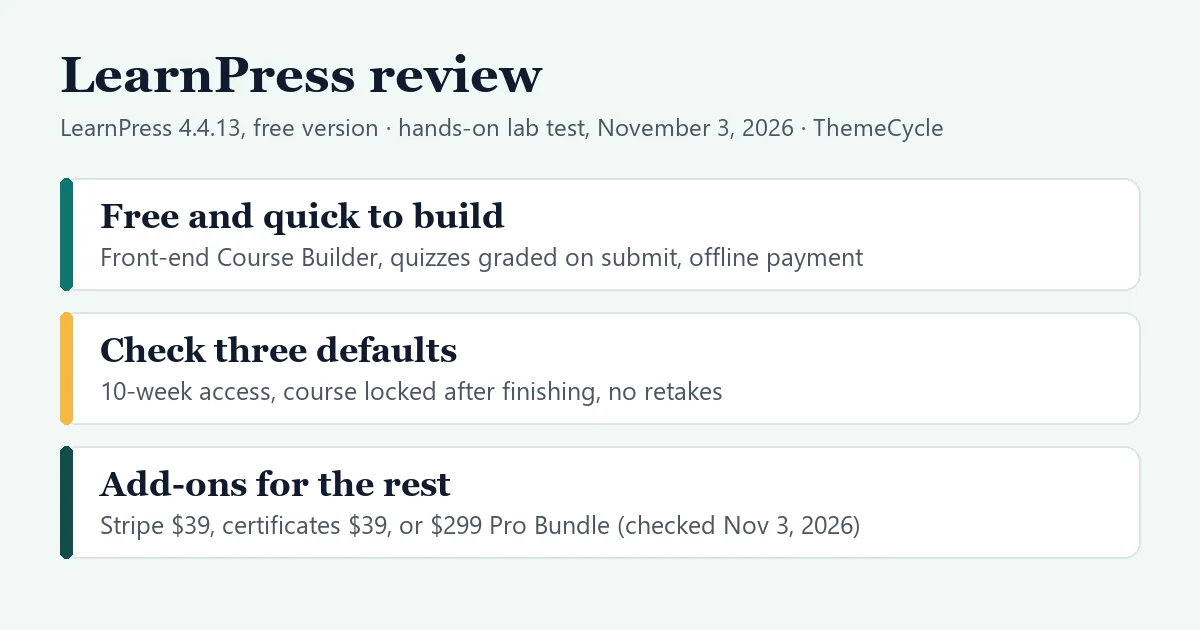
- What’s free: a quick front-end Course Builder, quizzes that grade themselves, a quiz timer, offline (bank transfer or cash) payments with an orders screen, and PayPal Standard as an option.
- What isn’t: card payments through Stripe ($39), certificates ($39), content drip ($39), assignments ($39) and a gradebook ($39) are paid add-ons, or all of them in the $299 Pro Bundle (checked November 3, 2026).
- Change before launch: new courses default to 10 weeks of access, lock students out once they finish, and allow no retakes.
How we tested
- Versions: LearnPress 4.4.13, the free plugin from WordPress.org, on WordPress 7.1.4 and PHP 8.3, with the default Twenty Twenty-Five theme and no add-ons.
- Setup: a private test install on our own machine. We judged features and workflow, not speed: a local test site says nothing about how fast your hosting will be.
- What we did: ran the setup wizard; built a course with one section, three lessons and a single-choice quiz in the Course Builder; took it as one student who passed and one who failed; then set a $49 price, bought it as a third student with offline payment and completed the order as the admin. We also checked which pages load files from other websites and which cookies the plugin sets.
- What we didn’t test: PayPal, Stripe or WooCommerce payments, any paid add-on (certificates, drip, assignments, gradebook), emails (our test site sends no mail), instructor accounts, SCORM, the AI tools, LearnPress themes such as Eduma, mobile layouts and speed.
- Independence: ThimPress didn’t pay for this review or provide add-ons. There are no LearnPress affiliate links on this page. We earn a commission if you buy Tutor LMS through our link below; it doesn’t change what we say about either plugin.
Setting up
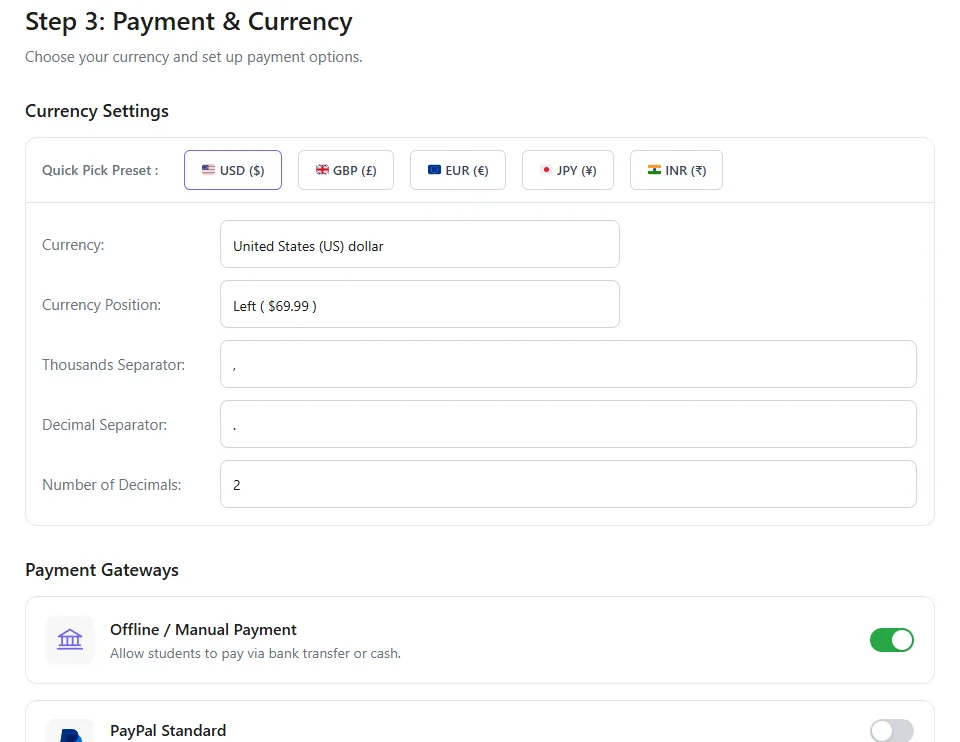
A dashboard notice offers a Quick Setup wizard with four short steps: how courses look, the system pages, payment and currency, and emails. LearnPress had already created its pages when we activated it: All Courses, Instructors, a student Profile, Checkout, Become an Instructor, and Terms and Conditions.
With a block theme like Twenty Twenty-Five, the first step’s layout choices (Modern or Classic course page, grid or list) weren’t available: the wizard said they don’t apply to the theme. The payment step had Offline / Manual Payment switched on and PayPal Standard switched off; Stripe is a paid add-on. We left the email notifications as they were, and the finish screen summed them up as “Disabled”, so switch on the ones you want (new order, order completed, enrolled, course completed and others) before launch. The wizard asked nothing about usage tracking or a newsletter.
Building a course
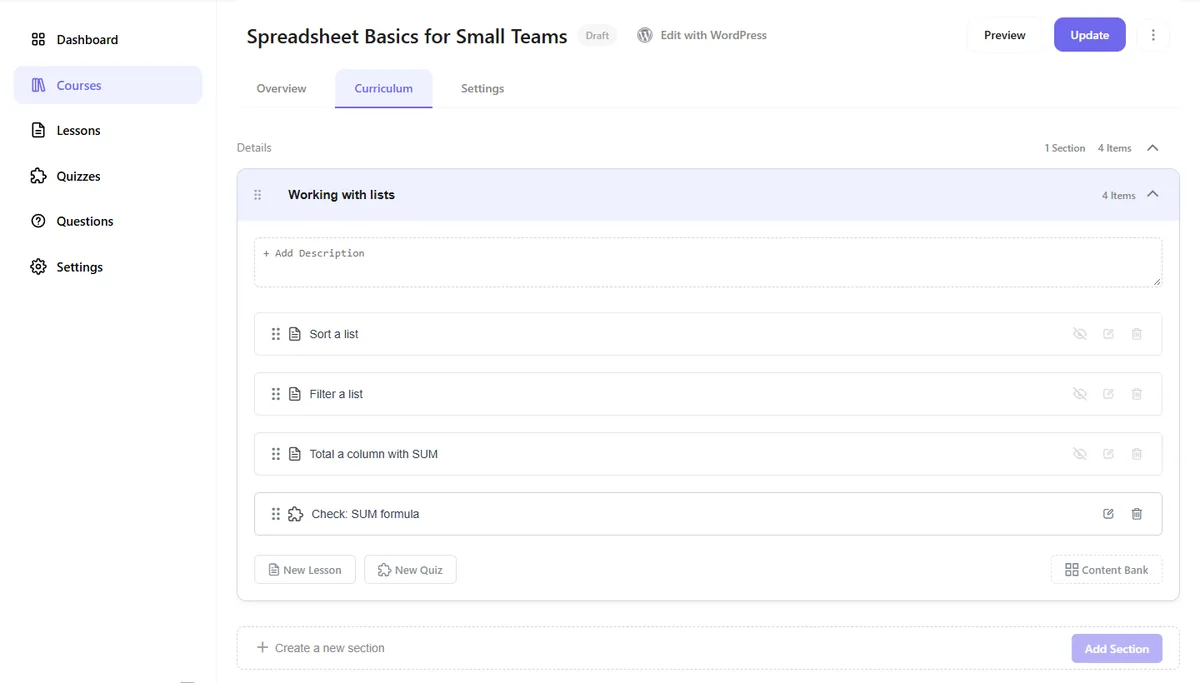
The admin bar’s Course Builder link opens a separate front-end app with its own dashboard (courses, students, sales) and screens for courses, lessons, quizzes and questions. You can still use the classic WordPress editor instead. We only used the Course Builder as the site admin, so we can’t say how it works for other instructors on the free plugin. ThimPress also sells a $49 Frontend Editor add-on, which we didn’t try.
A course is a title, a description, a featured image and categories, then a Curriculum tab: add a section, and inside it New Lesson, New Quiz or Content Bank to reuse items you’ve already made. Four titles gave us the outline. Lesson addresses follow their titles and sit under the course, so our first lesson lived at /courses/spreadsheet-basics-for-small-teams/lessons/sort-a-list/. One quirk: the quiz was published as soon as we created it, while the course was still a draft.
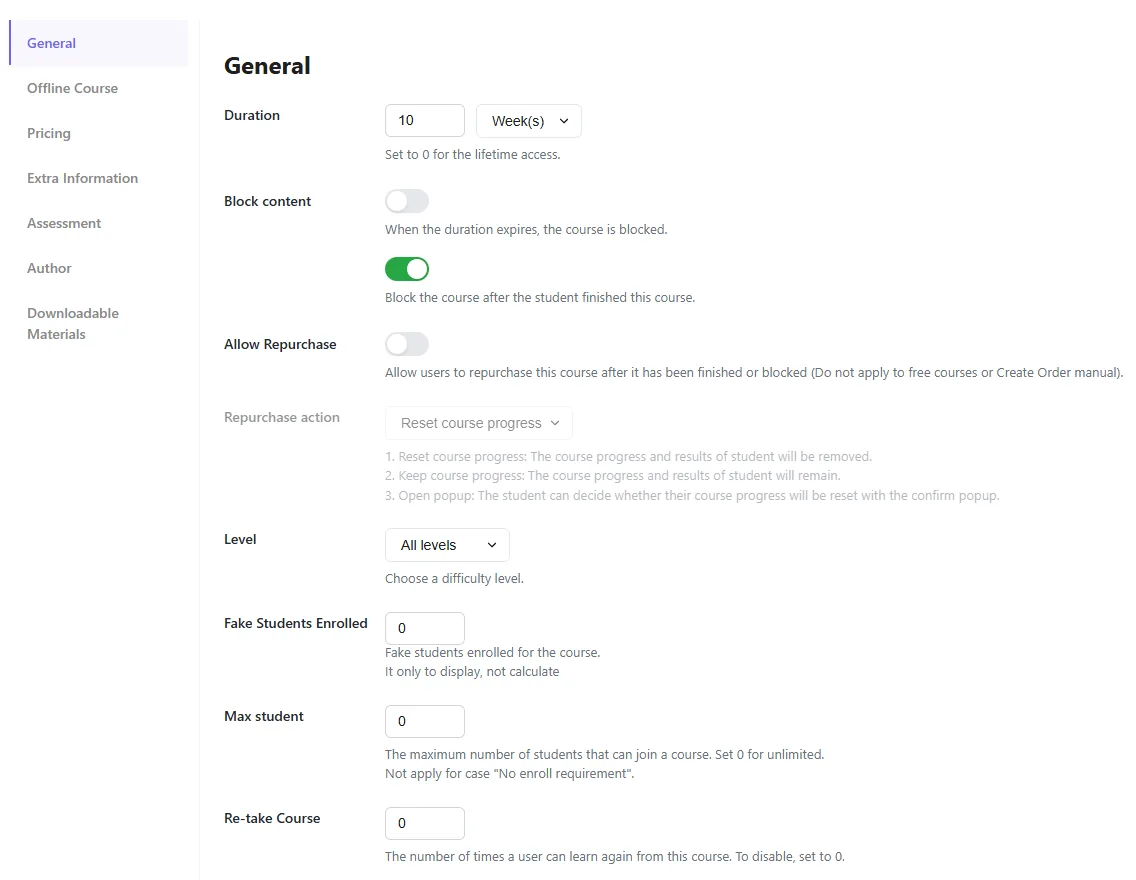
Course settings live in seven tabs: General, Offline Course (for in-person, one-to-one or live classes), Pricing, Extra Information, Assessment, Author and Downloadable Materials. Assessment defaults to “Evaluate via lessons” with an 80% passing grade.
Watch out for: three defaults on the General tab.
- Duration: 10 weeks. The course page told every visitor “10 Weeks”, and our student’s course showed an expiry date 70 days after enrolling (January 12, 2027). Access didn’t stop at that date by default, because “Block content” when the duration expires was off, but if you sell lifetime access, set the duration to 0.
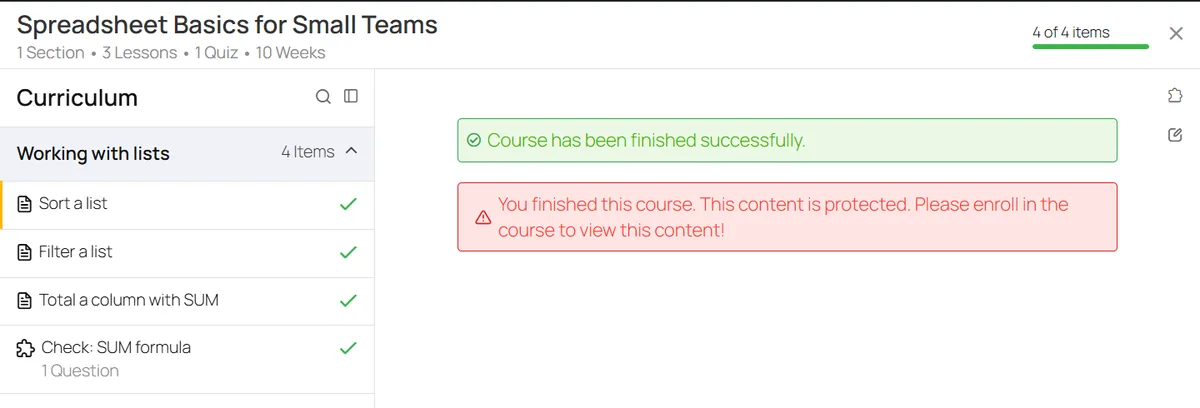
- “Block the course after the student finished this course” is on. See below: our student lost access to the lessons the moment they clicked Finish Course.
- Re-take Course is 0, so a student can’t take the course again.
The same tab has a field called Fake Students Enrolled, which its help text says is “only to display, not calculate”: a number shown to visitors, not real enrollments. We didn’t try it, and we’d leave it at 0: showing students who don’t exist misleads buyers.
Quizzes
Four question types are free: True or False, Multi Choice, Single Choice and Fill in Blanks. A new question comes with three placeholder answers (the first marked correct), a points value, and optional Hint and Explanation boxes. LearnPress lists sorting and random quizzes as paid add-ons.
The quiz defaults are sensible: no time limit (a timer is free if you want one), an 80% passing grade, and Review and “Show the correct answer” switched on. Retake was empty, and our student who failed got no retake button.
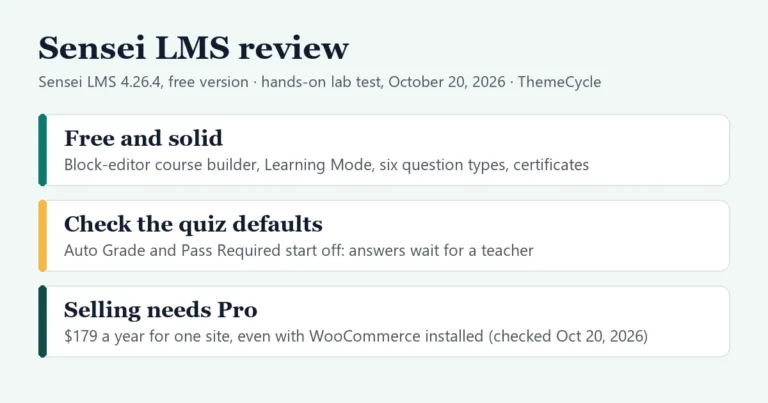
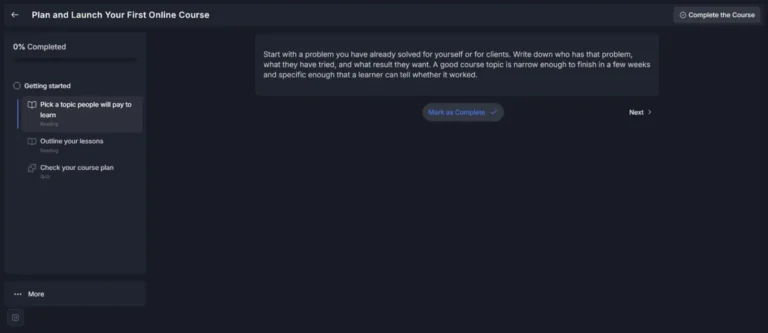
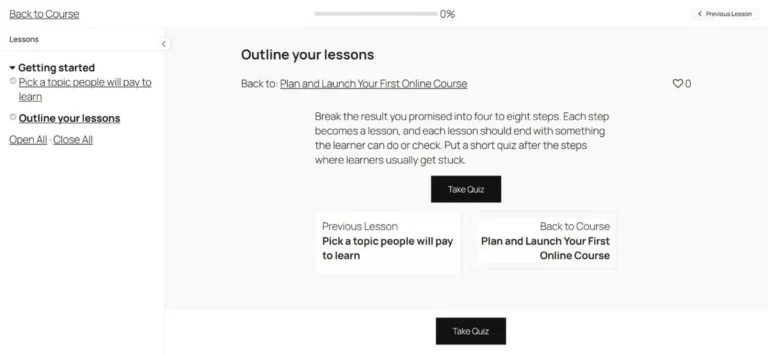
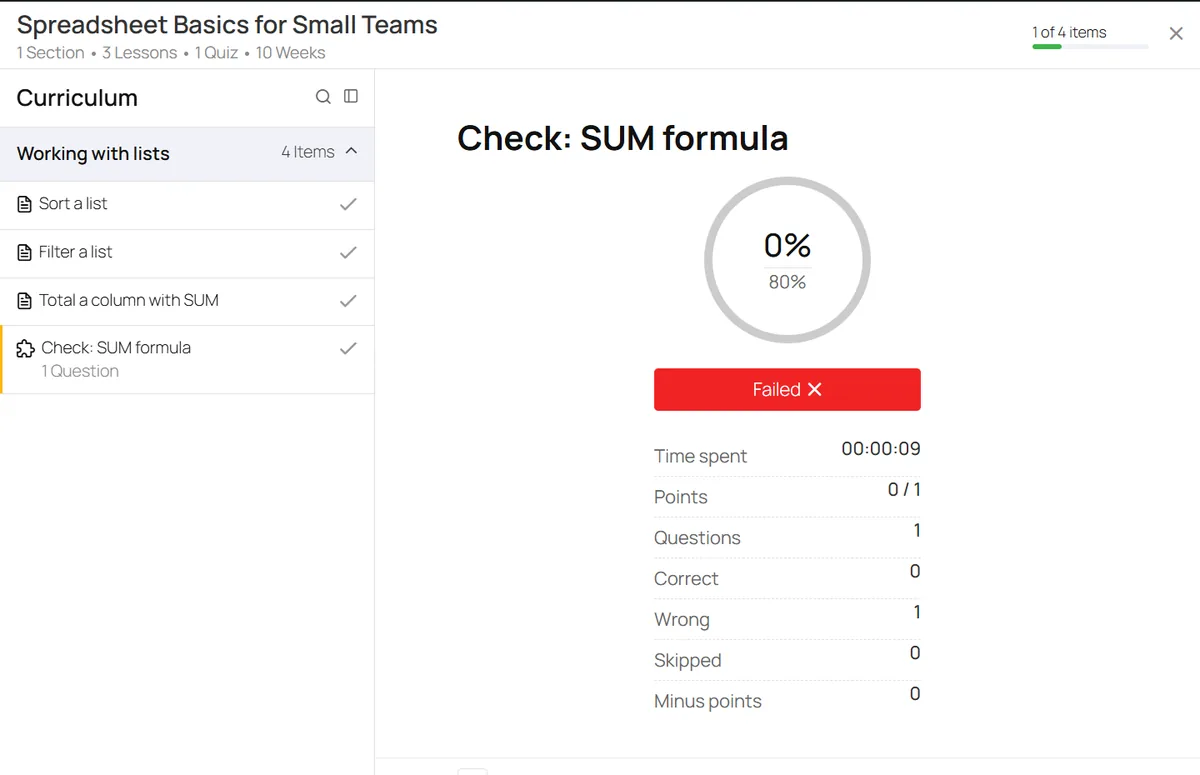
Grading was instant. Our first student chose the right answer and saw “100%, Passed” with time spent and points. Our second chose a wrong one and saw “0%” against the 80% mark and “Failed”, with only a Review button. Unlike Sensei LMS, where quizzes waited for a teacher by default in our test, nothing needed marking by hand.
Watch out for: lessons aren’t locked in order by default. Our first student opened the quiz before finishing the third lesson. If order matters, look at the course’s prerequisite and assessment options before launch; we didn’t test them.
What students see
On the course page, visitors see the curriculum, the instructor and a Start Now button (Buy Now once the course has a price). A visitor who clicked Start Now on our free course landed on the Checkout page with a $0.00 order and a sign-in form: even free courses go through a $0 order. WordPress registration is off by default, so there was no way to sign up there. Switch on “Anyone can register” in WordPress’s settings, or add students yourself.
Signed-in students get a full-screen lesson view: the curriculum on the left, an “items done” progress bar at the top, and a Complete button with a yes/no check. When all items were done, the course page showed 100% progress, the expiry date and a Finish Course button.
Under the course and its lessons, our test site also showed a “Leave a Reply” comment form. That’s WordPress’s comment setting rather than LearnPress, but turn comments off if you don’t want public replies under your lessons.
Watch out for: after our student clicked Finish Course, the course page said “This course is finished. Passed”, and opening any lesson showed “You finished this course.” above “This content is protected. Please enroll in the course to view this content!” That’s the “Block the course after the student finished” default at work. For a course people will come back to, such as a reference or a skills course, switch it off before your first student finishes.
Selling with the free plugin
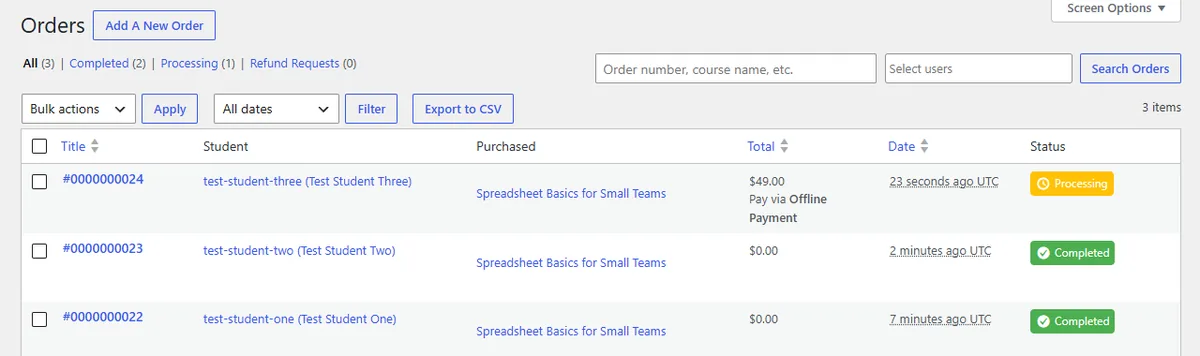
We gave the course a $49 regular price. The course page then showed $49.00 and Buy Now. Our third student went to Checkout, where the only enabled method said “Make a payment with cash”, and placed the order.
The student wasn’t enrolled yet: the course still offered Buy Now. In LearnPress’s Orders screen the order showed as Processing, “Pay via Offline Payment”. When we changed it to Completed, as you would once the bank transfer arrives, the student’s button changed to Continue and the course opened. The Orders screen also filters by status and exports to CSV.
So you can take payments with the free plugin, but offline payment means checking and completing each order by hand. For card payments you need PayPal Standard (free, not tested by us) or the $39 Stripe add-on. Our payments guide explains the options.
Privacy: a cookie for every visitor
We found no requests to Google Fonts or any other outside server from LearnPress on the eight pages we checked, as a visitor or as a student. The only outside host was Gravatar, for WordPress’s own profile pictures.
Watch out for: LearnPress set a cookie named lp_session_guest for every logged-out visitor, on every page we tried, including a plain page with no course on it. It lasts 24 hours. Going by the setting below, it’s there for guest checkout. If your privacy policy says you set no cookies, or you ask visitors for consent first, this one counts.
What worked in our test: LearnPress › Settings › General has an option called “Store IP Guest to handle checkout”, off by default. With it on, the three pages we checked again (home, course and checkout) no longer set the cookie. Instead, LearnPress identifies guests by a hashed form of their IP address (we read this in the plugin’s code), so visitors sharing one connection share one guest session. We didn’t test a guest checkout with this setting on.
Free vs paid at a glance
We tested the free column. The add-on prices are from LearnPress’s pricing page, checked November 3, 2026.
| Feature | Free plugin | Paid add-on |
|---|---|---|
| Course Builder | Yes | Frontend Editor, $49 |
| Auto-graded quizzes | Yes, 4 types | More types from $19 |
| Quiz timer | Yes | Not needed |
| Offline payment | Yes | Not needed |
| PayPal Standard | Yes (not tested) | Not needed |
| Stripe | No | $39 |
| WooCommerce checkout | No | $49 |
| Subscriptions | No | $29 |
| Certificates | No | $39 |
| Content drip | No | $39 |
| Assignments | No | $39 |
| Gradebook | No | $39 |
| Co-instructors | No | $29 |
Pricing
LearnPress sells add-ons one by one, from $19, or all premium add-ons together in the Pro Bundle. These prices are from LearnPress’s pricing page on November 3, 2026. Each paid plan is described as a “Lifetime license for 1 site” with “12 months of Updates”; the Pro Bundle says “Renews at $209.30”, and the page doesn’t say what renewing single add-ons costs.
| Setup | Year one |
|---|---|
| Free plugin only | $0 |
| Stripe + certificates | $78 |
| Plus content drip | $117 |
| Five add-ons | $195 |
| Pro Bundle | $299 |
The page also points refund questions to ThimPress’s refund rules without giving a number of days. For a typical paid course with card payments and certificates, two add-ons at $78 cost less than one year of Tutor LMS Pro ($199 a year on October 4, 2026) or Sensei Pro ($179 a year on October 20, 2026). Even five add-ons (Stripe, certificates, drip, assignments and gradebook) come to $195 in year one, under the $299 Pro Bundle. The Bundle covers every other add-on too, and from year two the sums depend on renewal prices the page only gives for the Bundle.
Who should use LearnPress?
Best for: solo creators and small schools who want to sell a handful of courses cheaply, take bank transfers or PayPal at first, and add Stripe or certificates later with a one-off payment. It’s also the natural pick if you’ve bought a LearnPress-based theme such as Eduma.
Look elsewhere if you want certificates and card payments in one license with a more polished student area: Tutor LMS covers both in Pro. If you want certificates for free, LifterLMS includes them in its free core. Sensei LMS suits people who prefer building in the block editor. Our WordPress LMS plugins comparison sets them side by side, and our step-by-step guide to selling courses on WordPress covers the whole build.
Verdict
Free LearnPress is one of the quickest ways to get a course online in WordPress. The Course Builder turned four titles into a working outline, quizzes graded themselves, and you can take money from day one with offline payments and a clear orders screen. The catch is in the defaults: a 10-week duration on every course, students locked out the moment they finish, and no retakes. Change those three before your first student enrolls, decide whether the guest cookie fits your privacy policy, and price the add-ons you’ll really use against the $299 Pro Bundle.
FAQ
Is LearnPress free?
Yes. The core plugin is free on WordPress.org. Paid add-ons start at $19 each, and the Pro Bundle with all of them is $299 (checked November 3, 2026).
Can I sell courses with the free version of LearnPress?
Yes. In our test, offline payment was on out of the box and we sold a $49 course with it, completing the order by hand. PayPal Standard is also in the free plugin; Stripe and WooCommerce are paid add-ons.
Does LearnPress grade quizzes automatically?
Yes. Our quiz was graded the moment the student submitted it, with an 80% passing grade by default.
Does LearnPress include certificates?
Not in the free plugin. Certificates are a $39 add-on, or part of the Pro Bundle (checked November 3, 2026). We didn’t test them.
Why can’t my students open a course they finished?
LearnPress’s “Block the course after the student finished this course” setting is on by default. Switch it off on the course’s General settings tab.