Sensei LMS Review: What the Free Version Really Gets You (Hands-On Test)

Tested hands-on on our own WordPress install. No affiliate links on this page. How we test
We installed the free Sensei LMS plugin on a clean WordPress site, ran its setup wizard, built a three-lesson course with a quiz, and took the course as two different students. This review covers what the free plugin does well, what needs Sensei Pro, and the defaults that would catch you out on a real site.
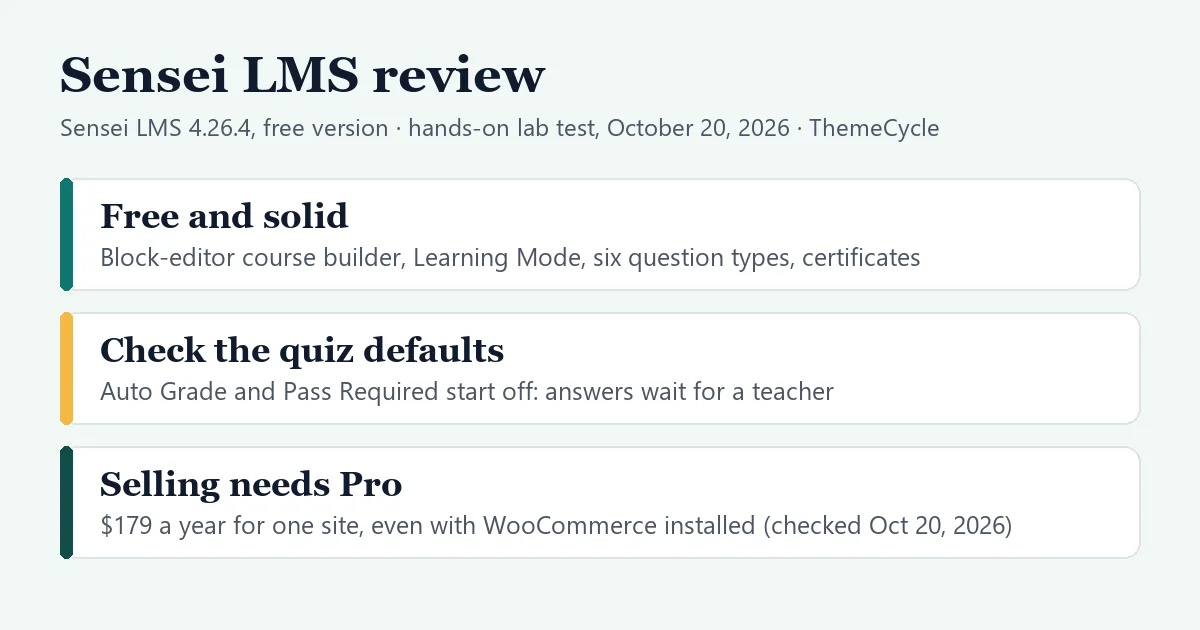
The short verdict
- Who it suits: people who like WordPress’s block editor and want free courses, quizzes and certificates on their own site, with a calm, distraction-free lesson view for students.
- What’s free: a block-editor course builder, Learning Mode, six quiz question types, manual or automatic grading, free preview lessons, lesson prerequisites, manual enrollment and certificates (through a free add-on).
- What isn’t: selling courses. Even after Sensei’s own wizard installed WooCommerce, the course’s Pricing panel said “Upgrade to Sensei Pro”. Drip content, course expiry, the quiz timer, groups and co-teachers are Pro too.
- Price of Pro: $179 a year for one site (checked October 20, 2026). There’s no lifetime license.
How we tested
- Versions: Sensei LMS 4.26.4, the free plugin from WordPress.org, on WordPress 7.1.3 and PHP 8.3. Sensei’s setup wizard added WooCommerce 11.2.1 and Sensei’s free Course theme. We later added the free Sensei LMS Certificates add-on (2.6.0).
- Setup: a private test install on our own machine. We judged features and workflow, not speed: a local test site says nothing about how fast your hosting will be.
- What we did: built a free course with three lessons and a multiple-choice quiz; enrolled a student, completed the lessons, submitted the quiz, graded it as the teacher and downloaded the certificate; then switched on automatic grading and ran a second student through the quiz. We also checked which pages load files from other websites.
- What we didn’t test: selling (it needs Pro), drip content, groups and cohorts, Sensei’s interactive blocks, its AI features, emails (our test site sends no mail), other themes and mobile layouts.
- Independence: Automattic didn’t pay for this review or provide a license. There are no affiliate links on this page.
Setting up
Sensei opens with a short wizard. It asks what your site is for (selling courses, certification, educating students, training employees or other), offers to install its free Course theme, and asks whether you’ll share anonymous usage data. We said no to the data sharing and skipped the newsletter step.
Watch out for: when we picked “Sell courses and generate income”, the wizard said “WooCommerce will be installed for free” and installed it. That’s true, but it doesn’t make selling free. The free Sensei plugin can’t attach a course to a WooCommerce product; that link is a Sensei Pro feature, as the course editor told us one screen later. WooCommerce also added its own Shop, Cart, Checkout and My account pages to our site.
Building a course
Sensei builds courses in the normal WordPress block editor. A new course starts with Sensei’s own three-step pop-up: a title and short description, an offer to sell the course with Sensei Pro, and a choice of four starting layouts (Course Default, Video Hero, Long Sales Page and Life Coach).

The Course Outline block holds the lessons. You can start blank or, with Pro, generate an outline with AI. Starting blank gave us three placeholder lessons that we renamed in place. Saving the course created the lessons as drafts, and publishing the course published them too. That’s quick for a first course.
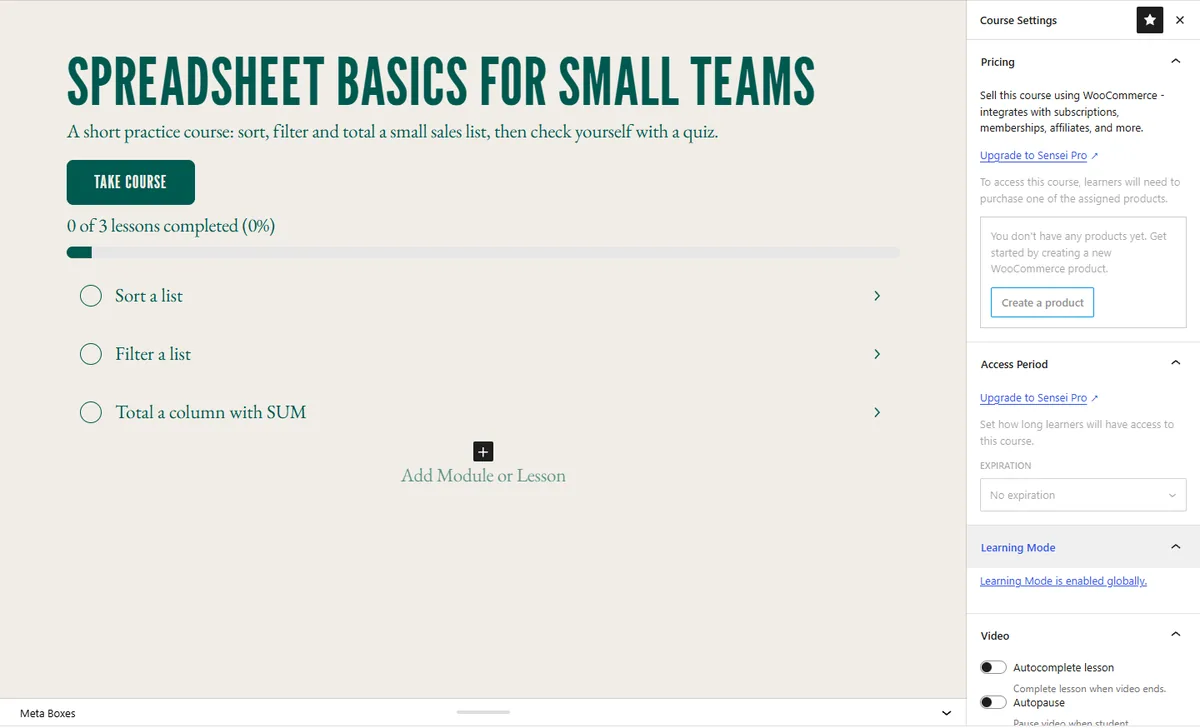
Watch out for: renaming a lesson in the outline doesn’t change its web address. Our lesson “Sort a list” kept the address /lesson/lesson-1/, and the others stayed lesson-2 and lesson-3. If clean URLs matter to you, change each lesson’s slug before you share links.
Each lesson opens with a choice of layouts, such as Video Lesson, Lesson with Quiz, Zoom/Meeting, Files to Download and Discussion Question. In the lesson settings, two useful options are free: a prerequisite lesson, and “Allow this lesson to be viewed without login”, a free preview for visitors (we saw the option but didn’t try it). The course settings also show free video options (complete the lesson when the video ends, or require the video to be watched), a course prerequisite, open access without sign-up, and a switch that stops students enrolling themselves; we didn’t test those either.
Quizzes
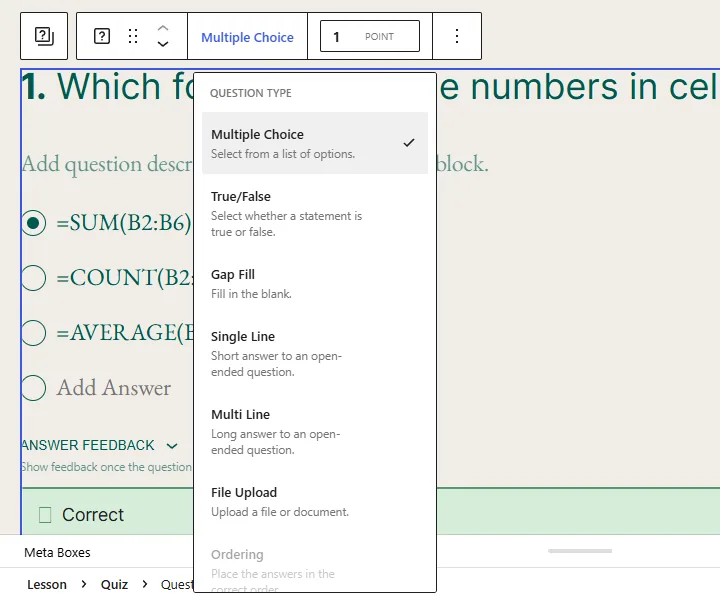
Quizzes live at the bottom of a lesson, built with blocks like everything else. Six question types are free: Multiple Choice, True/False, Gap Fill, Single Line, Multi Line and File Upload. Ordering is grayed out for Pro, and so is the “Generate quiz questions with AI” button.
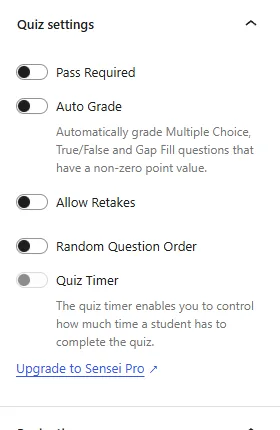
The quiz settings are where we’d slow down. Pass Required, Auto Grade, Allow Retakes and Random Question Order were all switched off by default, and the Quiz Timer needs Pro.
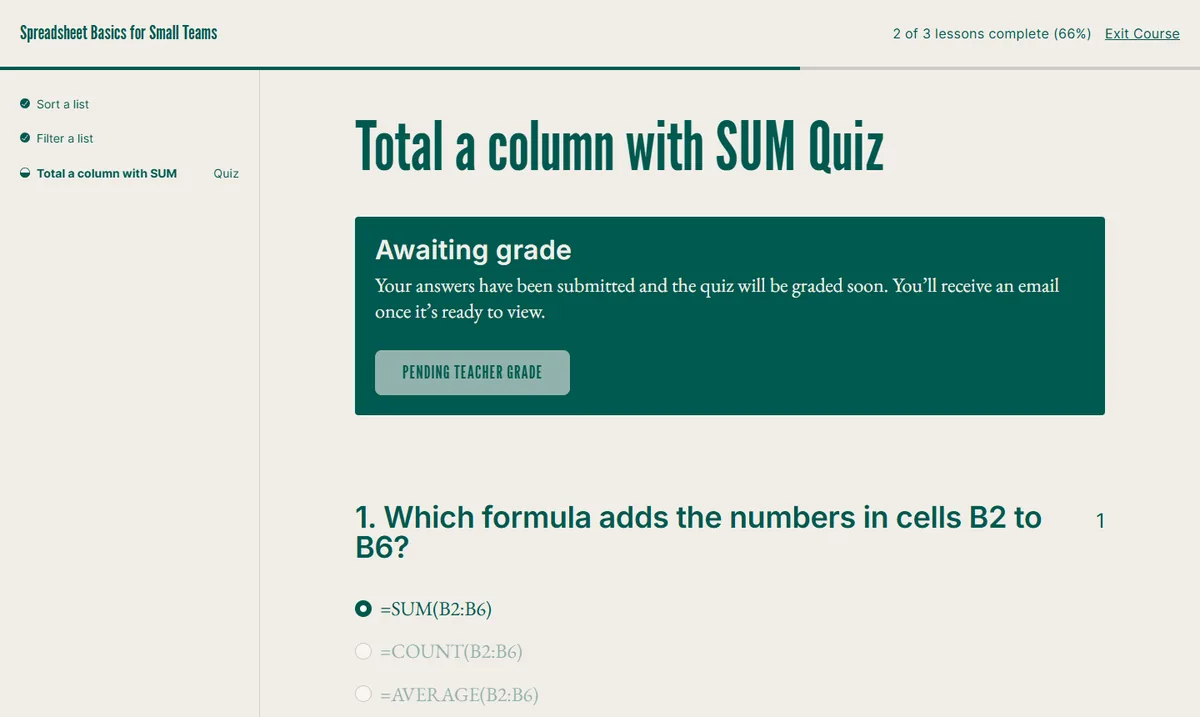
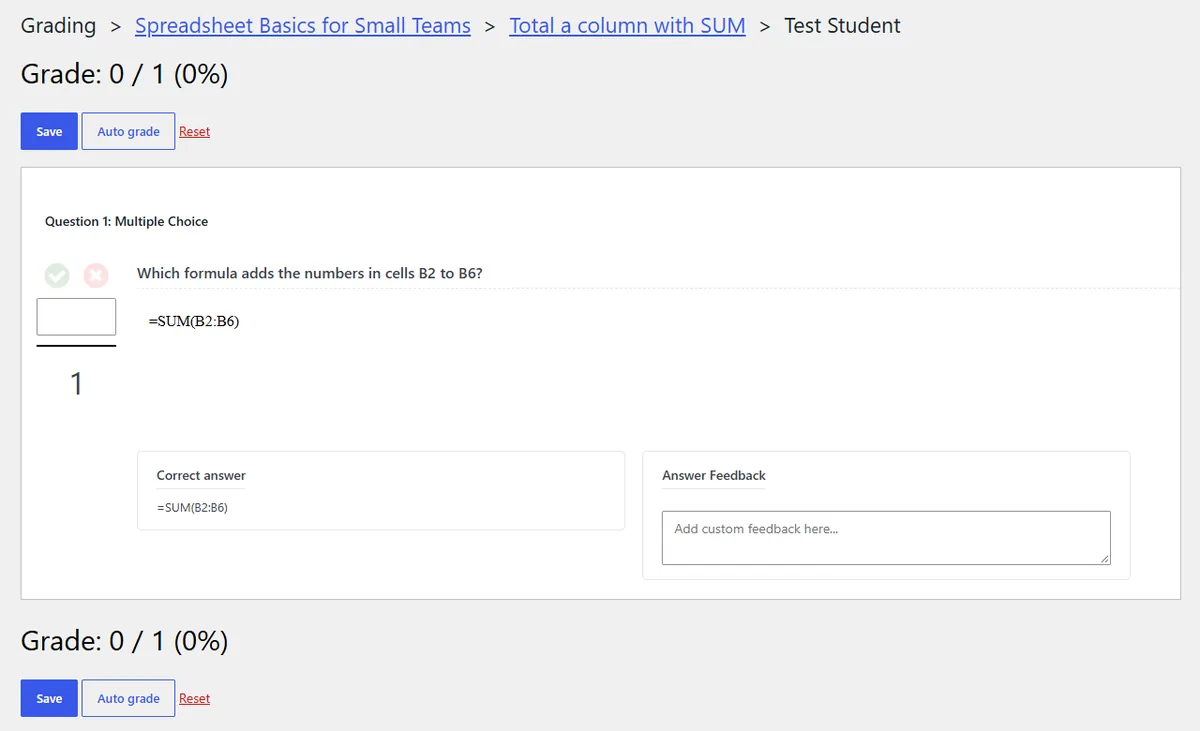
With those defaults, our first student answered a single multiple-choice question correctly and saw “Awaiting grade” with a “Pending teacher grade” button. The lesson stayed unfinished until we, as the teacher, opened Sensei’s Grading screen and graded the quiz. The grading screen itself is clear: it lists each answer next to the correct one, has a feedback box, and an “Auto grade” button that marked our multiple-choice question in one click.
Then we switched Auto Grade on and ran a second student through the same quiz, this time choosing a wrong answer. The quiz was graded straight away, but the result read “Your Grade: 0%” above the message “You’ve passed the quiz and can continue to the next lesson.” With Pass Required off, the pass mark is effectively zero, so any submission counts as a pass. That student also had the lesson marked complete without finishing the two lessons before it, because lessons aren’t locked in order unless you set prerequisites.
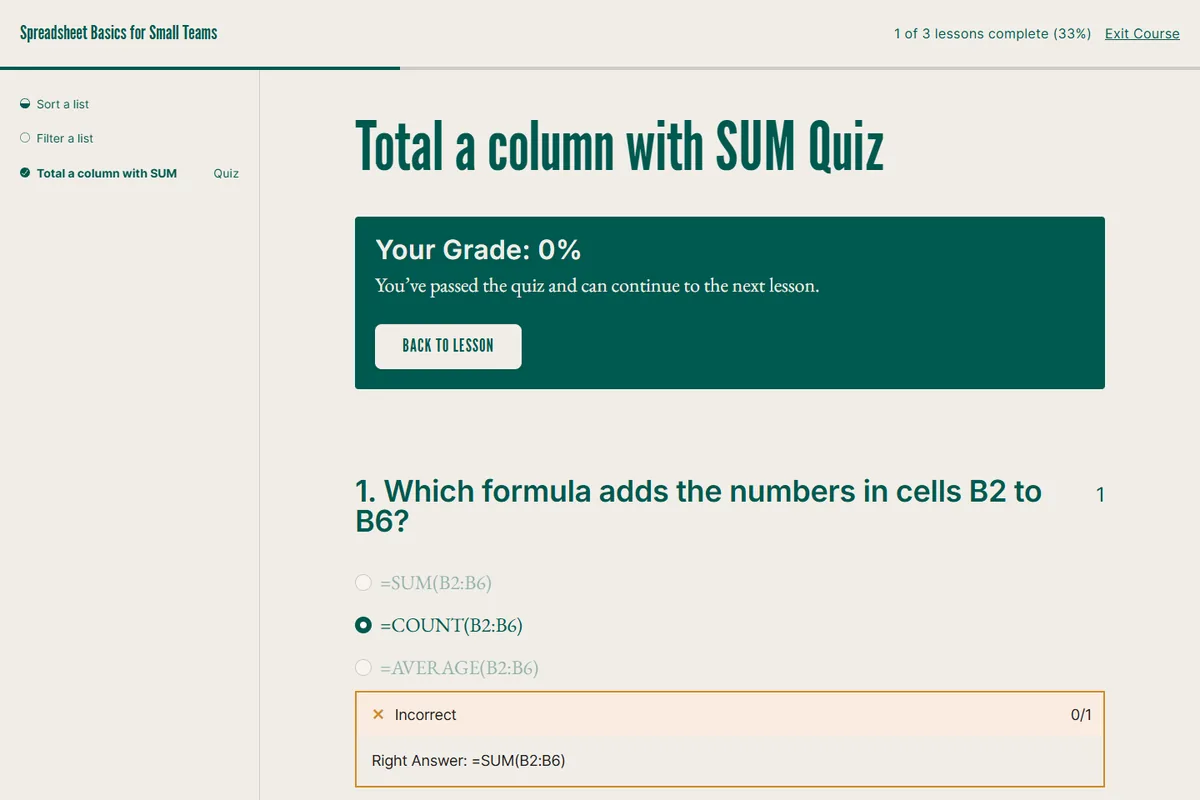
Watch out for: for a quiz that should check understanding, switch on Auto Grade (it covers multiple-choice, true/false and gap-fill questions) and Pass Required. We didn’t test Pass Required itself, so submit one wrong attempt as a test student before launch and check that it fails. Leave Auto Grade off only if you really want to mark every attempt by hand.
What students see
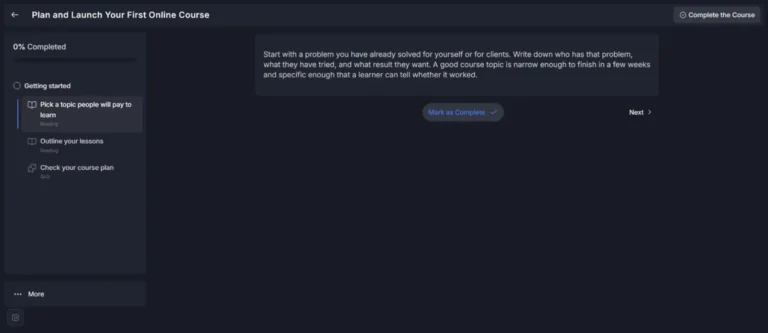
With Learning Mode on (the wizard switched it on for all courses), lessons open in a focused layout: the course name and a progress count at the top, the lesson list in a sidebar, and Complete Lesson, Previous and Next below the content. It’s plain and readable.
Two student-side details to know:
- Signing up: a visitor who clicked Take Course was sent to a login form. Our site had WordPress registration switched off, which is the default, so there was no way to sign up from there. Turn on “Anyone can register” in WordPress’s settings, or enroll students yourself from Sensei’s Students screen, which lets you add students to a course, remove them or reset their progress in the free version.
- My Courses opened on “Active” courses, so a finished course only appeared after switching the filter to “Completed”.
Watch out for: Learning Mode loads two fonts, Inter and Source Serif Pro, from Google’s servers (fonts.googleapis.com). In our check it did so on the lesson and quiz pages, for visitors and logged-in students, but not on the course page, the course list or My Courses. We found no setting for it; the plugin’s code adds the font file whenever Learning Mode is in use. That matters if your privacy policy promises no third-party requests, or if your students are somewhere loading Google Fonts needs their consent.
What worked in our test: in a small must-use plugin or your child theme’s functions.php, hook into wp_enqueue_scripts at priority 100 and run wp_dequeue_style( 'sensei-course-theme-fonts' );. After that, neither page loaded anything from Google, and Sensei’s own stylesheets still loaded. We didn’t check how Learning Mode looks without the two fonts, and an update could rename the handle, so check again after updating. (Tutor LMS needs a different fix for the same problem; see our Tutor LMS review.)
Certificates
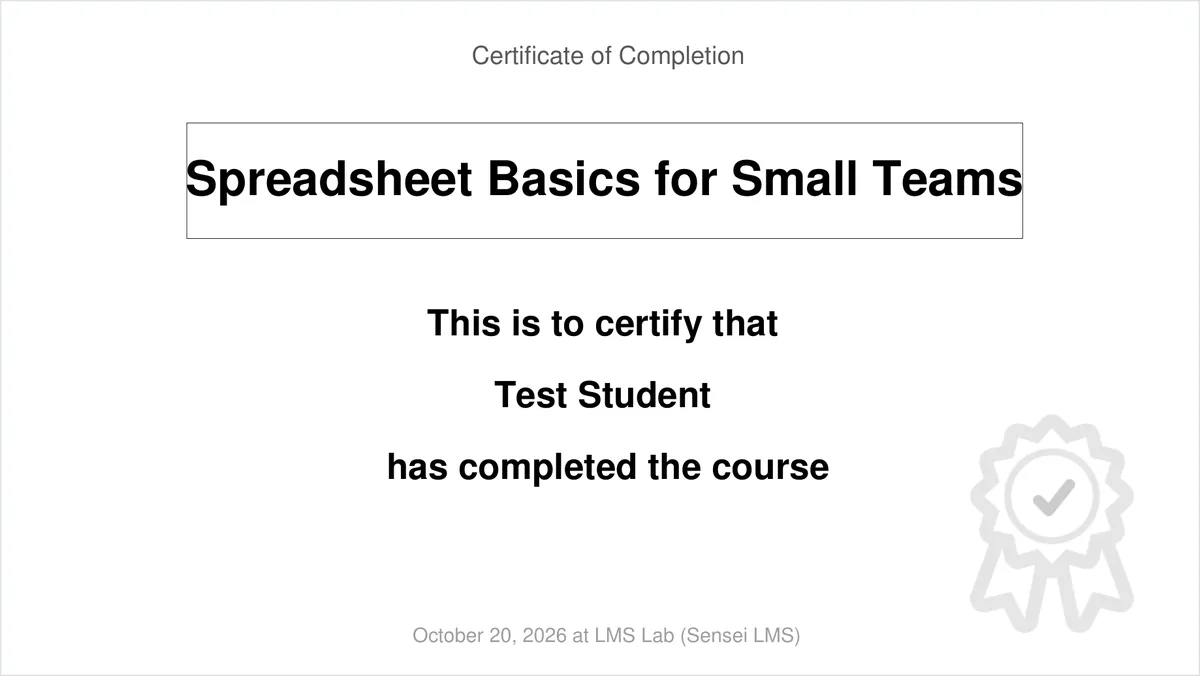
Certificates come from a separate free add-on, Sensei LMS Certificates, which you can install with one click from Sensei’s Home screen. With its default template, our student got a one-page PDF certificate with the course name, their name and the completion date, linked from the Course Completed page. A logged-out visitor opening the same certificate link was redirected away, so certificates aren’t public by default.
Free vs Pro at a glance
We saw the locks marked “Pro” in the free plugin ourselves; the Pro column is from Sensei’s pricing page, checked October 20, 2026.
| Feature | Free | Pro |
|---|---|---|
| Courses and Learning Mode | Yes | Yes |
| Question types | 6 types | Adds Ordering |
| Auto grading, retakes | Yes | Yes |
| Quiz timer | No | Yes |
| Free preview lessons | Yes | Yes |
| Prerequisites | Yes | Yes |
| Manual enrollment | Yes | Yes |
| Certificates | Yes, free add-on | Yes |
| Sell with WooCommerce | No | Yes |
| Drip and scheduling | No | Yes |
| Course expiry | No | Yes |
| Groups and cohorts | No | Yes |
| Co-teachers | No | Yes |
| AI quiz and outline tools | No | Yes |
| Interactive blocks | No | Yes (or Interactive Blocks) |
Pricing
These prices are from Sensei’s pricing page on October 20, 2026. All are yearly; we saw no lifetime option.
| Plan | Sites | Price per year |
|---|---|---|
| Sensei LMS | Any | Free |
| Interactive Blocks | Not stated | $60 |
| Sensei Pro | 1 | $179 |
| Sensei Agency | Up to 20 | $360 |
Sensei says the paid plans come with a 14-day refund guarantee, and there’s no free trial of Pro because the free plugin covers many of the same features. Interactive Blocks adds interactive videos, flashcards, image hotspots and similar blocks, and works without Sensei installed. Selling also needs WooCommerce, which is free, plus a payment gateway; our payments guide walks through WooCommerce with Stripe and PayPal.
Who should use Sensei LMS?
Best for: free courses and internal training where you want certificates and a clean lesson view without paying, especially if you already build pages with blocks. With Pro, it suits shops that already run WooCommerce and want courses as one more product.
Look elsewhere if you want to sell courses without a yearly license: the free Tutor LMS has its own checkout with PayPal and manual payments, and LifterLMS sells with manual payments in its free core. Our WordPress LMS plugins comparison sets Sensei beside LearnDash, LearnPress and MasterStudy, and our step-by-step guide to selling courses on WordPress covers the whole build.
Verdict
Free Sensei LMS is a tidy way to run courses inside WordPress. The block-editor builder is quick, Learning Mode is pleasant for students, and certificates, previews, prerequisites and manual enrollment cost nothing. Set up quizzes with care: out of the box, every quiz waits for a teacher, and with Auto Grade on but Pass Required off, a 0% score still passes. And if you plan to sell, budget $179 a year for Sensei Pro from the start, whatever the setup wizard’s WooCommerce step suggests.
FAQ
Is Sensei LMS free?
Yes. The core plugin is free on WordPress.org, and so is the Certificates add-on. Sensei Pro costs $179 a year for one site (checked October 20, 2026).
Can I sell courses with the free version of Sensei LMS?
No. In our test the course’s Pricing panel pointed to Sensei Pro, even with WooCommerce installed. Pro links courses to WooCommerce products.
Does Sensei LMS grade quizzes automatically?
Only if you switch on Auto Grade in the quiz settings. It was off by default in our test, so submitted quizzes waited for a teacher to grade them.
Does Sensei LMS issue certificates?
Yes, with the free Sensei LMS Certificates add-on. Our student got a PDF certificate on finishing the course.
Does Sensei LMS work with any theme?
Sensei says it does. We only tested its own free Course theme, which the setup wizard installs.