How to Take Payments on a WordPress Course Site: Stripe, PayPal and Your LMS (2026)

No affiliate links on this page. How we test
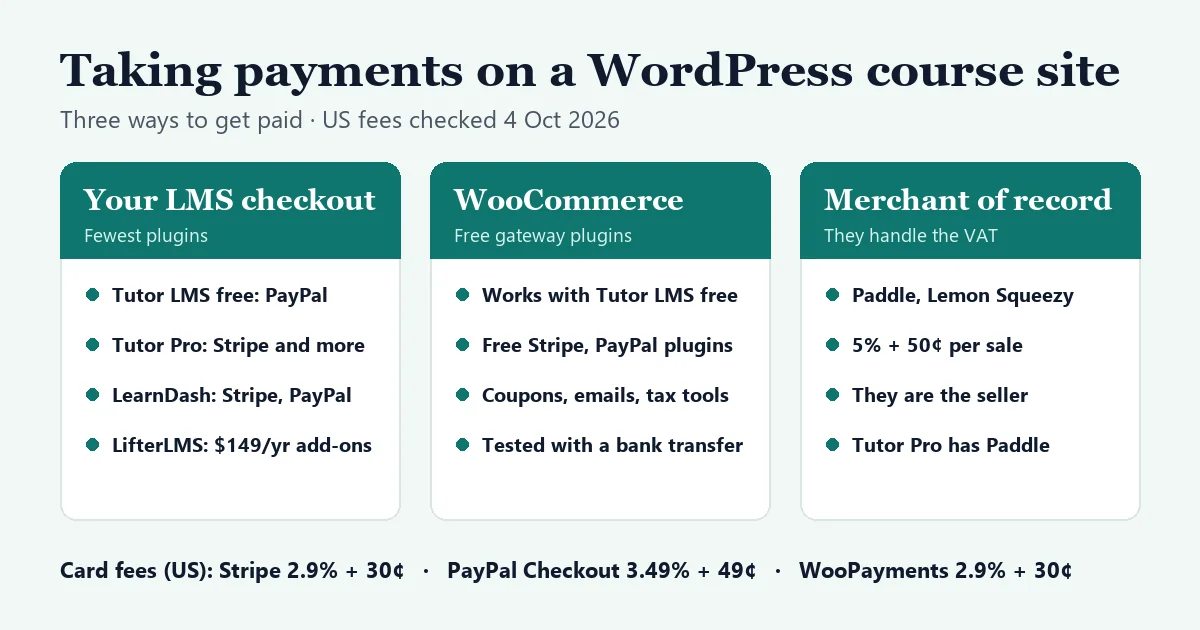
Choosing how to get paid is the part of a course site most people leave until last, and it’s where Tutor LMS, LifterLMS and LearnDash differ most. This guide covers the three ways to take payments, what each plugin supports for free, what Stripe and PayPal charge, and a route to free card payments that we set up and tested ourselves.
The short answer
- Easiest free start: Tutor LMS’s free version takes PayPal. Both Tutor LMS and LifterLMS take bank transfers and other manual payments for free.
- Card payments without paying for your LMS: Tutor LMS’s free version can sell through WooCommerce, and WooCommerce’s official Stripe plugin is free. We set this up and bought a course through it with a bank transfer.
- Card payments built into the LMS: LearnDash includes Stripe and PayPal. Tutor LMS needs Pro, from $199 a year. LifterLMS sells each gateway as a $149-a-year add-on.
- What you pay per sale (US): Stripe charges 2.9% + 30¢ per card payment and PayPal Checkout 3.49% + 49¢. We found no extra cut taken by any of the three LMS plugins.
- Selling worldwide and worried about VAT? A merchant of record such as Paddle or Lemon Squeezy (5% + 50¢) sells for you and handles the sales tax.
On this page
How we tested
- Hands-on, on our private WordPress test install (October 4, 2026), with Tutor LMS 4.1.0: we opened Tutor’s PayPal settings; switched Tutor to WooCommerce 11.1.2, linked a $49 course to a WooCommerce product and bought it as a new student by bank transfer; completed the order as the admin and checked that the student was enrolled; and installed the free WooCommerce Stripe Gateway 11.0.0 to see what it needs.
- No real card or PayPal payment: that needs a Stripe or PayPal account, and our test install doesn’t have one.
- Fees and gateway lists: from Stripe’s, PayPal’s, WooCommerce’s and each LMS vendor’s own pages on October 4, 2026, in US dollars. They vary by country.
- Earlier tests: we also tested manual payments in our Tutor LMS review and LifterLMS review.
- No affiliate links on this page.
Three ways to get paid
- Your LMS’s own checkout, with a payment gateway such as Stripe or PayPal. It has the fewest moving parts: one plugin handles the course, the checkout and the order.
- WooCommerce as the shop. Your LMS enrolls the student when a WooCommerce order is completed. It’s more plugins to look after, but you get WooCommerce’s free gateway plugins, coupons, order emails and tax settings.
- A merchant of record such as Paddle or Lemon Squeezy. They are legally the seller, so they collect and pay sales tax and VAT for you, for a higher fee.
All three LMS plugins can also take manual payments, such as bank transfers or invoices, which you approve yourself.
What each LMS supports
| Tutor LMS | LifterLMS | LearnDash | |
|---|---|---|---|
| Payments in the free version | PayPal and manual payments | Manual payments only | No free version |
| Stripe | Pro, from $199/yr | Add-on, $149/yr | Included (Stripe Connect) |
| PayPal | Free | Add-on, $149/yr | Included (PayPal Checkout) |
| Other gateways | Pro: Authorize.net, Paddle, 2Checkout, Mollie, Klarna, Razorpay, Paystack, Alipay | Authorize.Net add-on | Razorpay, 2Checkout |
| WooCommerce | Free (we tested it) | Add-on, $149/yr | Official add-on, needs an active license |
| Recurring payments | Pro | With the Stripe or PayPal add-on | Stripe, PayPal and Razorpay |
Sources: each vendor’s pricing page and documentation, October 4, 2026, plus our own tests of the two free versions. LifterLMS’s Earth Bundle ($199 for the first year, then $398) includes its Stripe, PayPal, Authorize.Net and WooCommerce add-ons.
What Stripe and PayPal charge
US prices on October 4, 2026:
| Stripe | PayPal Checkout | WooPayments | |
|---|---|---|---|
| Domestic payment | 2.9% + 30¢ | 3.49% + 49¢ | 2.9% + 30¢ |
| International card | +1.5% | +1.5% | +1.5% |
| Currency conversion | +1% | 3–4% spread | +1% |
| Dispute | $15 | $15 ($20 card chargeback) | $15 |
| Monthly fee | None | None | None |
On a $49 course sold to a US buyer:
| Payment | Fee | You keep |
|---|---|---|
| Stripe | $1.72 | $47.28 |
| PayPal Checkout | $2.20 | $46.80 |
| A merchant of record at 5% + 50¢ | $2.95 | $46.05, with sales tax handled for you |
Two details matter for course sellers:
- PayPal card payments: PayPal charges less, 2.99% + 49¢, when a buyer pays by card through PayPal rather than from a PayPal balance.
- Stripe subscriptions: Stripe’s pricing page lists a separate 0.7% fee for its Billing product. Whether your subscriptions use it depends on how the plugin creates them.
Watch out for: not every country can use Stripe.
- Stripe’s list covers around 50 countries and regions. Bangladesh and Pakistan aren’t on it, India is in preview, and Nigeria is served through Paystack.
- WooPayments covers 38 countries, judged by where your business is registered.
If Stripe isn’t available where you are, look at:
- PayPal;
- the Razorpay, Paystack or Mollie gateways in Tutor LMS Pro;
- Razorpay or 2Checkout in LearnDash;
- a merchant of record.
Route 1: Tutor LMS’s own checkout with PayPal (free)
Tutor’s free version has its own cart and checkout, and PayPal is built in. You turn it on under Tutor LMS > Settings > Monetization > Payment Methods. The settings ask for:
- the environment (Test or Live) and your PayPal merchant email;
- a client ID and a secret from an app in your PayPal business account’s developer dashboard;
- a webhook ID: Tutor shows a webhook URL to copy into PayPal, so PayPal can tell your site when a payment goes through.
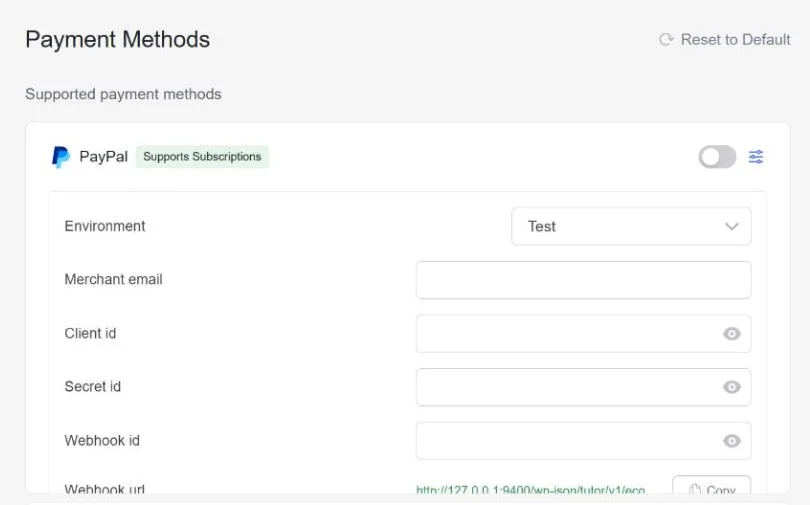
Leave the environment on Test at first and buy your own course with a PayPal sandbox account, then switch to Live. Stripe and the other gateways stay locked until you buy Pro.
Route 2: Tutor LMS free + WooCommerce (tested)
This is the cheapest way we found to take card payments: Tutor LMS free, WooCommerce and WooCommerce’s free Stripe plugin all cost nothing, so you only pay Stripe’s fees. Here’s what we did.
- Install WooCommerce. It opened its own setup wizard, which we skipped, and it started in “coming soon” mode. Switch WooCommerce > Settings > Site visibility to Live before you sell.
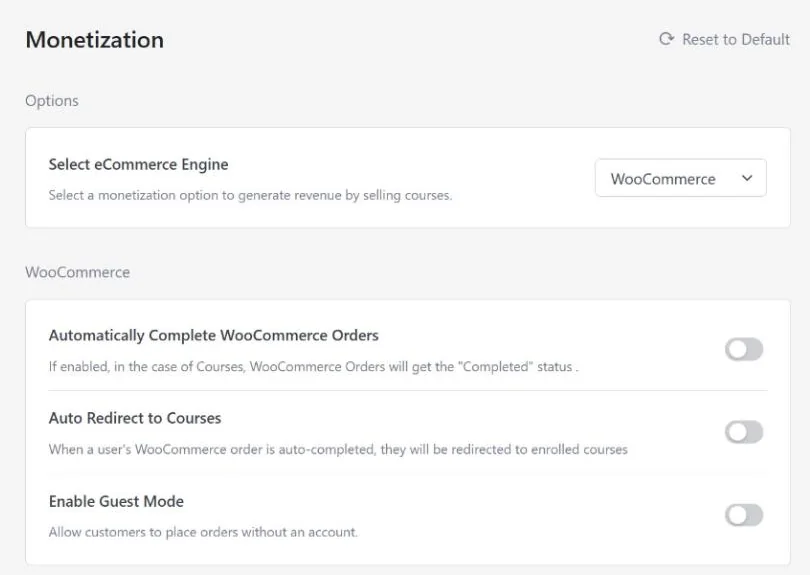
- Switch Tutor to WooCommerce. Under Tutor LMS > Settings > Monetization, the “Select eCommerce Engine” menu offered Native, WooCommerce or Disable Monetization in the free version. With WooCommerce selected, Tutor’s own Orders, Coupons and payment settings disappear, and three options appear: automatically complete WooCommerce orders, redirect students to their course, and allow guest checkout.
- Create a product for the course. In the free version you make it yourself in WooCommerce: a virtual product with the course price. Tutor LMS Pro creates it for you.
- Link it to the course. In Tutor’s course builder, set the pricing model to Paid and pick the product under “Select product”.
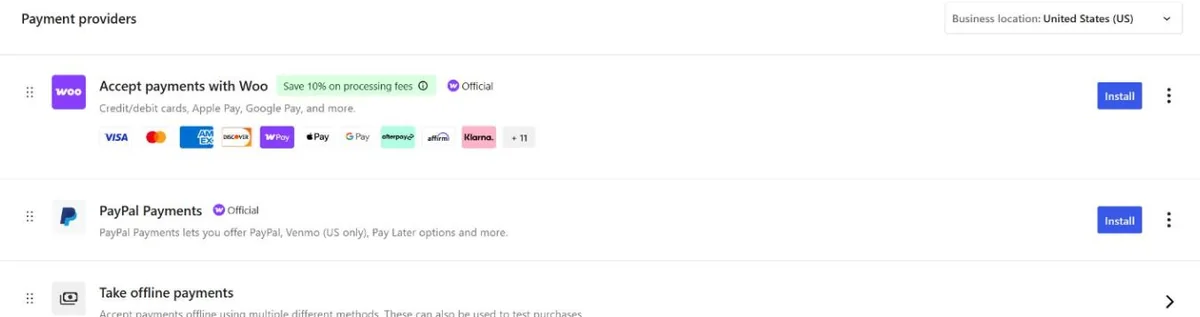
- Add a payment method under WooCommerce > Settings > Payments. For a US store, it listed WooPayments (cards, Apple Pay and Google Pay), PayPal Payments, and offline payments.
Our test purchase:
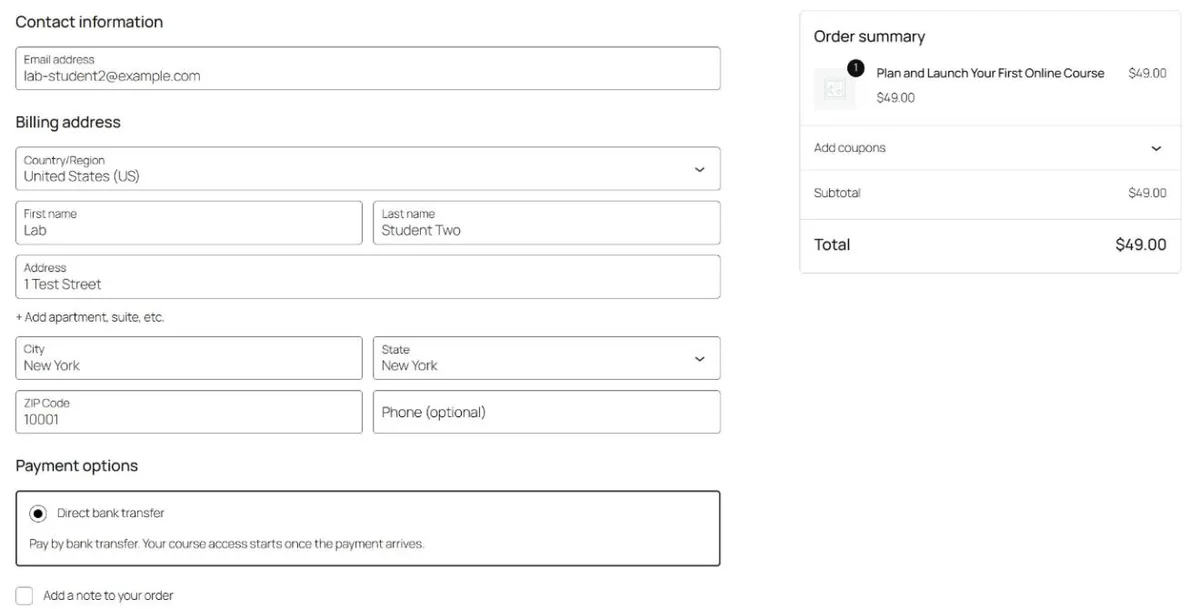
- Our new student registered, added the course to the cart and checked out on WooCommerce’s checkout page. It asked for an email and a full billing address, with the phone number optional.
- We paid by bank transfer, which put the order on hold.
- As the admin, we changed the order to Completed. Tutor then listed the student as enrolled in the course.
- WooCommerce tried to send its own order emails at each step. Our test install has no mail server, so on a live site these would reach the student and you.
Watch out for:
- Duplicate pages: the site ended up with two Cart and two Checkout pages, Tutor’s and WooCommerce’s. Delete or unpublish Tutor’s after switching.
- Bank transfer wording: WooCommerce’s default text says an order “will not be shipped” until the money arrives. Reword it for a course.
- Missing bank details: add your account details or instructions. Our buyer’s confirmation page had nothing to say where to pay.
- No pending notice: while the order was on hold, the course page showed our student “Add to cart” again.
Adding Stripe:
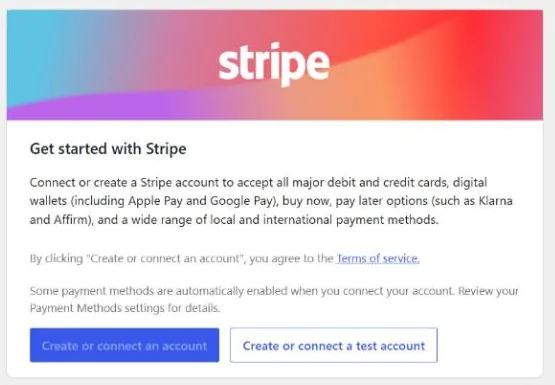
- The free plugin: install the official “WooCommerce Stripe Payment Gateway”. It asks you to create or connect a Stripe account, or a test account first. Its setup screen lists cards, Apple Pay, Google Pay and buy-now-pay-later options.
- Automatic enrollment: turn on Tutor’s “Automatically Complete WooCommerce Orders” so paid course orders are completed and students get access straight away. We couldn’t run a card payment in our test install to time this ourselves.
- WooPayments is WooCommerce’s own Stripe-powered alternative, with the same US rates.
Route 3: LifterLMS
LifterLMS’s free version takes only manual payments, and every online gateway is a paid add-on. The LifterLMS add-ons, at $149 a year each:
- Stripe: one-time and recurring payments, connected with a Connect Stripe button. Apple Pay and Google Pay need its Stripe Checkout mode, which LifterLMS’s documentation marks as beta.
- PayPal: one-time and recurring payments.
- WooCommerce: sell through WooCommerce instead.
If you need two or more of them, the Earth Bundle includes all four gateway add-ons for $199 in the first year and $398 after that.
Watch out for: in our LifterLMS test, marking a bank-transfer order Completed enrolled the student but recorded no money. Use Record a Manual Payment on the order so your sales reports are right. The details are in our LifterLMS review.
Route 4: LearnDash
According to its documentation, LearnDash includes:
- Stripe Connect: you click Connect Stripe and sign in to Stripe, and the webhooks are set up for you.
- PayPal Checkout: connected the same way, by signing in.
Both handle one-off and recurring payments. Two notes from the docs:
- LearnDash’s older PayPal Standard option is being retired in 2026, and subscriptions created with it can’t be moved.
- Coupons work only on one-off purchases.
LearnDash also supports Razorpay and 2Checkout, and has an official WooCommerce add-on. We haven’t tested LearnDash’s payments ourselves; see our LearnDash vs LifterLMS vs Tutor LMS comparison for what else it includes.
When a merchant of record makes sense
If you sell to buyers in many countries, sales tax is the hard part. EU rules, for example, tax electronic services in the customer’s country, and the EU’s One-Stop Shop lets a seller register once to report that VAT. Businesses outside the EU use its “non-Union” scheme.
A merchant of record removes that work: Paddle and Lemon Squeezy each charge 5% + 50¢ per sale, and they are legally the seller, so they collect the tax. Tutor LMS Pro lists Paddle among its gateways. Stripe also offers its own merchant-of-record service, Managed Payments, for 3.5% on top of its normal fees.
This isn’t tax advice. If you’re unsure what you owe, ask an accountant who knows digital sales.
Before you go live
- Test first: run a purchase in test or sandbox mode, then buy your own course with a real card and refund it.
- Webhooks: make sure they’re set, so paid orders unlock courses without you doing anything.
- Offline payments: write clear payment instructions for bank transfers.
- Leftover pages: delete any cart or checkout pages you don’t use.
- Legal pages: publish your refund policy and terms, and link them at checkout. Tutor LMS has a Legal Consents section in its settings.
- Mobile: check the checkout on a phone. All three checkouts we’ve seen ask for a full postal address by default, which is a lot for a digital product.
FAQ
Can I use Stripe with Tutor LMS’s free version?
Not through Tutor’s own checkout, where Stripe needs Pro. You can through WooCommerce: Tutor’s free version can use WooCommerce as its shop, and WooCommerce’s Stripe plugin is free. We tested the Tutor and WooCommerce part with a bank transfer, not a card payment.
Does PayPal work with Tutor LMS for free?
Yes. PayPal is built into Tutor LMS’s free version, with a test mode.
What’s the cheapest way to take card payments with LifterLMS?
The Stripe add-on, at $149 a year, if you don’t need anything else from LifterLMS’s paid range.
Do LMS plugins take a cut of my sales?
We found no transaction fee charged by Tutor LMS, LifterLMS or LearnDash on their official pages. You pay the payment company’s fees, such as Stripe’s or PayPal’s.
Stripe isn’t available in my country. What can I use?
PayPal where it’s available, a local gateway such as Razorpay or Paystack (Tutor LMS Pro and LearnDash support some), a merchant of record such as Paddle or Lemon Squeezy, or bank transfers approved by hand.