Category: Uncategorized

  • LifterLMS Review: What the Free Version Really Gets You (Hands-On Test)

    LifterLMS Review: What the Free Version Really Gets You (Hands-On Test)

    We installed the free LifterLMS plugin on a clean WordPress site, built a paid course with a certificate, bought it as a student, approved the payment and finished the course. This review covers what the free core does well, what costs extra, and the details that would catch you out on a real site.

    The short verdict

    • Who it suits: course creators who want certificates, drip schedules, free preview lessons and memberships without paying for a license, and who can start with manual payments.
    • What’s free: a drag-and-drop course builder, free preview lessons, drip, prerequisites, quizzes with three question types, certificates, achievements, automated emails, memberships, coupons, manual payments, reports and manual enrollment.
    • What isn’t: every online payment gateway (Stripe, PayPal, Authorize.Net), assignments, the other eight question types, question banks, groups and the other advanced add-ons.
    • What it costs: Stripe alone is $149 a year. The Earth Bundle, with Stripe and PayPal for one site, is $199 for the first year and $398 a year after that. Everything is $799, then $1,598 a year (checked October 4, 2026).

    How we tested

    • Versions: LifterLMS 10.2.1, the free plugin from WordPress.org, on WordPress 7.1.2 and PHP 8.3, with the default Twenty Twenty-Five theme and no other plugins.
    • Setup: a private test install on our own machine. We judged features and workflow, not speed: a local test site says nothing about how fast your hosting will be.
    • What we did: built a $49 course with one section, two lessons and a quiz, plus a certificate for finishing it; bought the course as a new student by bank transfer; approved the payment in the admin; then completed the course as the student.
    • Independence: LifterLMS didn’t pay for this review or provide a license, and this page has no affiliate links.

    Setting up

    LifterLMS starts with a five-step setup wizard:

    • It creates the pages a course site needs: a course catalog, a membership catalog, a checkout page and a student dashboard.
    • It asks for your country and currency, and has a checkbox for offline payments.
    • One step offers a discount code if you opt in to sharing usage data with LifterLMS. We declined, and nothing else changed.
    • The last screen offers to import a sample course and course templates.

    Until you add a payment add-on, the dashboard shows a notice that no payment gateways are enabled. That’s the first hint of how LifterLMS makes its money, which we come back to below.

    Building a course

    A course is a normal WordPress post in the block editor. LifterLMS pre-fills it with its own blocks: course information, instructors, a pricing table, a progress bar and the syllabus.

    Below the editor, a Course Options box covers the rest:

    • what visitors who haven’t enrolled see: the default page, custom content, or a redirect;
    • enrollment periods, prerequisites and a student cap;
    • extra instructors;
    • reviews.

    Watch out for: in our test the course settings and the Access Plans box, where you set the price, sat in a collapsed “Meta Boxes” panel at the bottom of the editor. If you can’t find where to price a course, open that panel.

    Sections and lessons live in a separate, drag-and-drop course builder. On first opening, it created a section with three empty lessons for us. Rename or delete them, because they’re real lessons once you save. Nothing is stored until you click Save changes.
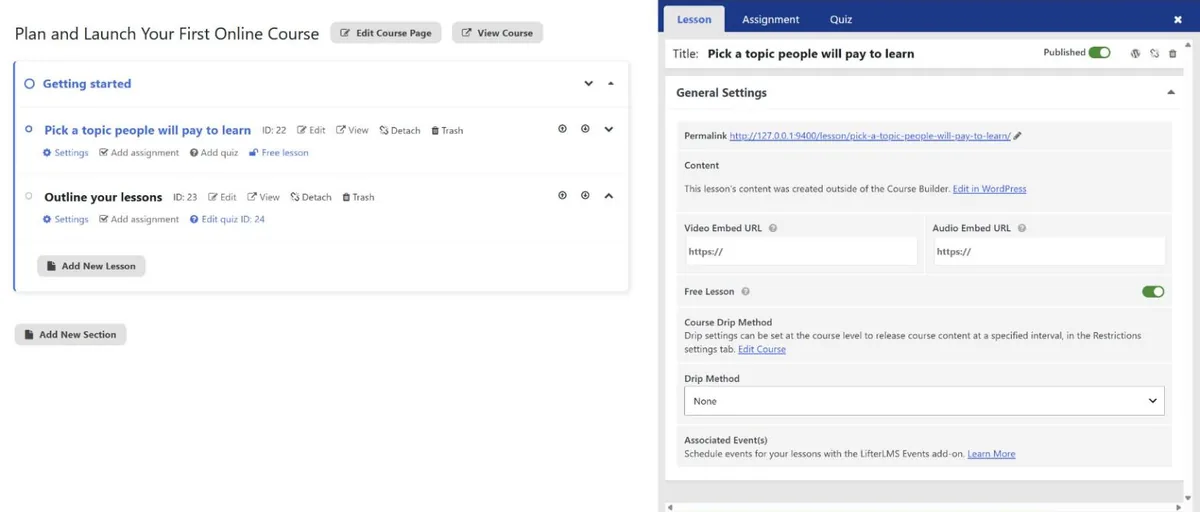
    LifterLMS course builder with one section and two lessons; the lesson panel shows video and audio URLs, the Free Lesson switch and drip options
    The course builder. The lesson panel has the Free Lesson switch and drip settings.

    Lessons take written content, a video or audio embed URL, a minimum time on the lesson, a prerequisite lesson and a drip schedule (on a set date, or a number of days after enrollment). There’s also a course-wide drip setting.

    The Free Lesson switch lets visitors open a lesson before they buy. Free previews and drip are both paid features in Tutor LMS, so this is one of the free core’s biggest advantages.

    The builder also has an Assignment tab. Clicking Create New Assignment opens an “Unlock LifterLMS Assignments” upgrade prompt. Assignments are a paid add-on.

    Quizzes

    Three question types are free: Multiple Choice, Picture Choice and True or False. You can also add a Content item, which is text between questions rather than a question.

    The other eight types are shown greyed out. They need the Advanced Quizzes add-on:

    • Fill in the Blank, Short Answer and Long Answer
    • Reorder Items and Reorder Pictures
    • File Upload, Code and Scale

    Advanced Quizzes is also needed for a question bank. The practical gap is written answers: the free version has no question type where students type a response.
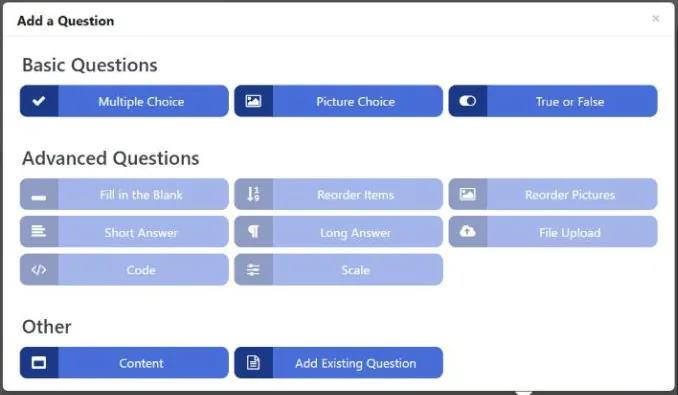
    LifterLMS Add a Question menu: Multiple Choice, Picture Choice and True or False are available; the Advanced Questions are greyed out
    Three question types are free; the Advanced Questions need a paid add-on.

    The quiz settings cover the basics: a passing percentage (65% by default), limited attempts, a time limit, resuming a quiz, showing correct answers, randomizing questions and disabling retakes.

    Students see a short intro with the pass mark and attempts left, then one question per screen. The results page shows the score as a chart, a review of each answer and a menu of previous attempts.

    Pricing a course: access plans

    LifterLMS prices courses with access plans, and one course can have several. The form offers:

    • one-time, monthly, annual, lifetime, free, paid-trial and pre-sale plans;
    • a sale price with dates, and an access period that ends after a set time, on a date, or never;
    • a page to send buyers to after checkout.

    Our test plan was $49, paid once, for lifetime access.
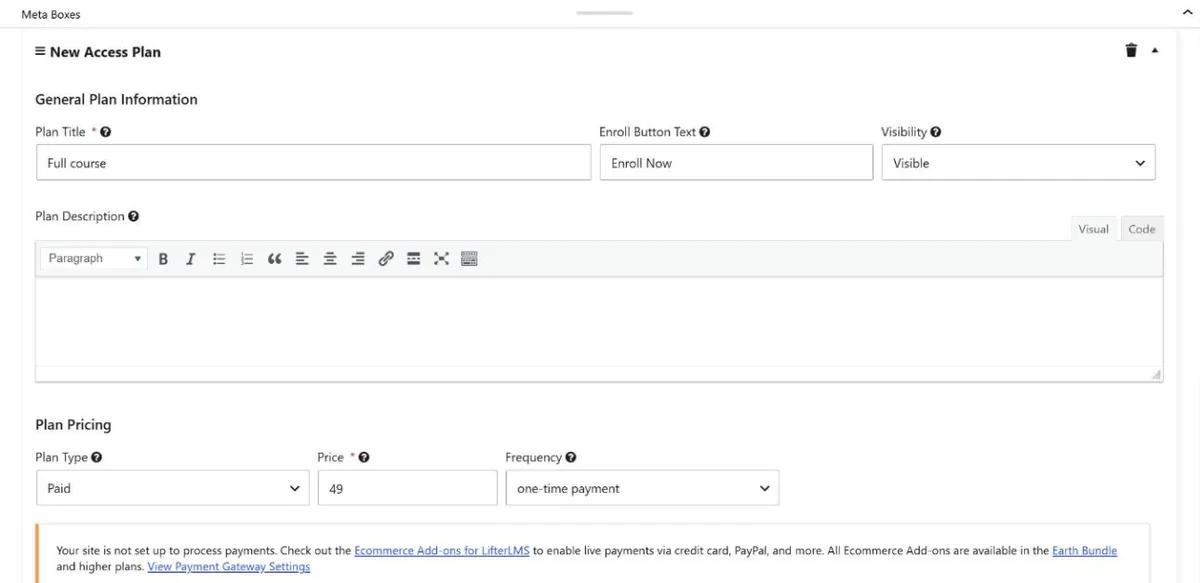
    LifterLMS access plan form for a $49 one-time plan, with a notice that the site is not set up to process payments
    Our $49 access plan, with the notice that the site can’t take payments yet.

    Recurring plans are there in the free version, but you can’t charge a card for them without a payment add-on. The plan form says so itself: the site “is not set up to process payments” until you add one.

    Selling courses with the free version

    This is the big limitation. The free core has one payment method, Manual, which handles offline payments such as bank transfers, and free orders. Stripe, PayPal and Authorize.Net appear in the settings only as links to paid add-ons. Tutor LMS’s free version, by comparison, includes PayPal.
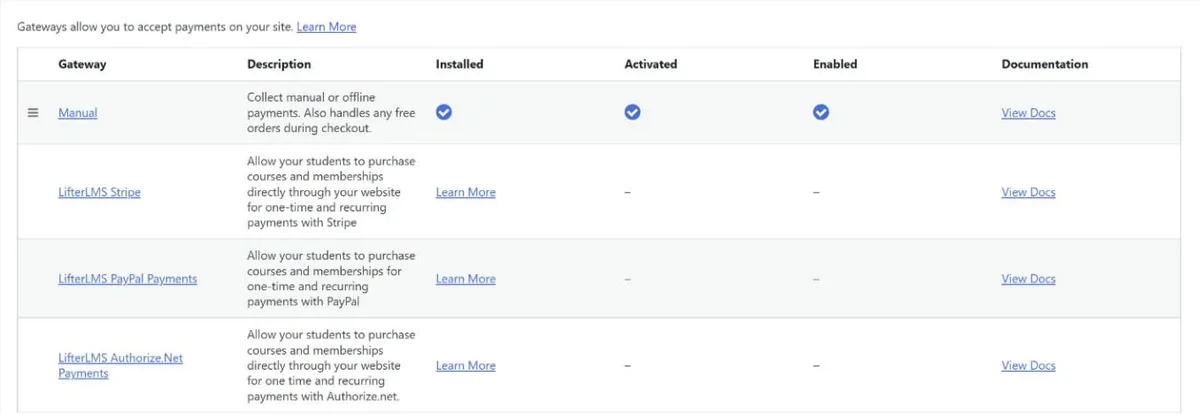
    LifterLMS payment gateways in the free version: Manual is enabled; Stripe, PayPal and Authorize.Net link to paid add-ons
    Payment gateways in the free core: only Manual is installed.

    We renamed the manual method “Bank transfer” and added payment instructions. The checkout is a single page that creates the student’s account and takes the order. By default it requires a full postal address, which is a lot to ask for a digital course. LifterLMS includes a block-based forms editor for changing those fields, but we didn’t test it.
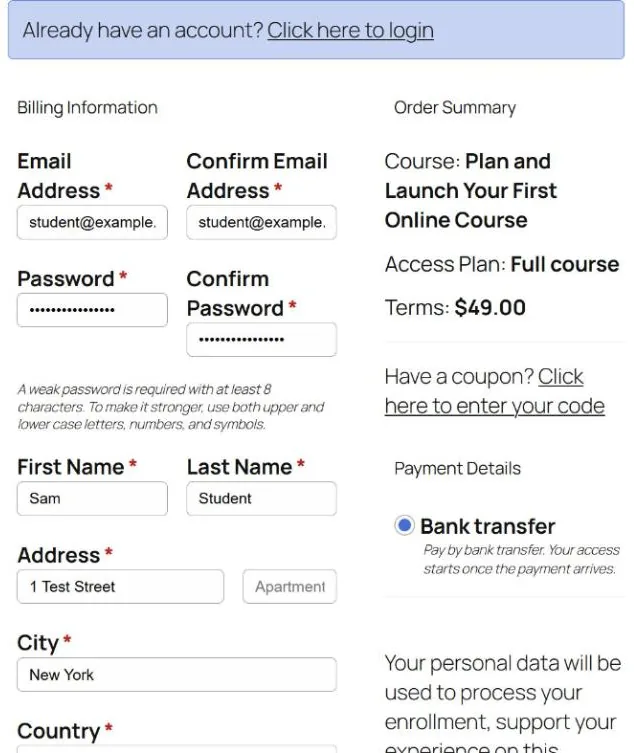
    LifterLMS checkout form with account, billing address and bank transfer payment in one form
    The checkout: account, billing address and payment on one page.

    After clicking Buy Now, our student landed on an order page marked Pending Payment, with our payment instructions. A popup told them that “a payment is due for your subscription”, although this was a one-time purchase.

    In the admin, changing the order status to Completed enrolled the student straight away.

    Watch out for: marking the order Completed doesn’t record any money. Afterwards, the sales report showed one new sale, $0.00 of revenue and no transactions.
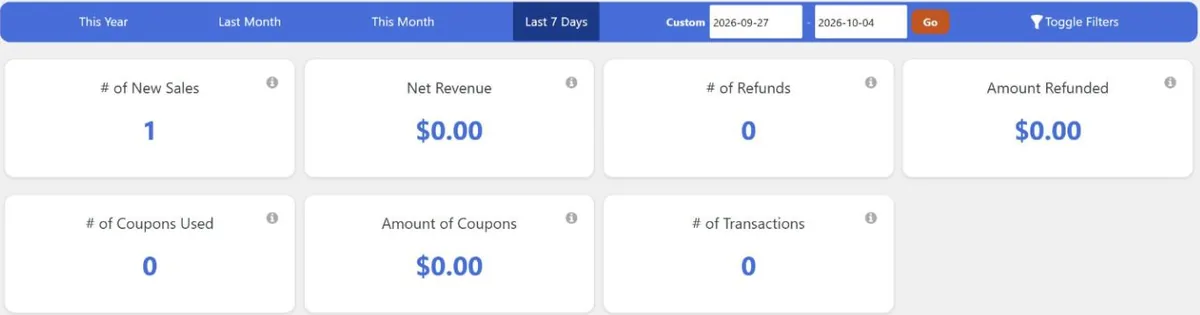
    LifterLMS sales report showing one new sale but $0.00 net revenue and no transactions
    The sales report after we marked the order Completed: one sale, $0.00 revenue.

    The order screen has a separate Record a Manual Payment button, where you enter the amount, source and a reference. Once we recorded the $49, the payment appeared as a transaction with Refund and Resend Receipt buttons, and the sales report showed $49.00. If you take bank transfers, record each payment rather than just changing the status.

    LifterLMS order transactions after recording a $49 manual payment, with Refund and Resend Receipt buttons
    The order after we recorded the bank transfer as a manual payment.

    Certificates and engagements

    Certificates are part of the free core, and they work well:

    • Templates: you design them in the block editor, with merge codes for the student’s name, the date and the site name.
    • Page settings: paper size, orientation, margins and background.
    • Engagements are the automation rules that award them. You pick a trigger, such as completing a course or lesson, passing or failing a quiz, enrolling or buying, and an action: award a certificate, award an achievement badge or send an email, optionally after a delay.
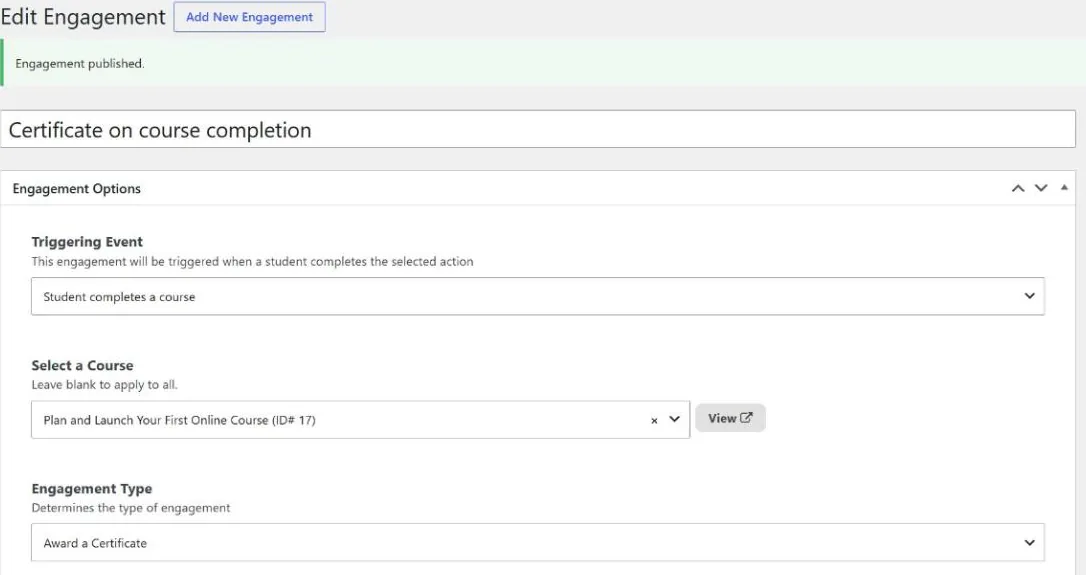
    LifterLMS engagement that awards a certificate when a student completes the test course
    The engagement that awarded our certificate when the course was completed.

    When our student passed the final quiz, the certificate was awarded immediately. Its page has Print and Download buttons, and an option to share it.

    Watch out for: the certificate said “Presented to lab-student”, our student’s username. The checkout asked for a first and last name, but the default template prints the display name, which WordPress had set to the username. Change the merge code in your template before your first student finishes.
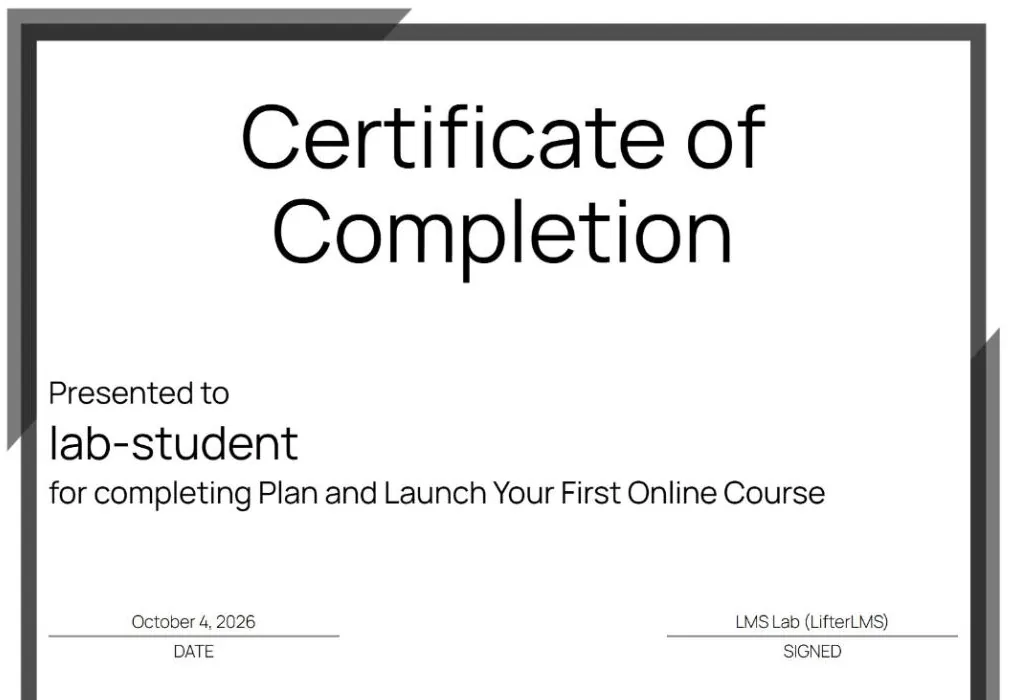
    Certificate of Completion awarded by LifterLMS, presented to the test student's username
    The certificate our test student received, with the username where the name should be.

    What students see

    By default, lessons use your theme’s normal post layout. In Twenty Twenty-Five that meant an author line, a comments form and “More posts” under the lesson, so it looked more like a blog than a course. Popups confirm progress: after each lesson, students see one with a progress bar.
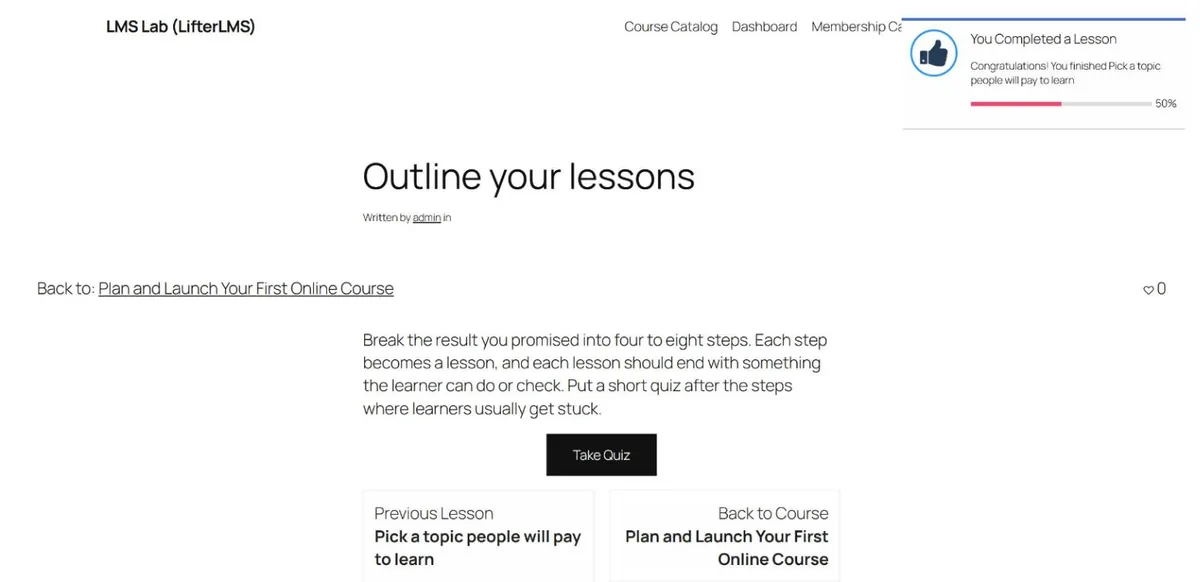
    LifterLMS lesson page in the default theme, with a lesson-complete popup showing 50 percent progress and a Take Quiz button
    A lesson in the default theme, with the popup shown after completing the previous lesson.

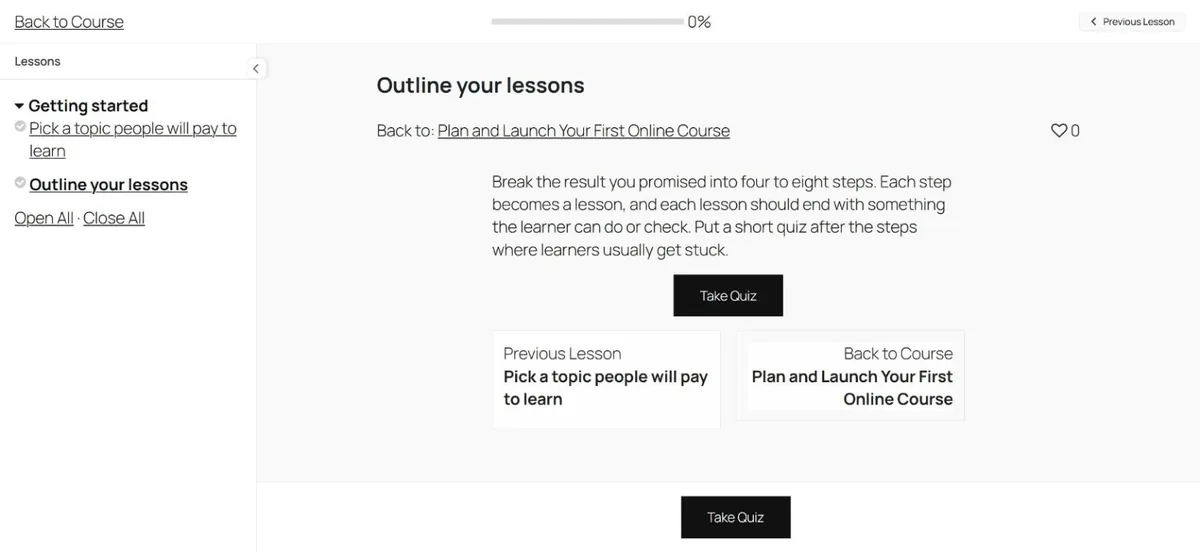
    LifterLMS has a better option built in. Focus Mode, under the course settings, shows lessons in a distraction-free layout with the syllabus in a sidebar and a progress bar at the top (the screenshot at the top of this review). It’s free but switched off by default, so turn it on. In our test it showed the Take Quiz button twice, once in the lesson and again in a bar below it, which is untidy but harmless.
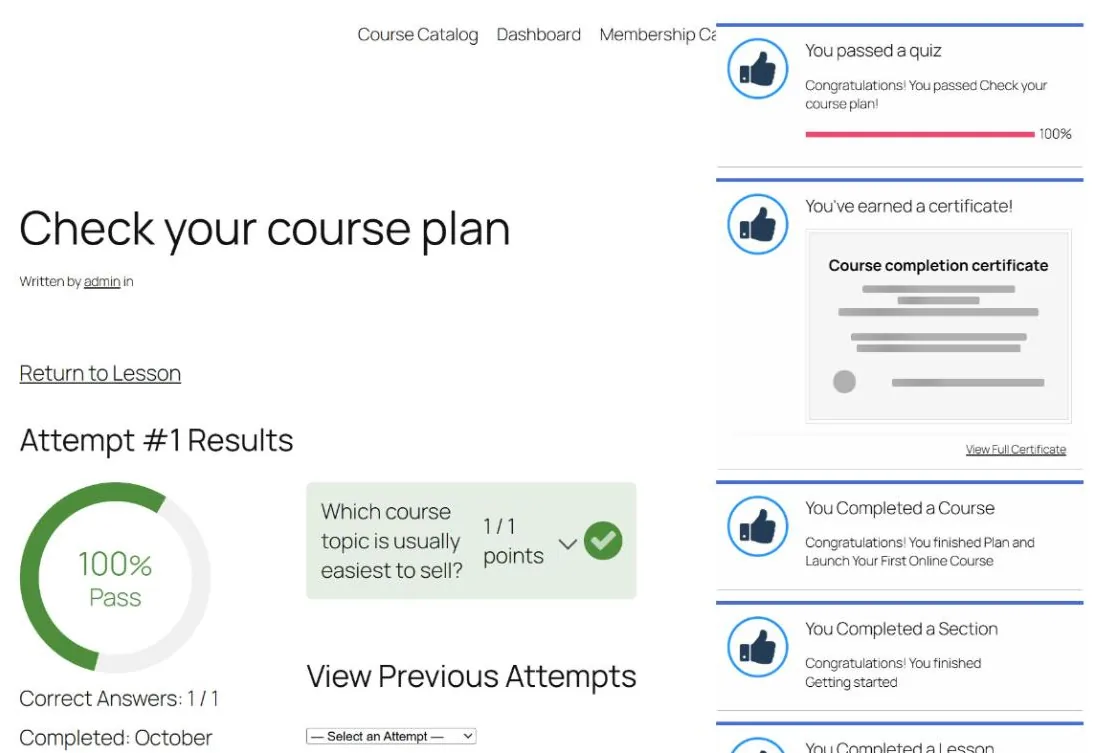
    LifterLMS quiz result: 100 percent pass, with popups for the passed quiz, earned certificate and completed course
    Passing the final quiz: the results page and five popups at once.

    Finishing the course triggered five popups at once: quiz passed, certificate earned, course, section and lesson completed. It’s a lot, but every popup and email can be edited in the notification settings, or turned off by removing students from its subscribers.

    The student dashboard has tabs for courses, grades, memberships, achievements, certificates, favorites, notifications, account details, vouchers and order history. It’s thorough, but in Twenty Twenty-Five it was squeezed into the theme’s narrow text column, and so was the checkout. Use a full-width page for the dashboard and checkout, or a theme that styles LifterLMS. Our education themes guide lists some.

    Reports and admin tools

    The free core includes reporting for students, courses, memberships, quizzes, sales and enrollments, with an export button. Each course has a Student Management box with every enrollment, progress, grade and last lesson, and a form to enroll students by hand. Tutor LMS keeps manual enrollment and its reports for Pro.

    The notification settings list sixteen popups and emails, from a welcome email and purchase receipts to quiz results and payment reminders.

    Free vs paid at a glance

    FeatureFree corePaid
    Course builder, lessons, video and audio embedsYesYes
    Free preview lessons, drip, prerequisitesYesYes
    Question types3 basic types11, plus a question bank (Advanced Quizzes)
    Certificates, achievements, automated emailsYesYes
    Memberships, coupons, vouchersYesYes
    Manual and offline paymentsYesYes
    Stripe, PayPal, Authorize.Net, WooCommerceNoYes (add-ons, or Earth Bundle and up)
    AssignmentsNoYes (add-on, or Infinity Bundle)
    Groups, private areas, social learning, advanced videosNoYes (Infinity Bundle)
    Reports, manual enrollment, Focus ModeYesYes

    We didn’t build a membership in this test, so we haven’t judged how well memberships work. They are in the free core.

    Pricing

    LifterLMS sells add-ons one at a time or in three yearly bundles. These prices are from lifterlms.com on October 4, 2026, in US dollars. The site discounts the first year by half and says renewals are at full price.

    BundleSitesFirst yearEach year afterWhat it adds
    Earth1$199$398Stripe, PayPal, WooCommerce, Authorize.Net, cart abandonment, name your price
    Universe5$299$598Earth, plus email marketing and form integrations and the Sky Pilot theme
    InfinityUnlimited$799$1,598Universe, plus 15 advanced add-ons, including Assignments, Advanced Quizzes and Groups

    Single add-ons are sold too. On the same day, the product pages listed Stripe at $149 a year, and Assignments and Advanced Quizzes at $299 a year each. Every purchase has a 30-day money-back guarantee, a lifetime Infinity license is available, and a $1 sandbox lets you try every add-on for 30 days.

    The free core is generous, but the paid route isn’t cheap:

    • Card payments only: the cheapest option is Stripe at $149 a year.
    • Card payments plus assignments and better quizzes: either about $750 a year in single add-ons, or the Infinity Bundle at $1,598 a year after the first year.
    • For comparison: Tutor LMS Pro includes its payment gateways, assignments and certificates in one plan from $199 a year.

    Who should use LifterLMS?

    Best for: creators who want certificates, drip schedules, free preview lessons and memberships without paying for a license, and who can take payment offline at first (bank transfers, invoices or in-person sales). It also suits anyone who wants one plugin to grow with, adding paid features only when they become worth it.

    Look elsewhere if you need card payments from day one and want to keep yearly costs low. Tutor LMS includes PayPal for free, and Tutor LMS Pro’s single plan covers Stripe as well; see our hands-on Tutor LMS review. If you’d rather pay for one complete plugin, look at LearnDash. Our WordPress LMS plugins comparison covers all of them.

    Verdict

    Of the LMS plugins we’ve tested so far, LifterLMS has the most complete free core. Free preview lessons, drip, prerequisites, certificates, automated emails, reports and manual enrollment all work without paying, and those are the features other plugins keep for their paid plans.

    What it doesn’t do for free is take money online. For a business selling to the public, that means a payment add-on such as Stripe at $149 a year, and the full set of add-ons costs $1,598 a year from the second year.

    Before launch, do three things:

    • turn on Focus Mode;
    • fix the certificate name;
    • record manual payments properly.

    With those done, the free version is a solid base for a course site.

    FAQ

    Is LifterLMS free?

    Yes. The core plugin is free on WordPress.org, with unlimited courses, memberships and students. Add-ons are sold separately or in bundles; Stripe on its own is $149 a year.

    Can the free version take Stripe or PayPal payments?

    No. In our test the free core had only the Manual method for offline payments. Stripe, PayPal and Authorize.Net are paid add-ons.

    Does the free version issue certificates?

    Yes. We built a certificate template and an engagement in the free core, and the certificate was awarded automatically when our student finished the course.

    LifterLMS or Tutor LMS: which free version is better?

    LifterLMS if you want certificates, drip, free previews and memberships without paying. Tutor LMS if you want to take PayPal payments for free and have a more polished student area out of the box.
  • Tutor LMS Review: What the Free Version Really Gets You (Hands-On Test)

    Tutor LMS Review: What the Free Version Really Gets You (Hands-On Test)

    We installed the free version of Tutor LMS on a clean WordPress site, built a paid course, bought it as a student, approved the payment and finished the course. This review is what we found: what the free plugin does well, what is locked behind Pro, and the small things that would trip you up on a real site.

    The short verdict

    • Who it suits: course creators who want a modern student area and a built-in checkout without installing WooCommerce.
    • What’s free: a course builder, lessons with video, quizzes with four question types, a cart and checkout, PayPal, manual payments, orders and coupons.
    • What isn’t: Stripe and other card gateways, certificates, assignments, content drip, free preview lessons, manual enrollment and automated emails all need Pro.
    • Price of Pro: from $199 a year for one site, or $499 once for a lifetime license (checked October 4, 2026).

    How we tested

    • Versions: Tutor LMS 4.1.0, the free plugin from WordPress.org, on WordPress 7.1.2 and PHP 8.3, with the default Twenty Twenty-Five theme and no other plugins.
    • Setup: a private test install on our own machine. We judged features and workflow, not speed: a local test site says nothing about how fast your hosting will be.
    • What we did: built a $49 course with one topic, two lessons and a quiz; registered as a student; paid by bank transfer; marked the order as paid in the admin; then took the quiz and completed the course as the student.
    • Independence: Themeum didn’t pay for this review or provide a license, and this page has no affiliate links.

    Building a course

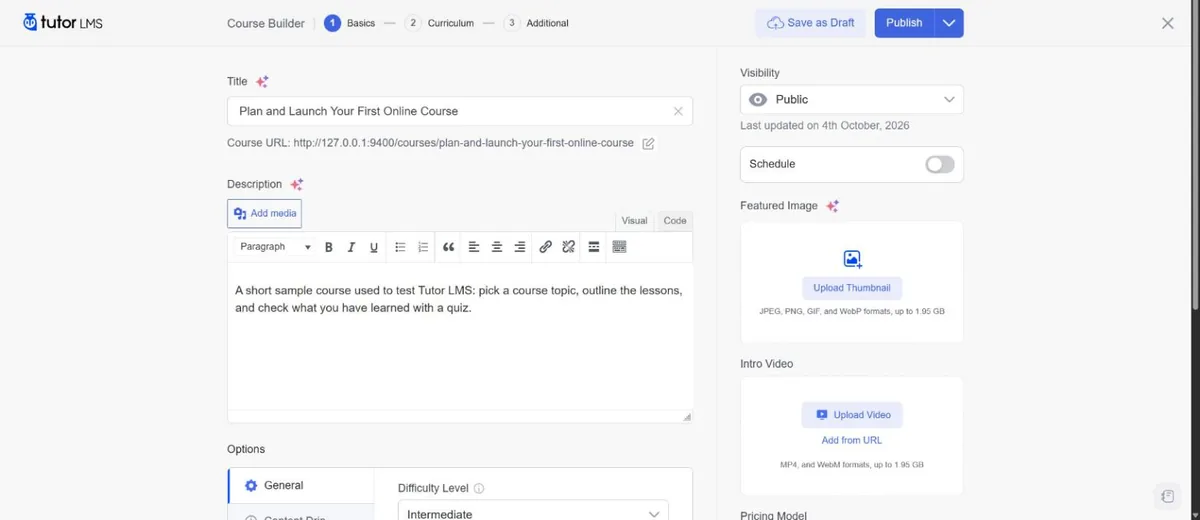
    Tutor’s course builder is a full-screen editor with three steps: Basics, Curriculum and Additional. The Basics step puts everything a sales page needs on one screen: title, description, difficulty level, a featured image, an intro video (uploaded or from a URL), categories, tags and the price. Paid courses get a regular price and an optional sale price.

    Tutor LMS course builder, Basics step: title, description, visibility, featured image, intro video and pricing
    The Basics step: content, media and pricing on one screen.

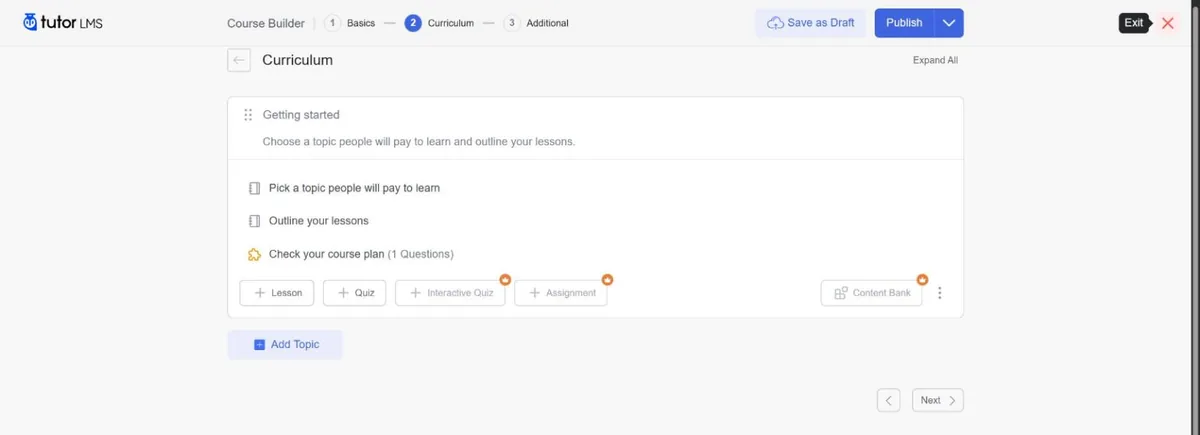
    The Curriculum step is where Tutor shines. You add topics, then lessons and quizzes inside each topic, and drag them into order. Each topic, lesson and quiz is saved as soon as you finish it, with a confirmation message.

    Tutor LMS curriculum with one topic, two lessons and a quiz; Interactive Quiz, Assignment and Content Bank carry a Pro crown
    Our test curriculum. Lesson and Quiz are free; the buttons with a crown need Pro.

    The crowns in that screenshot are a theme you’ll see throughout the free version. Interactive Quiz, Assignment and Content Bank are Pro features: they’re shown, but locked.

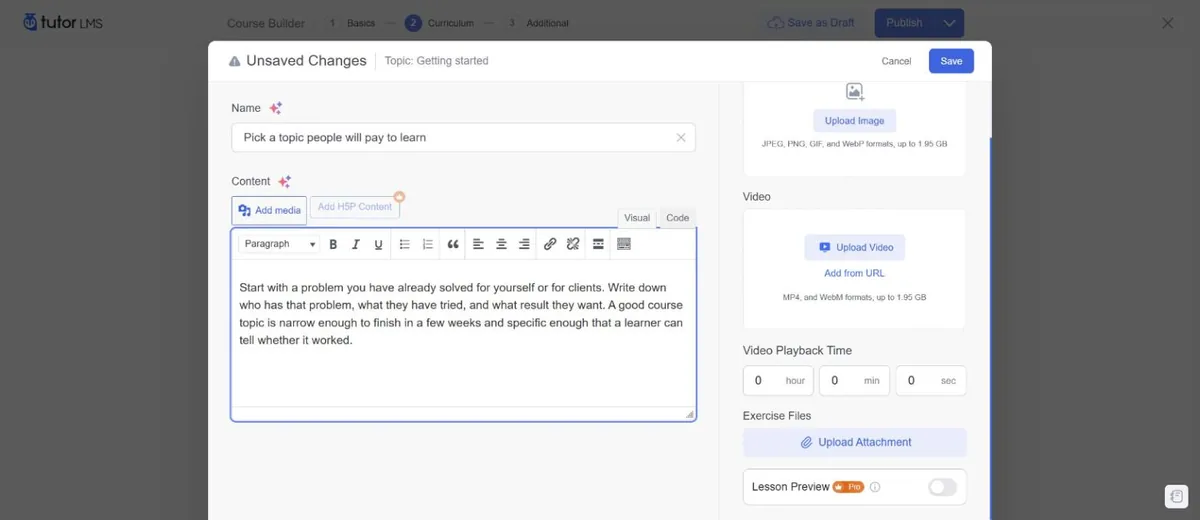
    Lessons take written content, a video by upload or URL, a playback time and downloadable exercise files. Two options in the lesson editor are Pro-only: H5P content, and Lesson Preview, which lets visitors try a lesson before they buy. Free previews are one of the best ways to sell a course, so this is a notable gap.

    Tutor LMS lesson editor with content, video, playback time and exercise files; H5P and Lesson Preview are marked Pro
    The lesson editor. Lesson Preview, for free sample lessons, carries a Pro badge.

    Watch out for: in our test, when we added a second lesson straight after the first, the form opened with the first lesson’s name and text still filled in. It may be a one-off, but check each field before you save.

    The third step, Additional, holds the “What will I learn”, target audience, duration, materials and requirements fields that appear on the course page. Everything else on that screen (certificates, prerequisites, course attachments and live classes) is Pro. The small sparkle icons next to the title and description open an upgrade prompt for Tutor’s AI Studio, which is also Pro and, according to Tutor’s pricing page, needs your own OpenAI API key.

    Quizzes

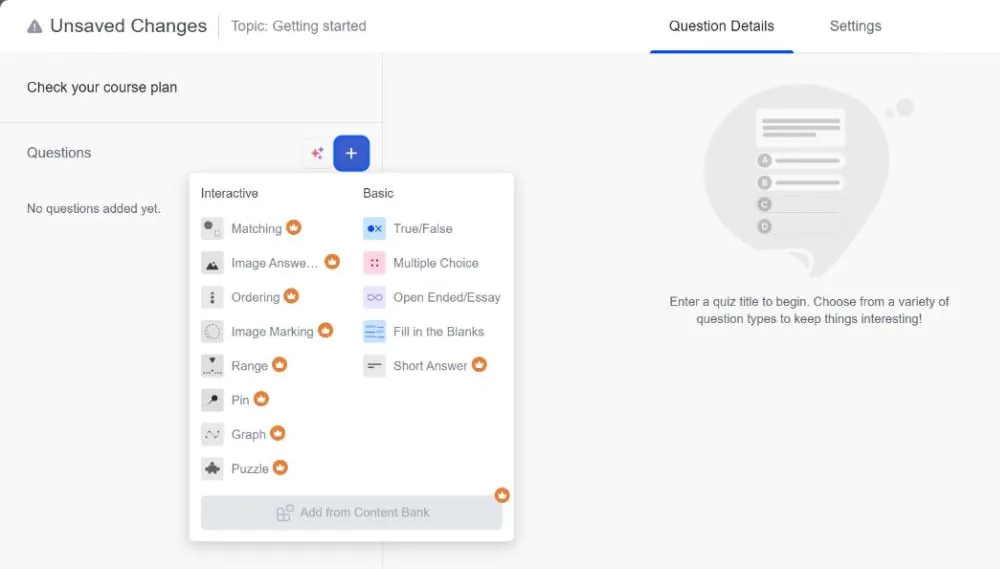
    The free version includes four question types: True/False, Multiple Choice, Open Ended/Essay and Fill in the Blanks. Short Answer and all eight interactive types (Matching, Image Answering, Ordering, Image Marking, Range, Pin, Graph and Puzzle) are Pro, as is reusing questions from a content bank.

    Tutor LMS question type menu: True/False, Multiple Choice, Open Ended and Fill in the Blanks are free; Short Answer and all interactive types are Pro
    Four question types are free; Short Answer and the interactive types are Pro.

    The quiz settings are generous for a free plugin. You can randomize the question order, allow multiple attempts, show a random set of questions from a larger pool, set a passing grade (80% by default), add a time limit, show one question per page or all at once, and reveal the answers after submission.

    Two defaults are worth changing:

    • Answer Required is off. Our first attempt was submitted with no answer selected, and Tutor accepted it as a failed attempt marked “No Questions Answered”. Switch Answer Required on for questions that matter.
    • Multiple attempts are off. After that failed attempt there was no retake button. As the admin, we had to delete the attempt under Quiz Attempts before the student could try again.

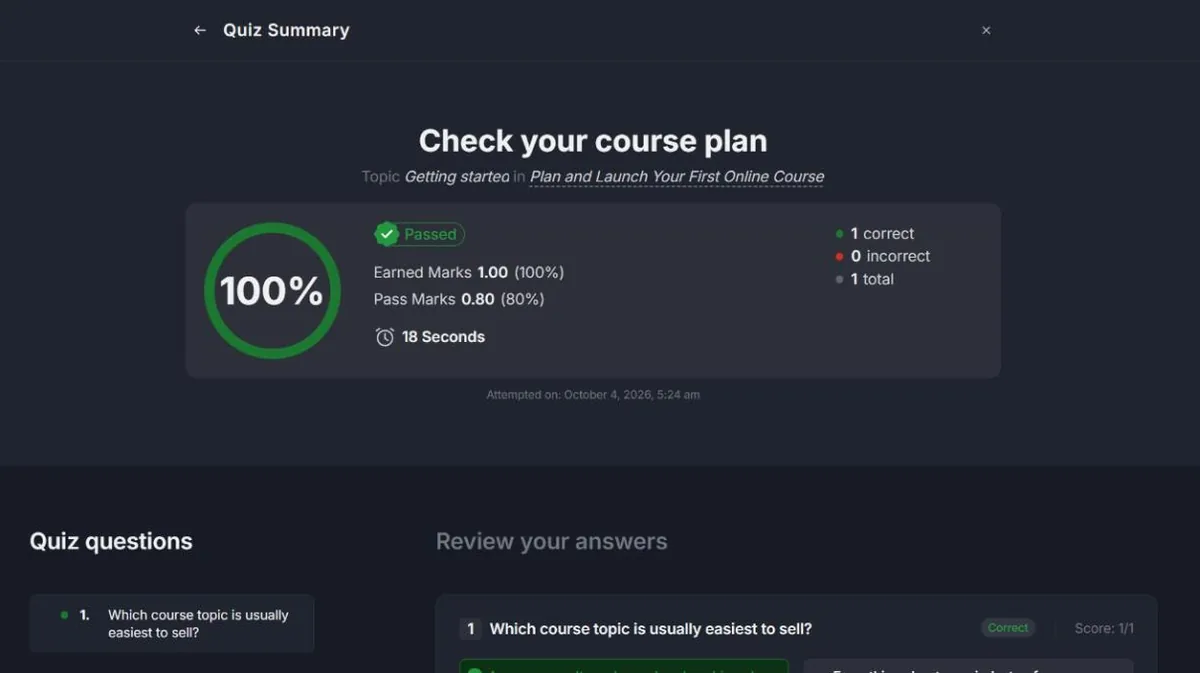
    Students get a clear results page with their score, the pass mark, the time taken and a review of each answer.

    Tutor LMS quiz summary: passed with 100 percent, pass mark 80 percent, time taken and answer review
    The results page students see after submitting a quiz.

    Selling courses with the free version

    Tutor has its own shop system, so you don’t need WooCommerce to sell courses. The free version creates cart and checkout pages and adds Orders and Coupons to the admin menu.

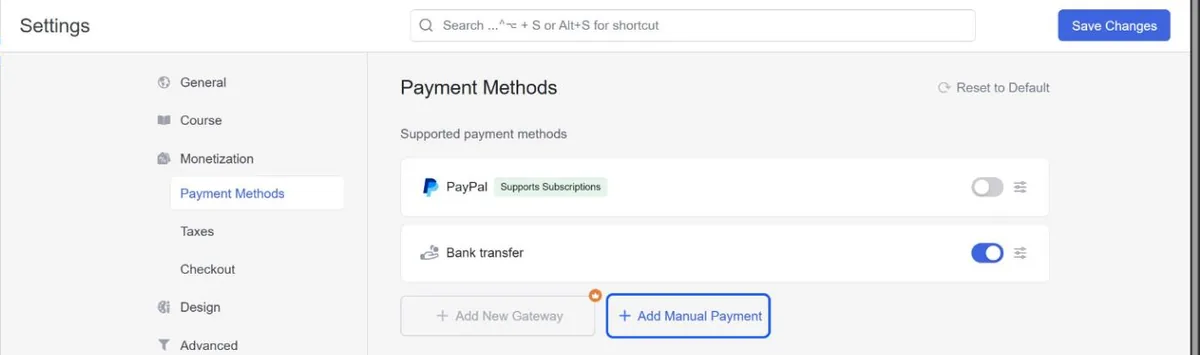
    The limitation is payments. Out of the box, the free version offers PayPal and manual payments such as bank transfer. Tutor’s documentation lists many more gateways, including Stripe, Paddle, Mollie, Razorpay and Paystack, but in the free plugin the “Add New Gateway” button is locked to Pro. If you want to take card payments through Stripe, budget for Pro.

    Tutor LMS payment methods in the free version: PayPal and a manual bank transfer method, with Add New Gateway locked to Pro
    Free payment options: PayPal and manual payments. Other gateways need Pro.

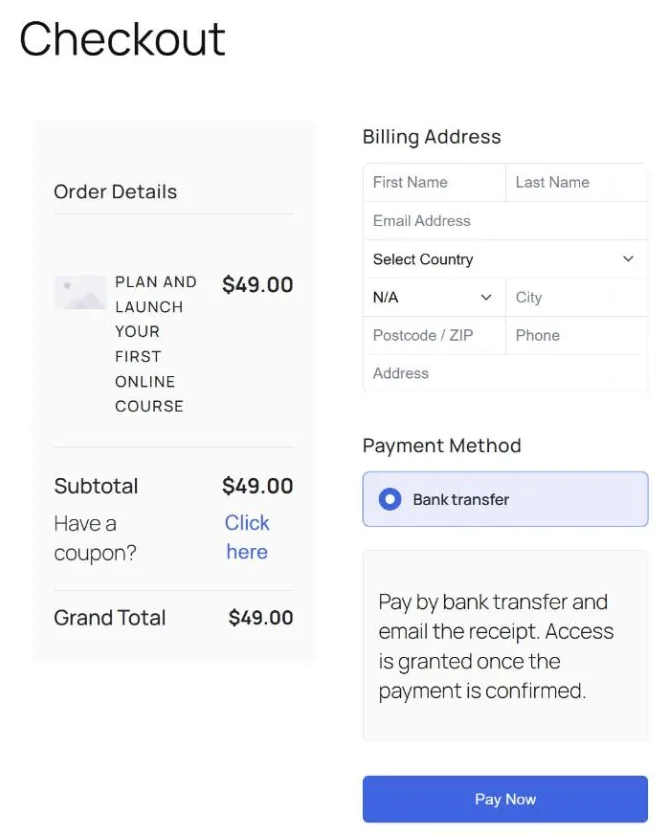
    The checkout works, but it’s heavy for a digital product. Every billing field except state is required, including a phone number and a street address, and the free version has no setting to remove them. The only checkout options are a coupon field and a “Buy Now” button that skips the cart.

    Tutor LMS checkout: order details, required billing fields including phone and address, and the bank transfer payment method
    Checkout: every billing field except state is required.

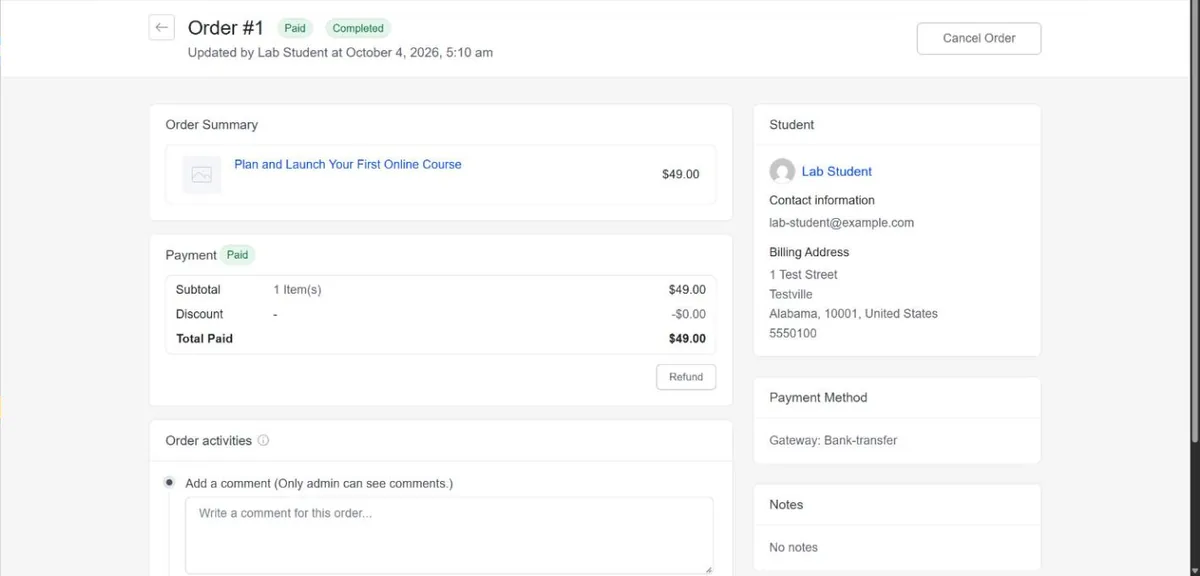
    Manual payments are handled from the order screen. Our bank-transfer order arrived as Unpaid and Incomplete. Clicking Mark as paid enrolled the student straight away, and added a Refund button and an entry in the order’s activity log.

    Watch out for: while the order was unpaid, the course page showed our student the Add to Cart button again, with nothing to say their payment was pending. If you accept bank transfers, say in the payment instructions how long approval takes.

    Tutor LMS order screen after a manual bank transfer was marked as paid, showing order summary, payment, refund button and billing details
    A bank-transfer order after we marked it as paid.

    What students see

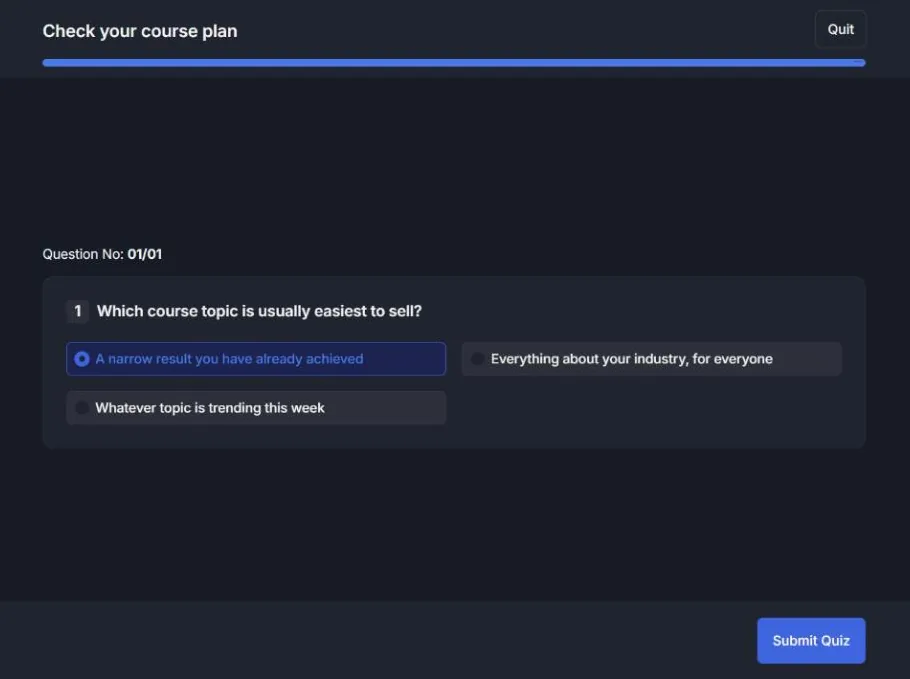
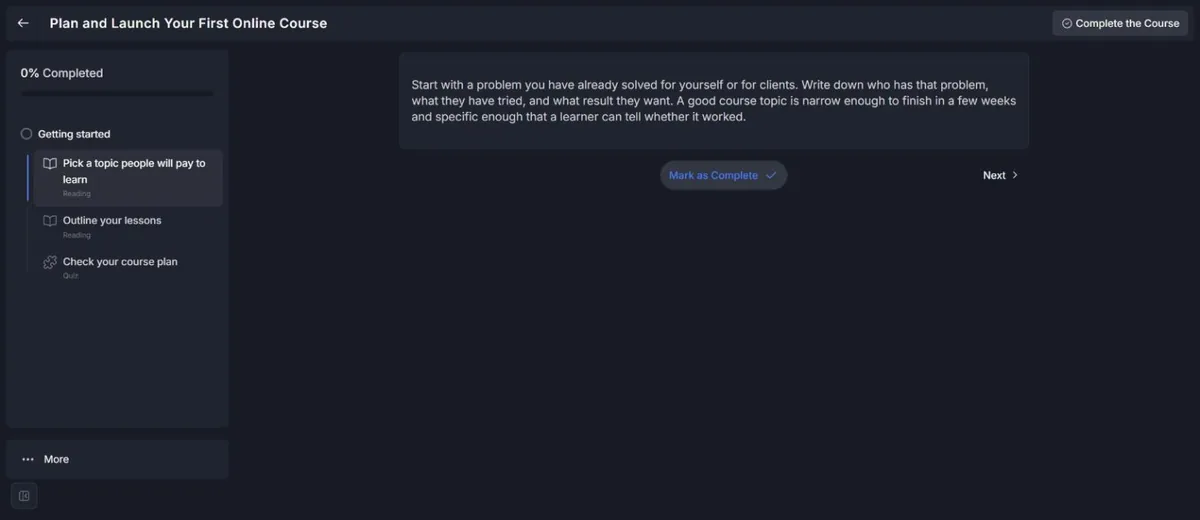
    Tutor 4 has a redesigned learning area. Lessons sit in a sidebar with a progress bar and a label for each item (Reading or Quiz), and students move through the course with Mark as Complete and Next. Quizzes open in a focused screen without the sidebar. In our test, the student pages used a dark design.

    Tutor LMS quiz screen with one multiple choice question and the Submit Quiz button
    Taking a quiz: one question per screen, with a progress bar.

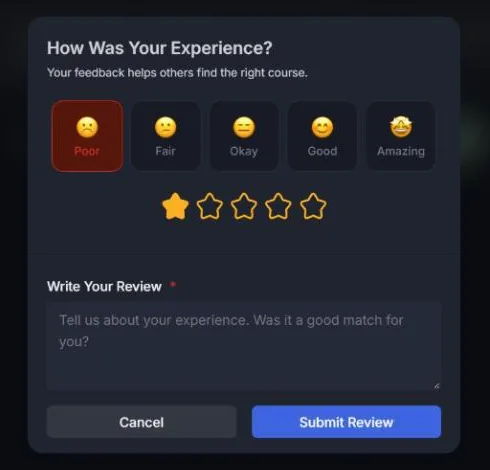
    When the student finishes the course, Tutor asks for a review. In our test the rating was preset to “Poor” (one star), and the review text was required. A student who clicks through quickly could leave a one-star review by accident, so keep an eye on your first ratings.

    Tutor LMS course review prompt shown on completion, with the Poor rating selected by default
    The review prompt on course completion, with Poor selected by default.

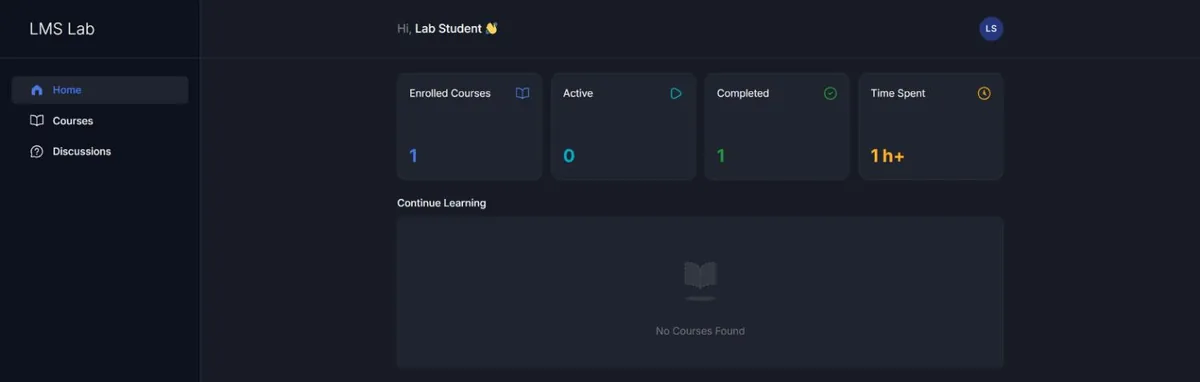
    The student dashboard shows enrolled, active and completed courses and time spent. Our test student spent a few minutes in the course, but the dashboard showed “1 h+”, which matches the duration we set for the course rather than the time actually spent.

    Tutor LMS student dashboard with enrolled, active, completed and time spent cards
    The student dashboard after completing the test course.

    Free vs Pro at a glance

    FeatureFreePro
    Course builder, lessons, video, exercise filesYesYes
    Question types4 basic typesAll 13 types, plus a question bank
    Quiz grading, attempts, time limits, question poolsYesYes
    Cart, checkout, orders, couponsYesYes
    PayPal and manual paymentsYesYes
    Stripe and other payment gatewaysNoYes
    Free preview lessonsNoYes
    Content dripNoYes
    CertificatesNoYes
    AssignmentsNoYes
    Manual enrollmentNoYes
    Automated emails, notifications, reports, gradebookNoYes
    Zoom, Google Meet and Google ClassroomNoYes
    Course bundles, subscriptions, prerequisitesNoYes
    AI StudioNoYes, with your own OpenAI API key

    Pricing

    Tutor LMS Pro has three plans, each sold yearly or as a one-time lifetime license. These prices are from tutorlms.com on October 4, 2026 and exclude VAT.

    PlanSitesYearlyLifetime
    Individual1$199$499
    BusinessUp to 10$399$999
    AgencyUnlimited (yearly), up to 50 (lifetime)$799$1,999

    Every plan includes all the Pro add-ons and a 30-day money-back guarantee. If you expect to run your course site for more than two and a half years, the lifetime Individual license costs less than renewing the yearly one.

    Who should use Tutor LMS?

    Best for: course creators who want a modern-looking academy, are happy to take payments through PayPal (or to pay for Pro), and like building courses in a visual editor. With Pro, it’s a strong all-round choice for sites with several instructors.

    Look elsewhere if you need certificates without paying: LifterLMS includes them in its free core. If you’d rather have one mature paid plugin, look at LearnDash, and if your shop already runs on WooCommerce, Sensei LMS fits that setup. Our WordPress LMS plugins comparison covers all of them.

    Verdict

    The free version of Tutor LMS is enough to build and sell a simple course. The builder is quick, the quizzes are flexible, and you can take PayPal or manual payments without any other plugin. It isn’t a complete course business in a box, though: card payments through Stripe, certificates, drip schedules, free previews and automated emails are all Pro, so most serious sellers will end up paying. If that’s your plan, the free version is a good way to test the workflow before you buy.

    FAQ

    Is Tutor LMS free?

    Yes. The core plugin is free on WordPress.org. Tutor LMS Pro, which unlocks the add-ons, starts at $199 a year.

    Can the free version take payments with Stripe?

    Not in our test. The free version offered PayPal and manual payments; the button to add other gateways, including Stripe, was locked to Pro.

    Does the free version issue certificates?

    No. Certificates are a Pro add-on.

    Do I need WooCommerce to sell courses with Tutor LMS?

    No. Tutor has its own cart, checkout and orders, which we used for this review.